
Asset status
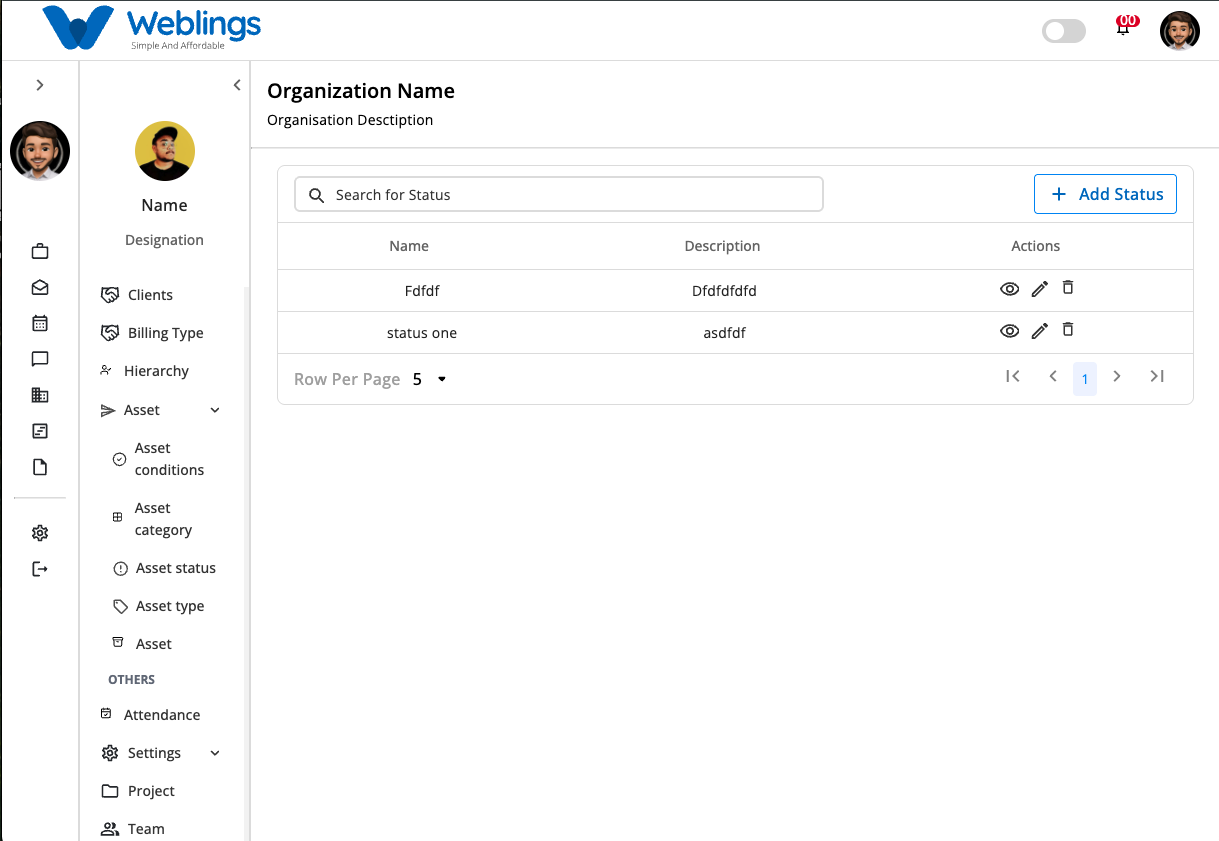
The Asset Status screen allows you to create and manage the different statuses assigned to organizational assets. Asset statuses help track the current lifecycle stage of an asset, such as whether it is available, assigned, under maintenance, or retired.
From this screen, you can:
- View all asset statuses.
- Search for an asset status.
- Create a new asset status.
- View asset status details.
- Edit an existing asset status.
- Delete an asset status.
Asset Status List
The Asset Status table displays all available asset statuses.
The table contains the following information:
- Name – The asset status name.
- Description – A brief description of the asset status.
- Actions – View, Edit, and Delete options.
Use the Search Asset Status box to quickly locate an asset status by entering its name.
Create a New Asset Status
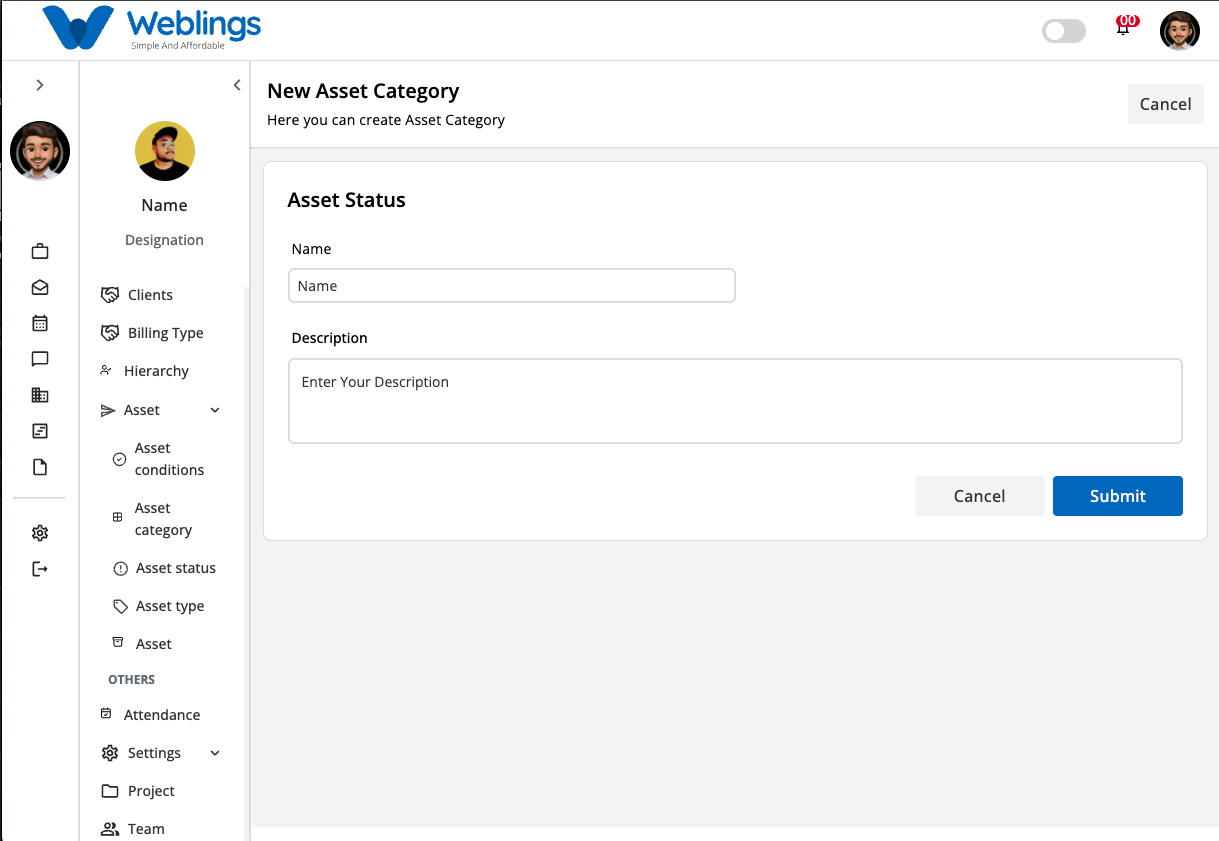
To create a new asset status, click Add Asset Status.
The New Asset Status page will open.
Asset Status Details
Enter the following information.
Name
Enter a unique name for the asset status.
Examples:
- Available
- Assigned
- In Use
- Under Maintenance
- Reserved
- Retired
- Disposed
Description
Provide a brief description explaining the asset status.
Submit
Click Submit to create the asset status.
The newly created asset status will appear in the Asset Status list.
Cancel
Click Cancel to return to the previous screen without saving.
View Asset Status
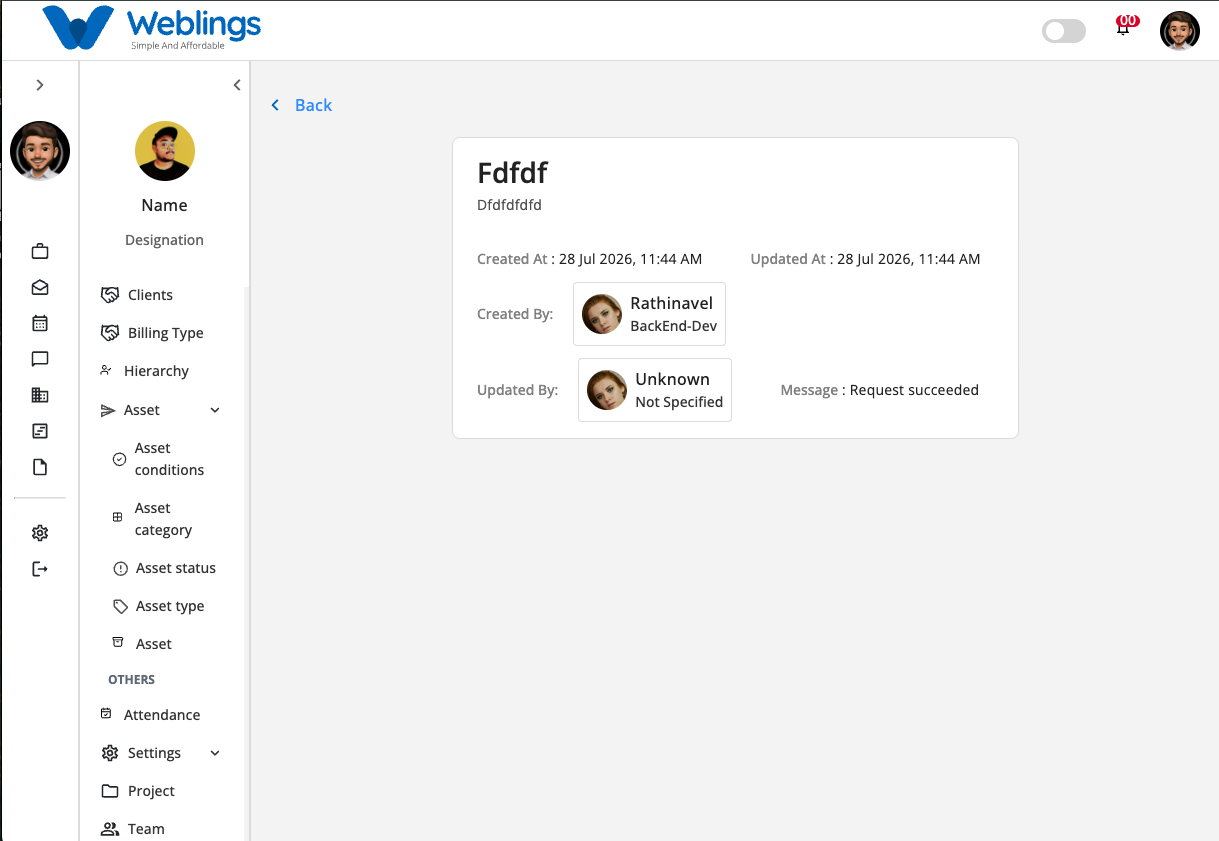
To view an asset status:
- Click the View (👁️) icon from the Actions column.
The details page displays:
- Name
- Description
- Created At
- Updated At
- Created By
- Updated By
- Message
This page is for viewing information only.
Edit an Asset Status
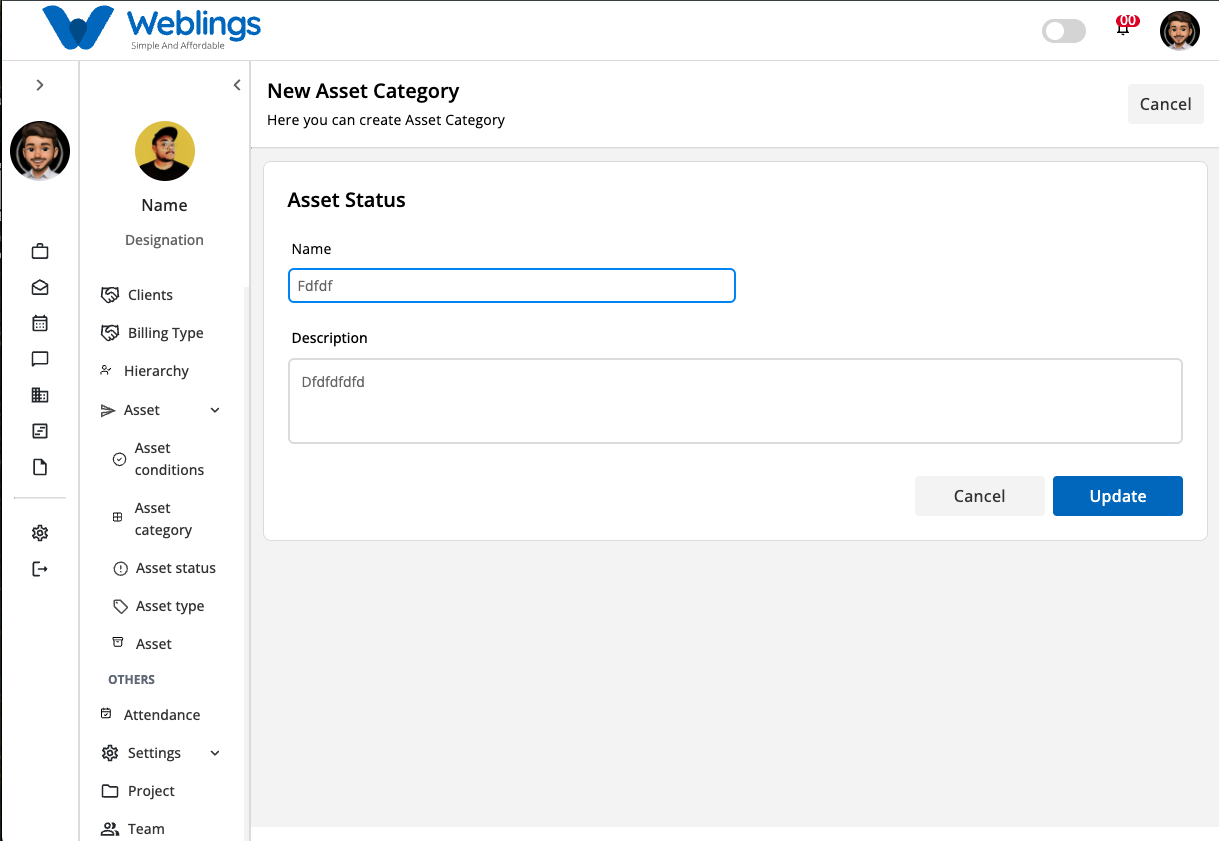
To modify an existing asset status:
- Click the Edit (✏️) icon.
- Update:
- Name
- Description
- Click Update to save your changes.
The updated information will immediately appear in the Asset Status list.
If you do not wish to save your changes, click Cancel.
Delete an Asset Status
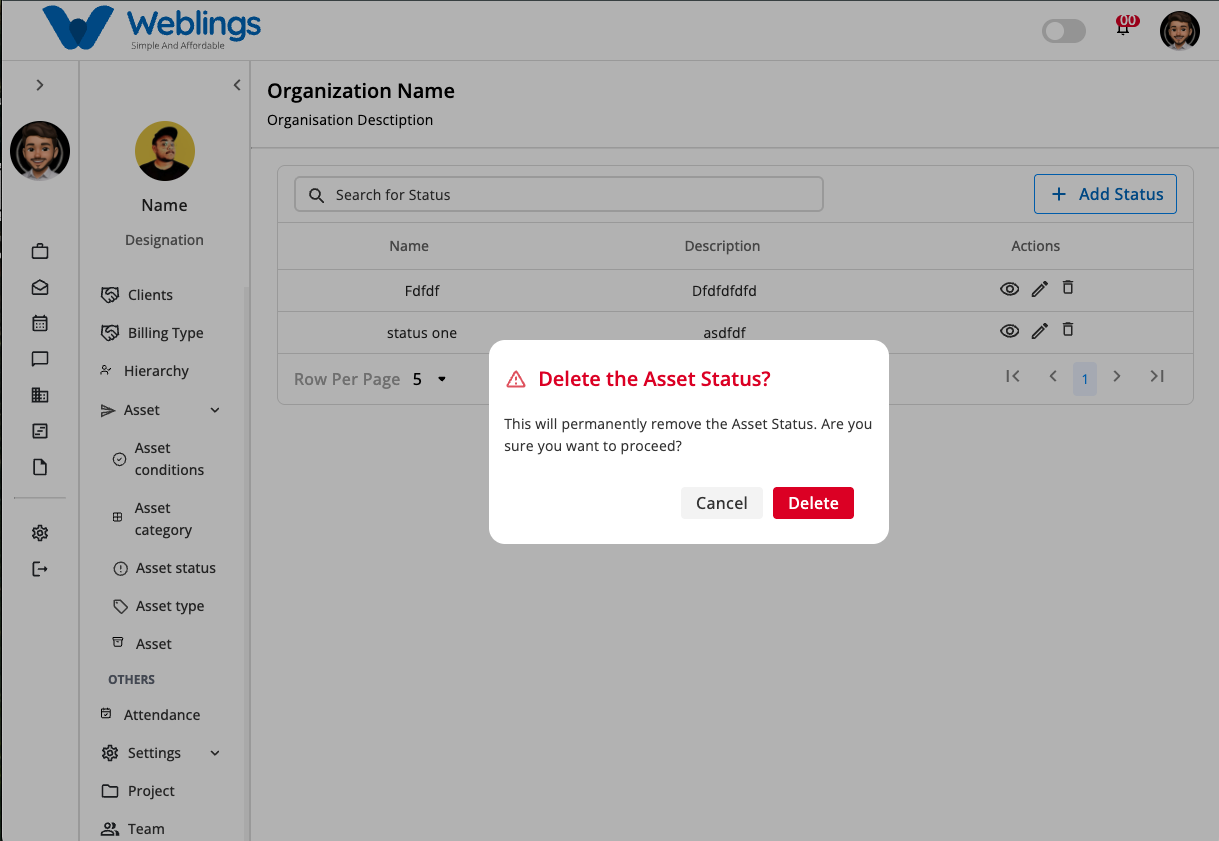
To remove an asset status:
- Click the Delete (🗑️) icon.
- A confirmation dialog will appear.
Confirmation Message
This will permanently remove the Asset Status. Are you sure you want to proceed?
You will have two options:
Cancel
Returns to the previous screen without deleting the asset status.
Delete
Permanently removes the selected asset status.
Note: Deleting an asset status cannot be undone. Before deleting, ensure that it is not currently assigned to any assets.