
Clients
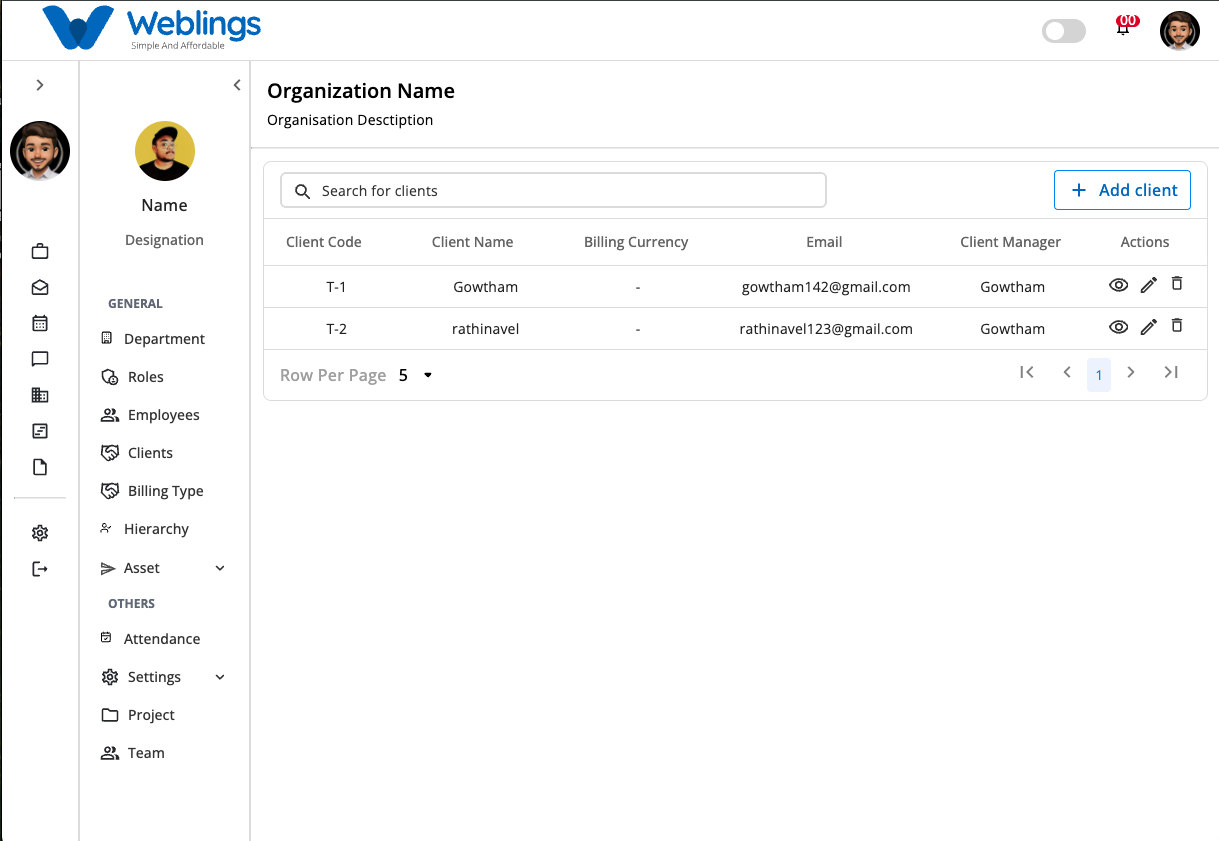
The Clients screen allows you to manage all client information for your organization. You can add new clients, update existing client details, view complete client information, search for clients, and remove clients that are no longer active.
From this screen, you can:
- View all clients.
- Search for a client.
- Add a new client.
- View client details.
- Edit client information.
- Delete a client.
Client List
The Client table displays all clients created for your organization.
The table includes the following information:
- Client Code – A unique code used to identify the client.
- Client Name – The client's company or organization name.
- Billing Currency – The currency used for billing the client.
- Email – Primary contact email address.
- Client Manager – Employee responsible for managing the client.
- Actions – Options to View, Edit, or Delete the client.
Use the Search for Clients box to quickly locate a client by entering the Client Name, Client Code, or Email Address.
Add a Client
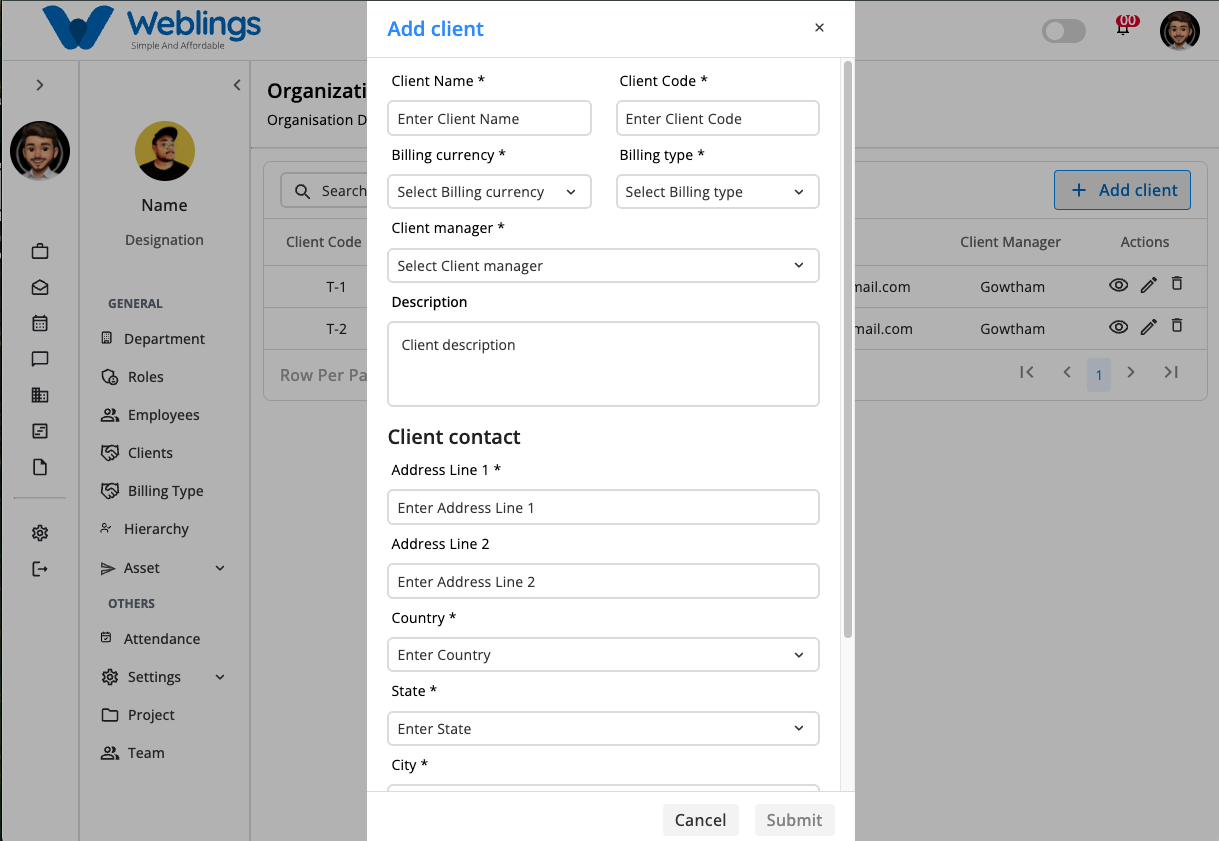
To create a new client, click Add Client.
The Add Client window will open.
Basic Information
Client Name
Enter the official name of the client.
Example:
- ABC Technologies Pvt Ltd
- Global Solutions Ltd
- Acme Corporation
Client Code
Enter a unique code for the client.
Examples:
- CL001
- TCS001
- ABC100
Billing Currency
Select the currency used when billing the client.
Examples:
- INR
- USD
- EUR
- GBP
Billing Type
Select how the client will be billed.
Examples:
- Fixed Price
- Hourly
- Monthly
- Project Based
Client Manager
Select the employee responsible for managing this client.
Description
Provide a brief description about the client or the services provided.
Client Contact Information
Complete the client's contact details.
Address Line 1
Enter the primary address.
Address Line 2 (Optional)
Enter additional address information if applicable.
Country
Select the client's country.
State
Select the state or province.
City
Select the city.
GST Number (Optional)
Enter the client's GST or Tax Identification Number.
Email Address
Enter the client's official email address.
Contact Number
Enter the client's primary contact number.
Save or Cancel
After entering all required information:
- Click Submit to save the client.
- Click Cancel to close the window without saving.
If all information is valid, the client will be added successfully.
View Client Details
Click the View (👁️) icon from the Actions column to open the Client Details page.
The Client Details page is divided into three tabs:
- Dashboard
- Projects
- Profile
Dashboard
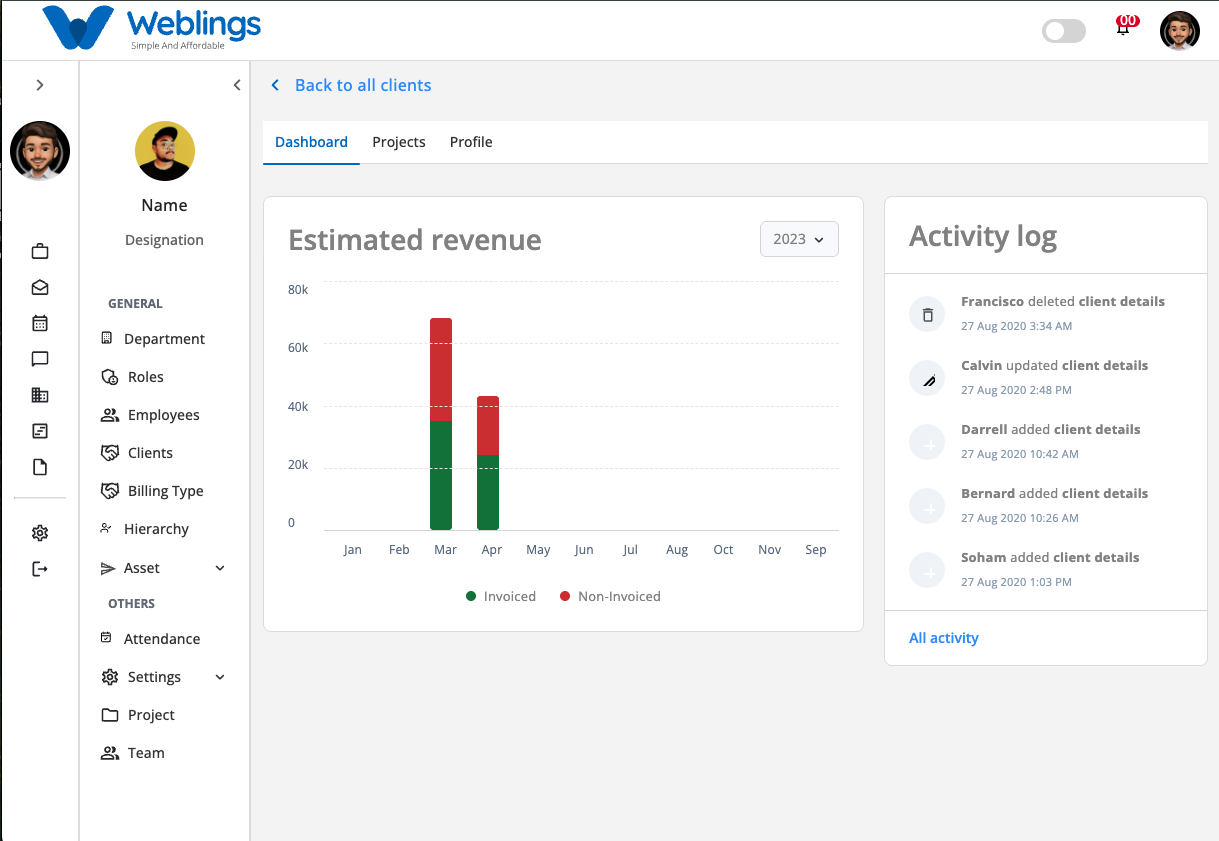
The Dashboard tab provides a quick overview of the client's business performance.
It includes the following sections:
Estimated Revenue
Displays the client's estimated revenue for the selected year.
The chart compares:
- Invoiced Revenue
- Non-Invoiced Revenue
Use the Year dropdown to switch between available financial years.
Activity Log
The Activity Log displays recent actions performed for the client.
Examples include:
- Client created
- Client information updated
- Client deleted
- Project assigned
- Project completed
Click All Activity to view the complete activity history.
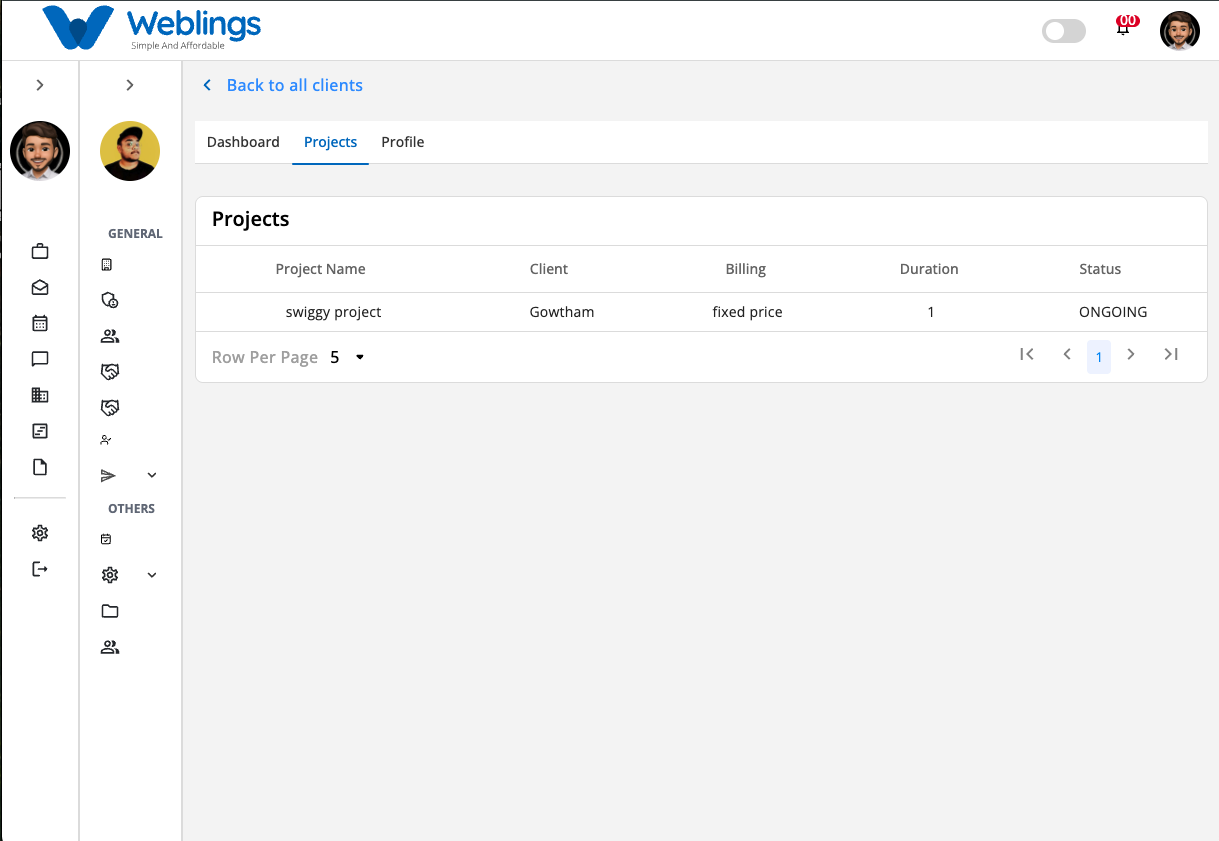
Projects
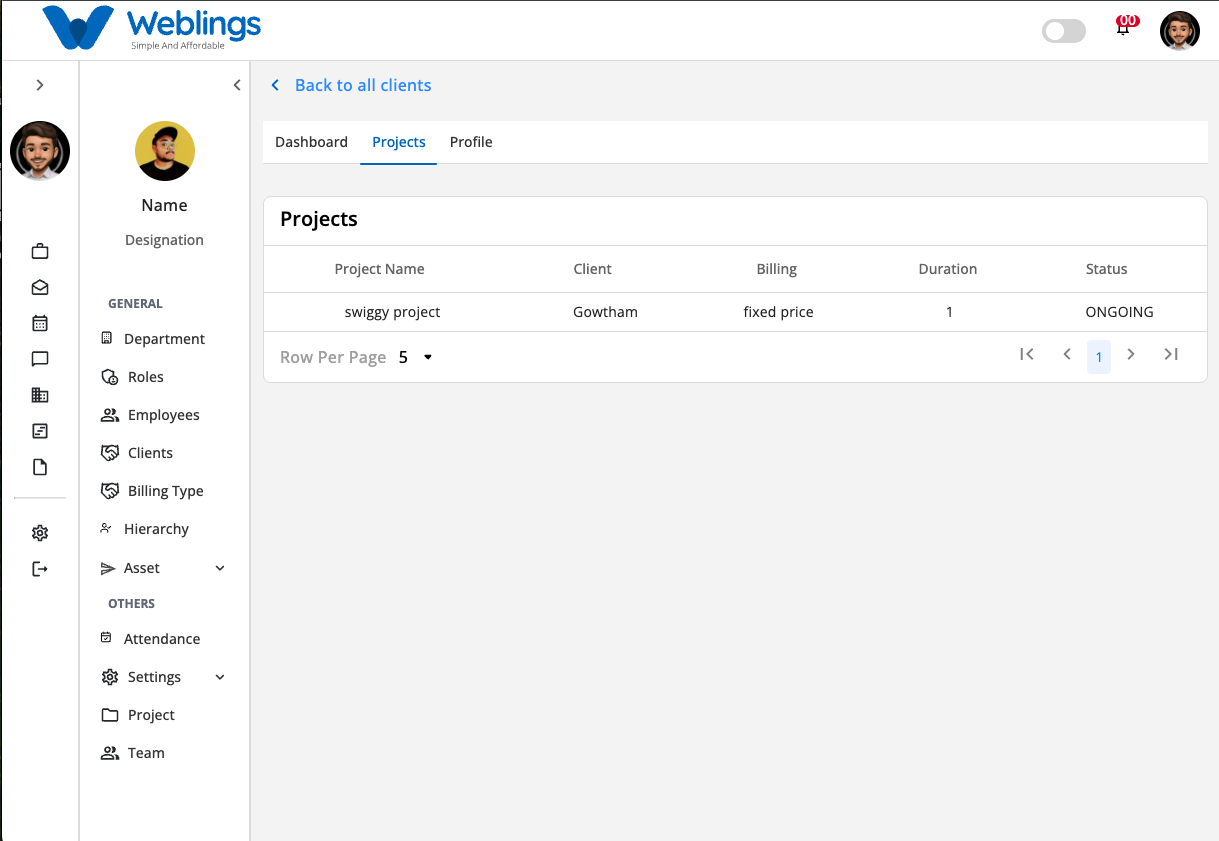
Select the Projects tab to view all projects associated with the selected client.
The project list includes:
- Project Name
- Client
- Billing Type
- Duration
- Project Status
Use this tab to quickly monitor every project created for the client.
If no projects have been assigned, an empty list will be displayed.
Profile
The Profile tab displays complete client information.
The profile includes:
Basic Information
- Client Name
- Client Code
- Description
- Billing Currency
- Billing Type
- Client Manager
Contact Information
- Address Line 1
- Address Line 2
- Country
- State
- City
- GST Number
- Email Address
- Contact Number
System Information
- Created At
- Updated At
- Created By
- Updated By
- Status Message
The Profile tab is view-only and cannot be edited directly.
To update client information, return to the Client List and click the Edit icon.
Edit a Client
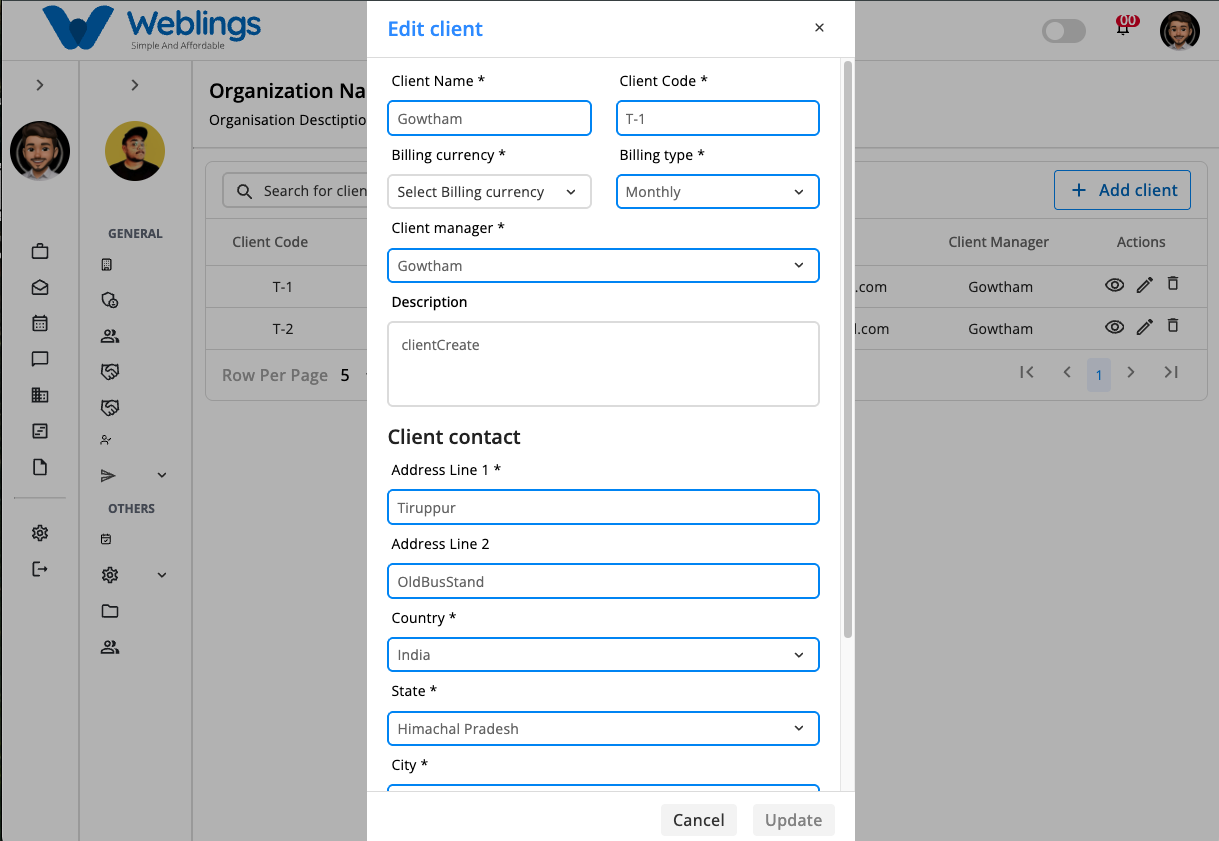
To modify client information:
- Click the Edit (✏️) icon.
- Update the required information.
- Click Update to save your changes.
You can update:
- Client Name
- Client Code
- Billing Currency
- Billing Type
- Client Manager
- Description
- Address
- Country
- State
- City
- GST Number
- Email Address
- Contact Number
Click Cancel to discard your changes.
Delete a Client
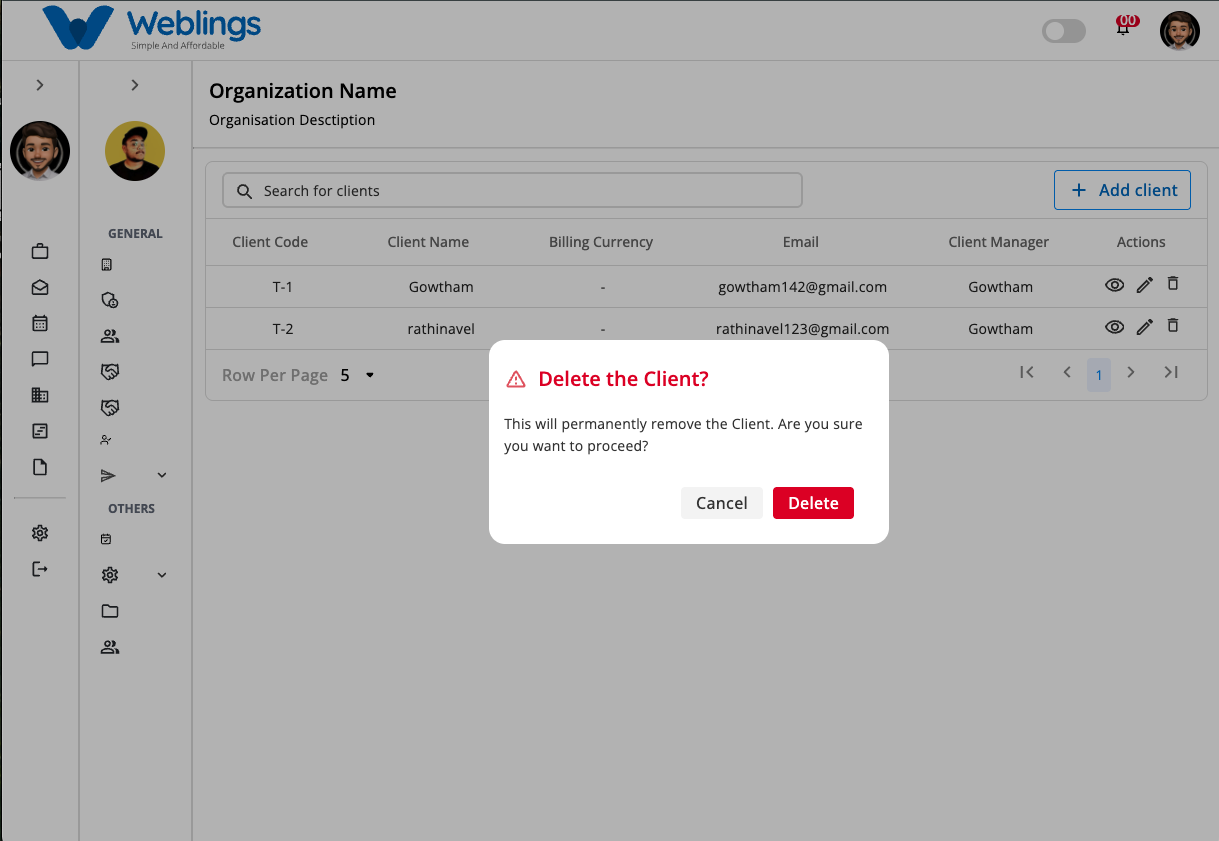
To remove a client:
- Click the Delete (🗑️) icon.
- A confirmation dialog will appear.
Confirmation Message
This will permanently remove the Client. Are you sure you want to proceed?
Choose one of the following options:
Delete
Permanently removes the client.
Cancel
Closes the confirmation window without deleting the client.
Note: Clients associated with active projects or invoices should be reassigned or completed before deletion.
Search Clients
Use the Search for Clients box to locate a client quickly.
You can search using:
- Client Name
- Client Code
- Email Address
Matching results are displayed automatically as you type.