
Pay Scale
Pay Scale
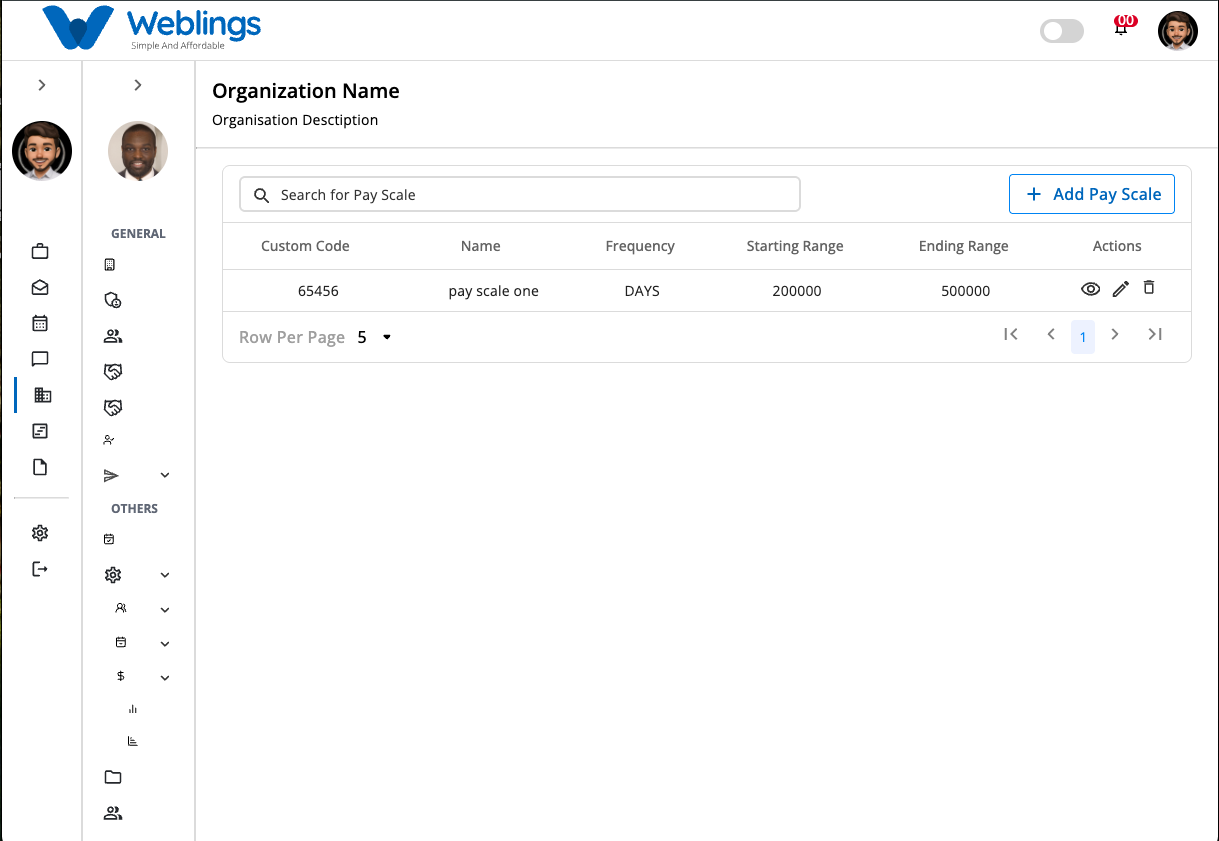
The Pay Scale screen allows you to create and manage salary scale structures for your organization. A Pay Scale defines the salary range and pay frequency that can be assigned to one or more Pay Grades.
The Pay Scale list displays all available pay scales with the following information:
- Custom Code
- Pay Scale Name
- Description
- Actions (View, Edit, Delete)
You can also use the Search Pay Scale bar to quickly find a pay scale by entering its name or custom code.
Create a New Pay Scale
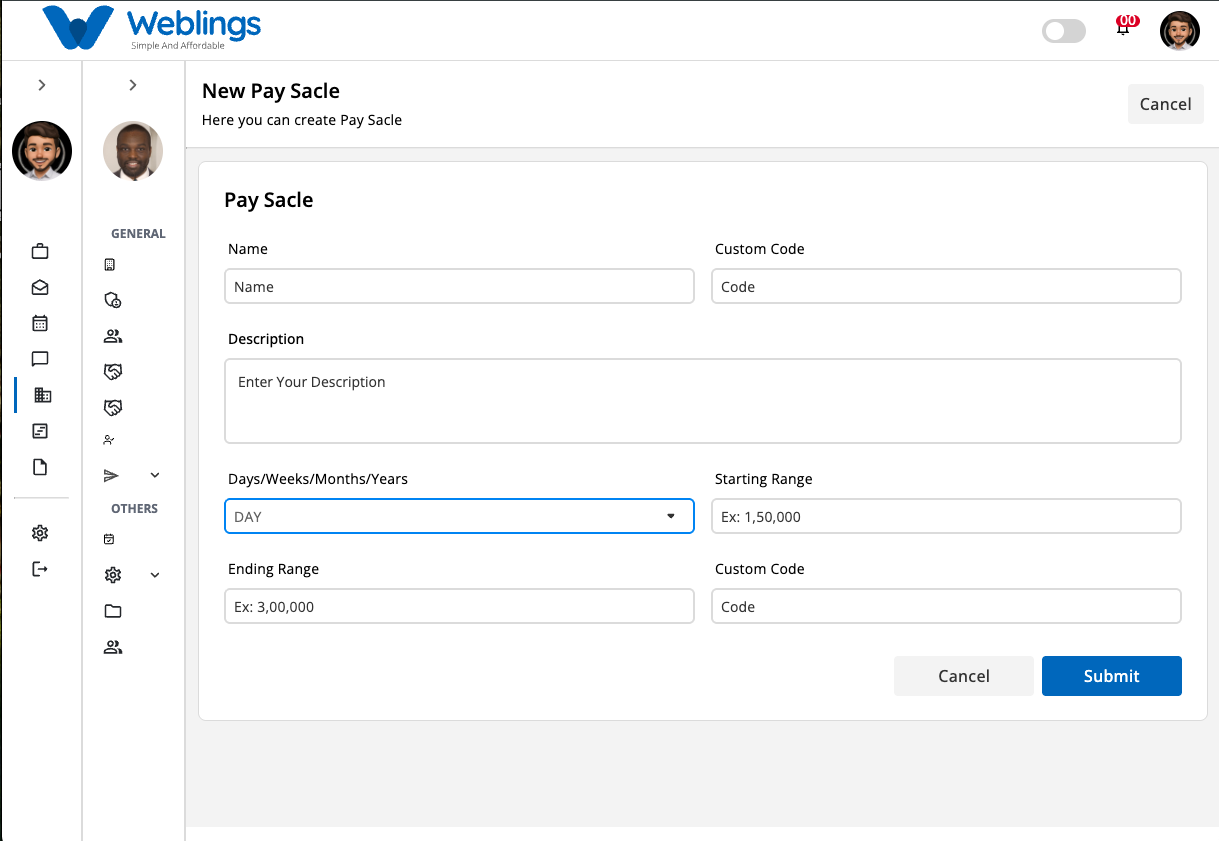
To create a new pay scale, click the Add Pay Scale button in the top-right corner of the screen.
The New Pay Scale page will open.
Pay Scale Details
Complete the following information:
Basic Information
- Custom Code
- Pay Scale Name
- Description
Pay Scale Configuration
- Frequency
- Daily
- Weekly
- Monthly
- Yearly
- Starting Range
- Ending Range
Note: The Ending Range must be greater than or equal to the Starting Range.
Save or Cancel
After entering all required information:
Submit
Click Submit to create the new pay scale.
The pay scale will be added to the Pay Scale list.
Cancel
Click Cancel to return to the previous screen without saving.
View Pay Scale
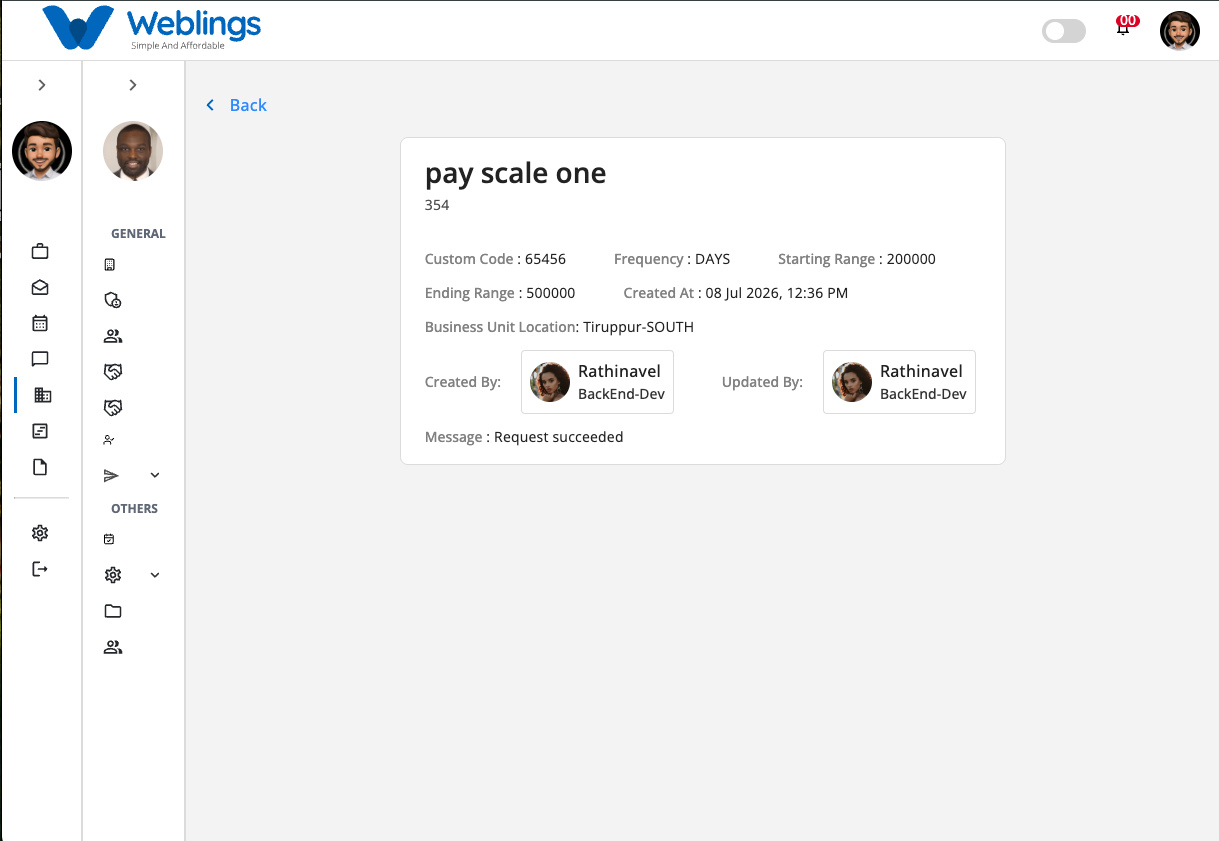
To view a pay scale:
- Click the View (👁️) icon from the Actions column.
The details page displays:
- Pay Scale Name
- Description
- Custom Code
- Frequency
- Starting Range
- Ending Range
- Created Date & Time
- Business Unit Location
- Created By
- Updated By
- Status Message
This page is for viewing information only and cannot be edited.
Edit a Pay Scale
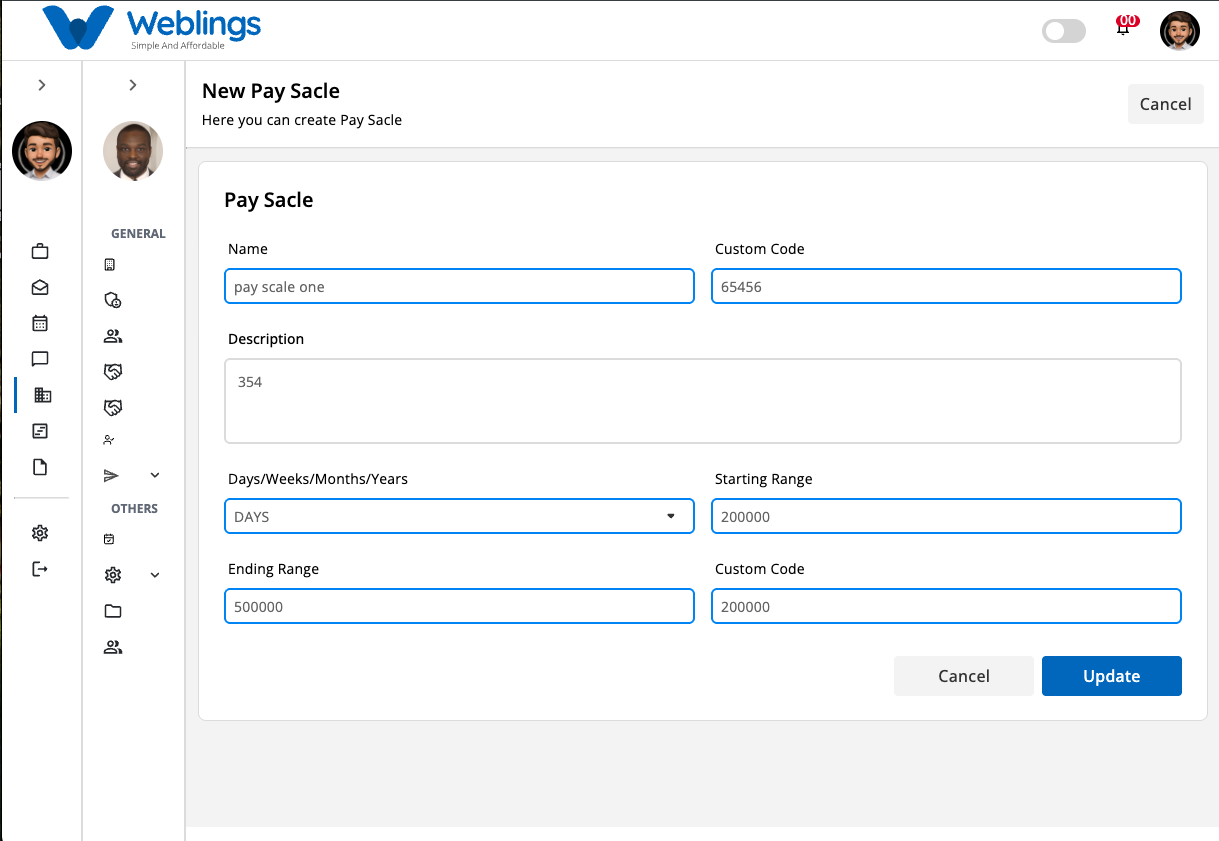
To update an existing pay scale:
- Click the Edit (✏️) icon.
- The Edit Pay Scale page will open.
- Update any of the following:
- Pay Scale Name
- Custom Code
- Description
- Frequency (Days / Weeks / Months / Years)
- Starting Range
- Ending Range
- Click Update to save your changes.
The updated information will be reflected immediately in the Pay Scale list.
If you do not wish to save your changes, click Cancel.
Delete a Pay Scale
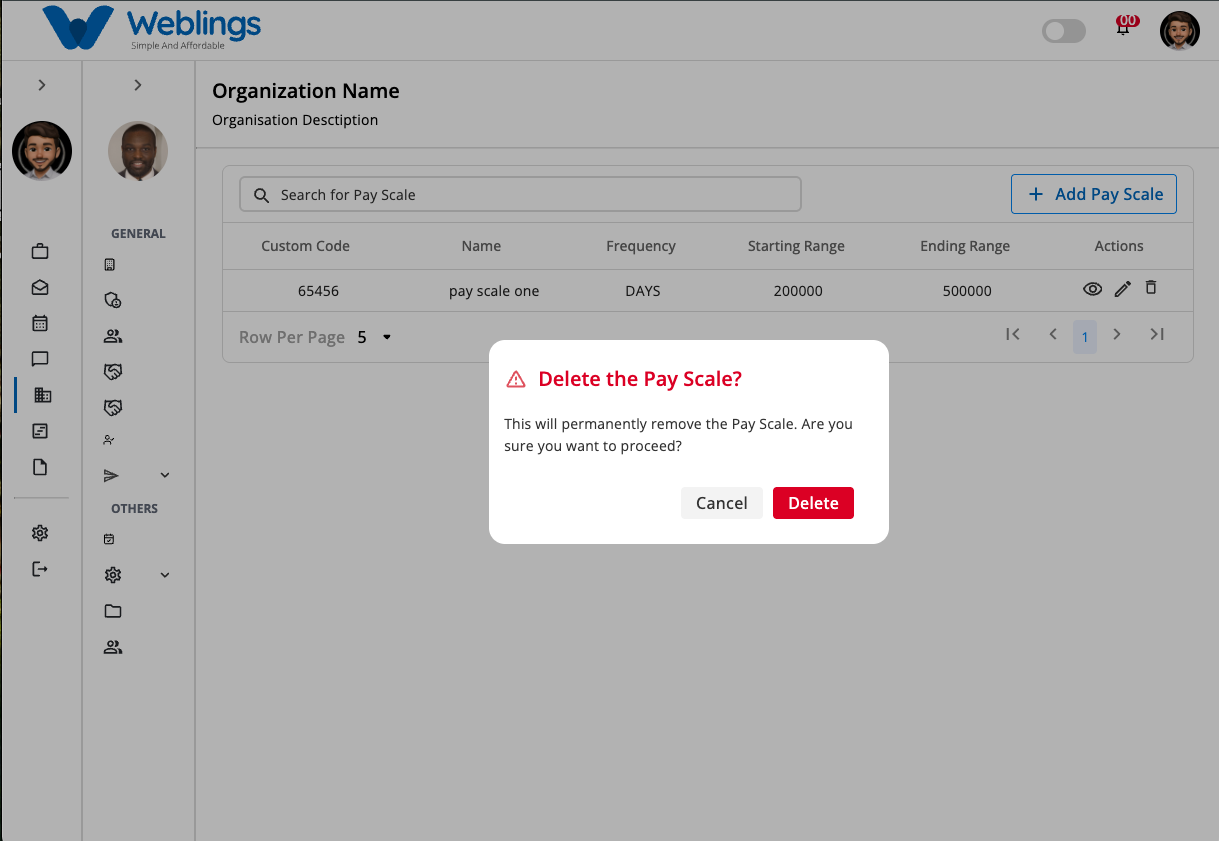
To remove a pay scale:
- Click the Delete (🗑️) icon.
- A confirmation dialog will appear.
Confirmation Message
This will permanently remove the pay scale. Are you sure you want to proceed?
You will have two options:
Cancel
Return without deleting the pay scale.
Delete
Permanently remove the selected pay scale.
Note: Deleting a pay scale cannot be undone. Ensure the pay scale is no longer assigned to any pay grades, employees, or payroll configurations before deleting it.