
Organization Details
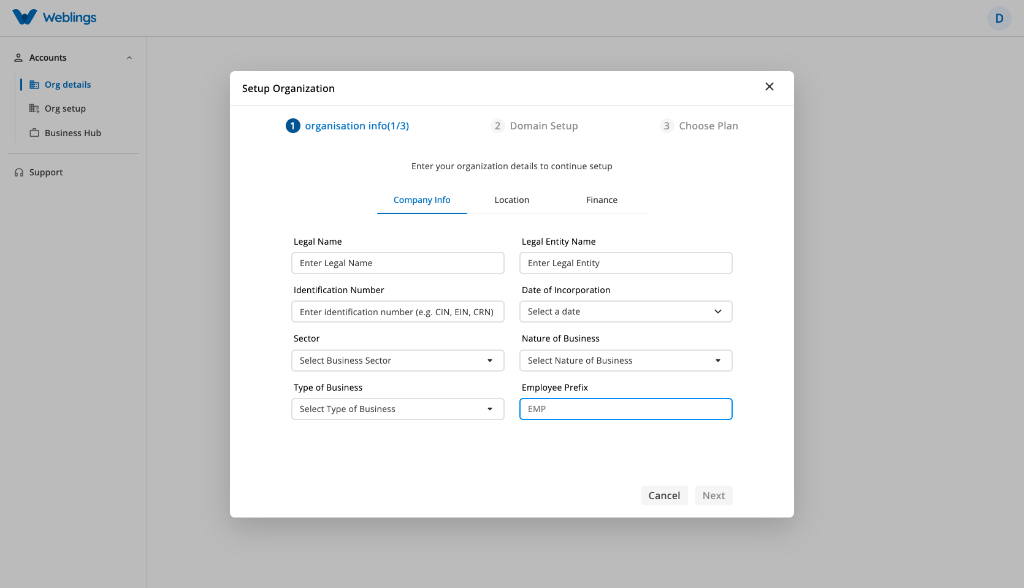
Before you can start using the platform, you need to create your organization. The Organization Setup wizard guides you through all the required steps.
The setup consists of three main steps:
- Organization Info
- Domain Setup
- Choose Plan
Complete each step to finish setting up your organization.
Step 1: Organization Info
The Organization Info step collects the basic information about your organization.
This step contains three sections:
- Company Info
- Location
- Finance
Complete all required fields before continuing.
Company Info
Enter the basic details of your organization.
| Field | Description |
|---|---|
| Legal Name | The official registered name of your organization. |
| Legal Entity Name | The legal business entity name used for registration. |
| Identification Number | Your organization's official registration or identification number. |
| Date of Incorporation | The date your organization was officially established. |
| Business Sector | Select the industry sector your organization belongs to. |
| Nature of Business | Choose the type of activities your organization performs. |
| Type of Business | Select the business structure that best describes your organization. |
| Employee Prefix | Enter a prefix that will be used when generating employee IDs (for example: EMP, WEB, HR). |
After entering the required information, click Next to continue.
Location
Provide your organization's address information.
| Field | Description |
|---|---|
| Country | Select the country where your organization is located. |
| State | Select the state or province of your organization. |
| City | Enter the city where your organization is situated. |
| ZIP / Postal Code | Enter your organization's postal or ZIP code. |
| Address Line 1 | Enter the primary street address of your organization. |
| Address Line 2 | Enter optional secondary address details (e.g. Suite, Floor, Building). |
Ensure that the address information is accurate before proceeding.
Click Next to continue.
Finance
Provide your organization's financial settings.
| Field | Description |
|---|---|
| Currency | Select the primary operational currency for financial transactions. |
| Financial Year | Select the starting and ending period for your organization's financial year. |
These settings will be used throughout the application for financial records and reporting.
After completing all required fields, click Next.
Step 2: Domain Setup
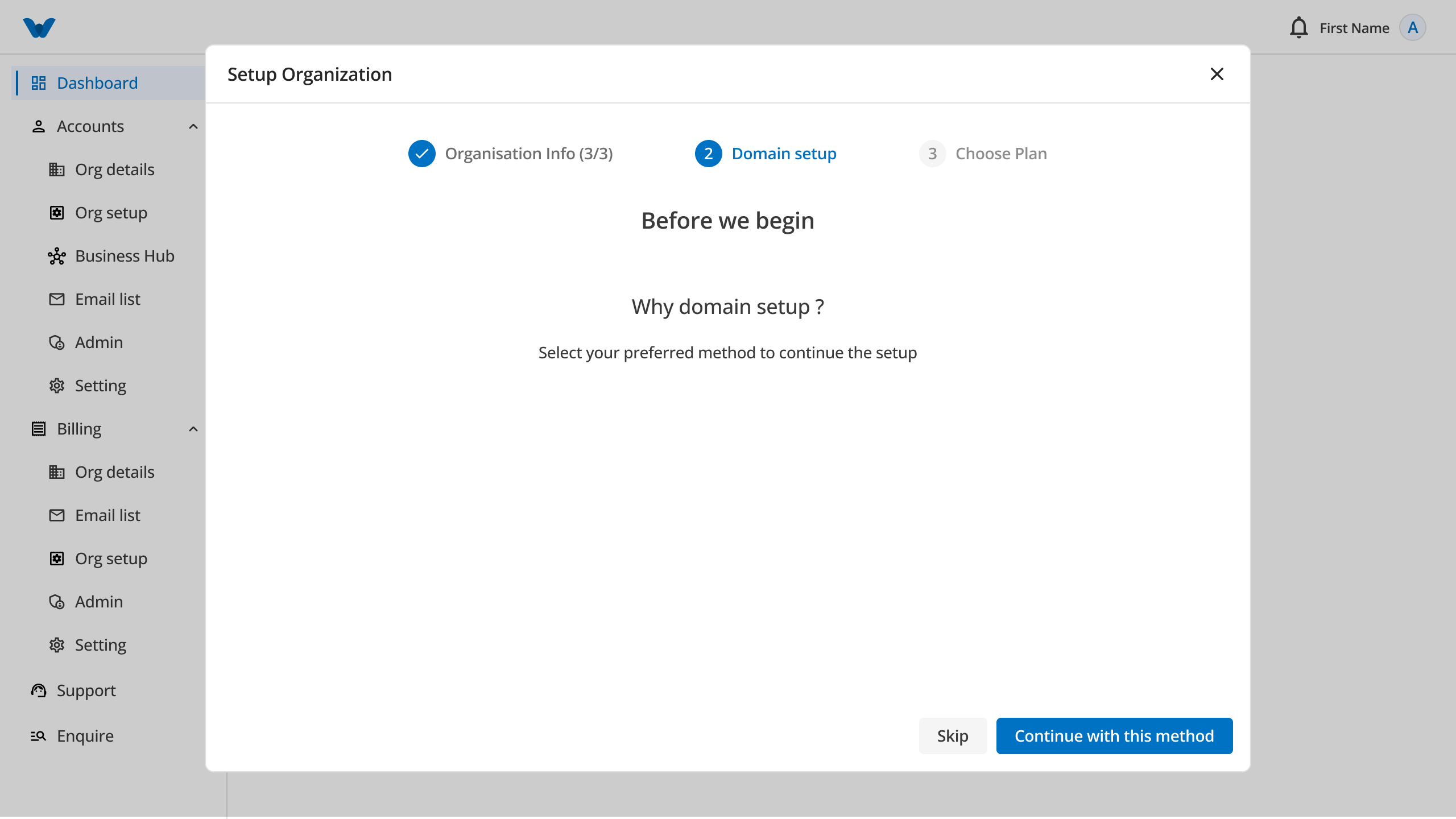
A domain gives your organization a unique web address for accessing the platform.
Why is Domain Setup Required?
Setting up a domain allows:
- A unique web address for your organization.
- Easier access for employees.
- A more professional appearance.
- Secure access to your organization's portal.
Select Continue with this Method to begin.
Select Your Domain Preference
Choose one of the following options.
Option 1: Use Weblings Domain (Free)
Use a free subdomain provided by Weblings.
Example:
yourcompany@weblings.dev
This option is recommended if you do not already own a domain.
Option 2: Add Your Existing Domain
Choose this option if you already own a domain.
Example:
yourcompany.com
You will be guided through the verification process to connect your existing domain.
Option 3: Buy a New Domain
If you don't own a domain, you can purchase one during the setup process.
Select Buy New Domain and continue.
Domain Verification
If you choose to use your own domain, you must verify that you own it.
The verification process includes the following steps:
- Enter your domain name.
- Complete the payment (if required).
- Add the provided TXT verification record to your domain settings.
- Claim and verify your domain.
Once the verification is complete, click Continue.
Buying a New Domain
If you choose to purchase a new domain:
Step 1
Read the Terms and Conditions.
You can choose:
- Agree and Continue
- Cancel
Step 2
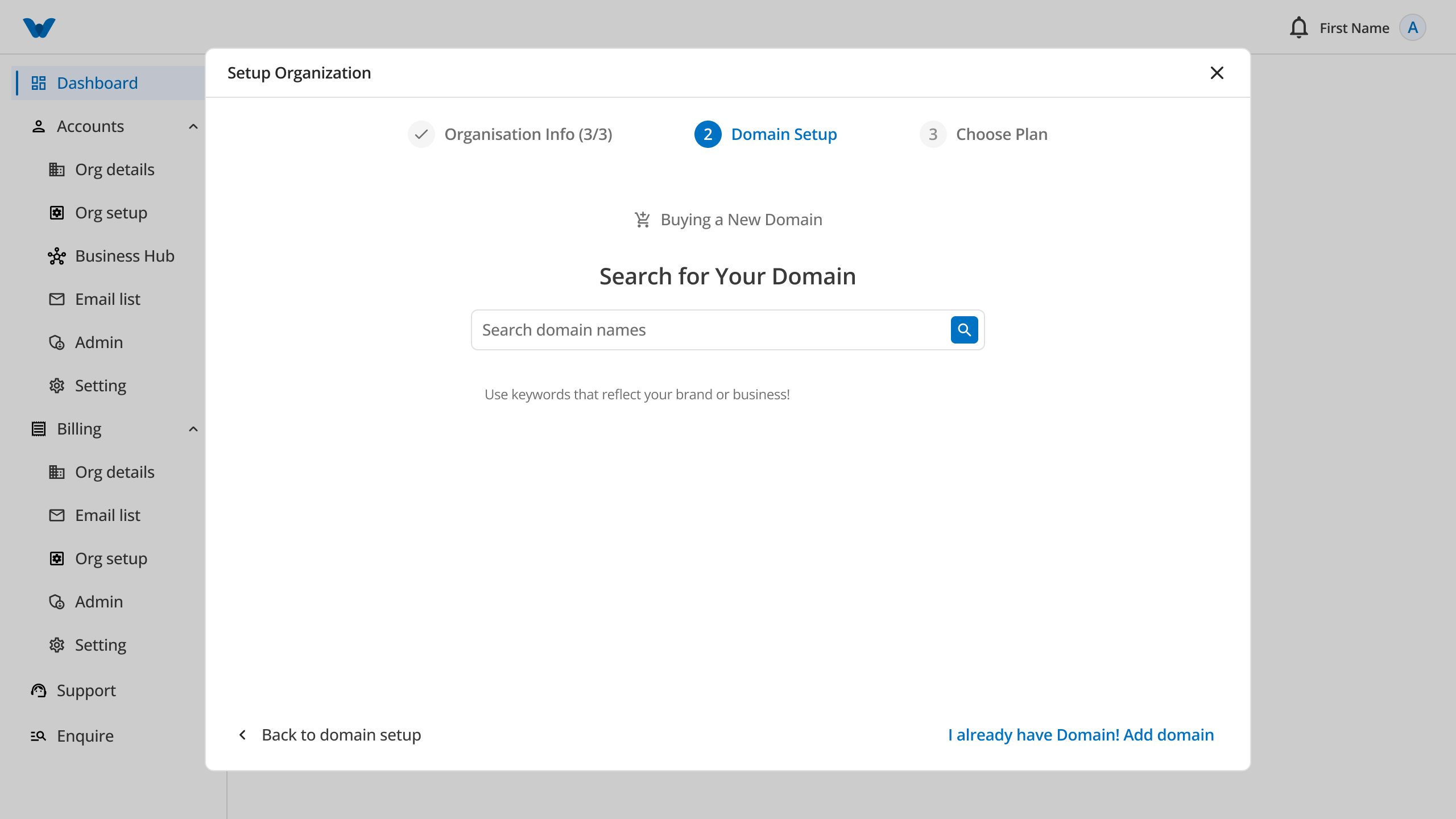
Search for your preferred domain name.
For example:
mycompany.com
The system will display available domain names.
Step 3
Choose the domain you want to purchase.
Review the available options and select the one that best fits your organization.
Proceed with the purchase.
Step 3: Choose a Plan
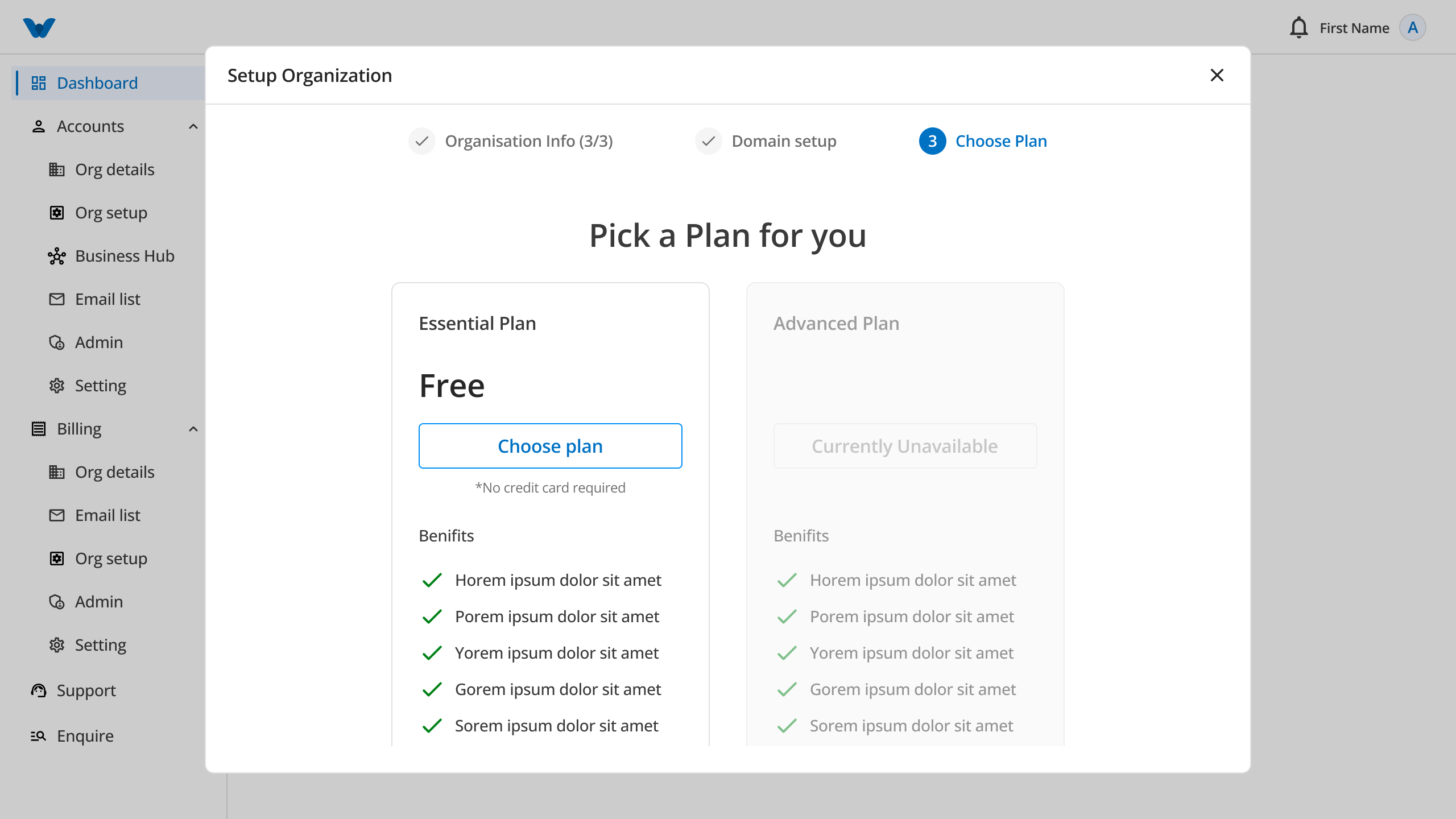
Select the subscription plan that best meets your organization's needs.
Two plans are available.
Essential Plan
The Essential Plan is suitable for small businesses and organizations that require core features.
This plan includes:
- Basic organization management
- User management
- Email services
- Standard support
Advanced Plan
The Advanced Plan is designed for organizations that need additional features and greater flexibility.
This plan includes:
- Everything in the Essential Plan
- Advanced management features
- Additional storage
- Premium support
- Enhanced security features
Select the plan that best suits your organization's requirements.
Click Next to continue.
Review & Checkout
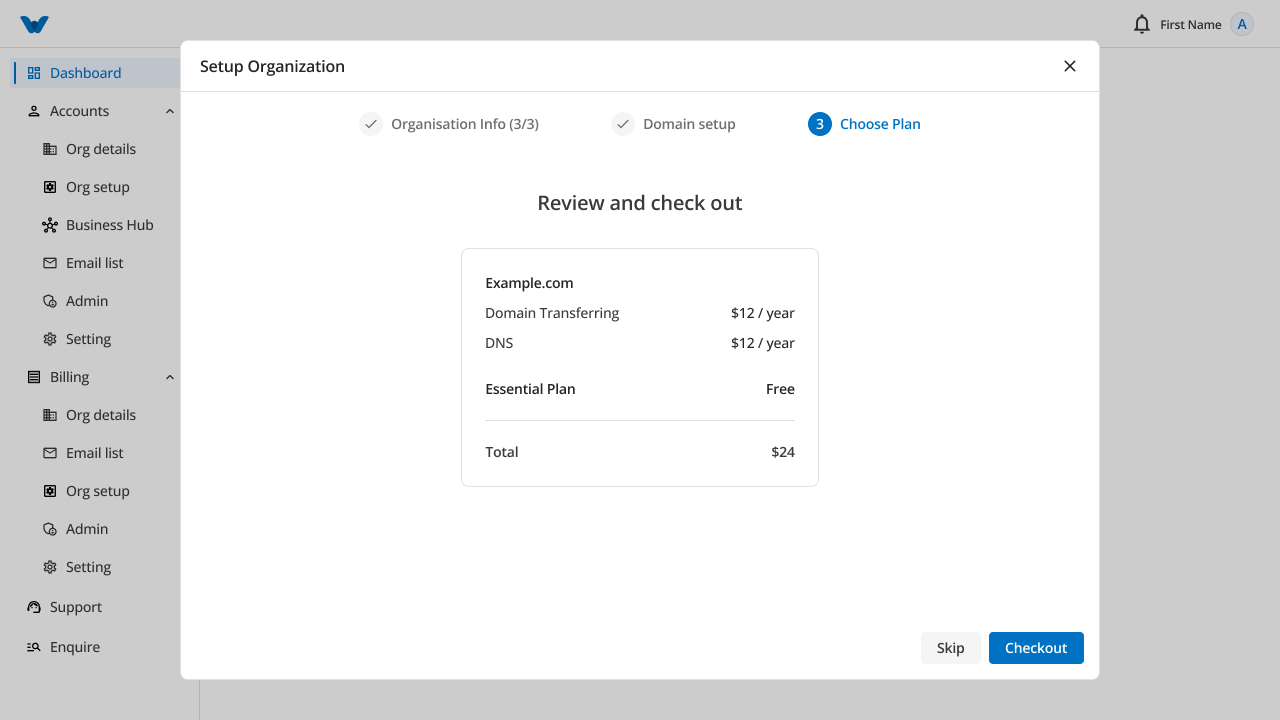
Before completing your purchase, review your order.
Verify:
- Selected subscription plan
- Domain details
- Billing information
- Total payment amount
If everything is correct, click Proceed to Payment.
Payment Successful
After your payment has been processed successfully, a confirmation message will be displayed.
Click Next to continue with the final setup.
DNS Setup
The DNS Setup page provides the information required to connect your domain to the platform.
If you are using:
- An existing domain, update your DNS records using the provided instructions.
- A newly purchased domain, the DNS settings may be configured automatically depending on your domain provider.
After your DNS settings are configured and verified, continue to the final step.
Organization details Complete
Congratulations!
Your organization has been created successfully.
You can now:
- Access your organization dashboard.
- Invite users and employees.
- Configure organization settings.
- Start using all available features based on your selected subscription plan.
Click Finish to open your organization's dashboard.
Accounts
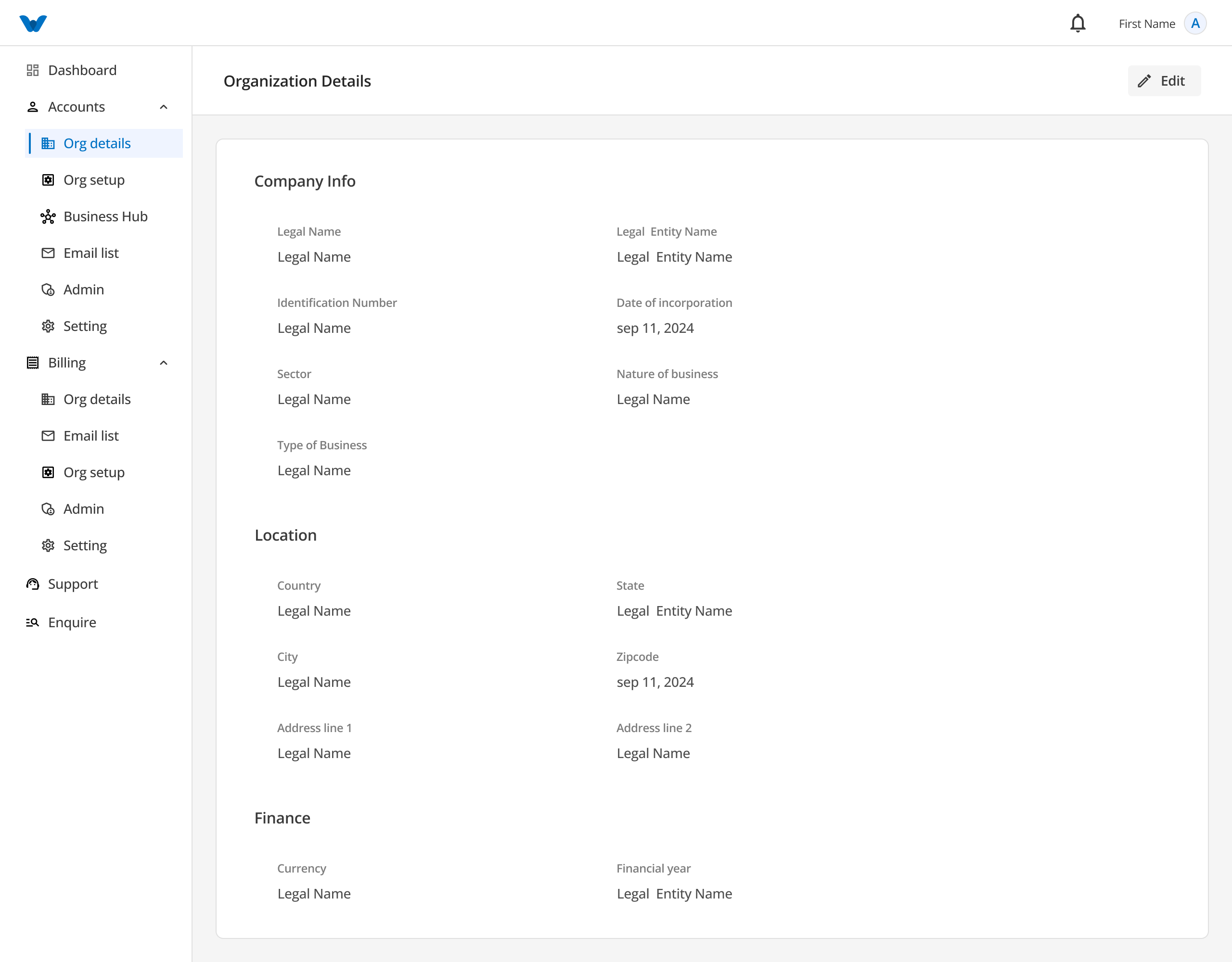
After you complete the Organization Setup, the Accounts section becomes available in the sidebar.
The Accounts module allows you to view and manage your organization's information.
It contains the following sections:
- Company Information
- Location Information
- Finance Information
Company Information
The Company Information section displays the basic details of your organization.
You can view details in the table below:
| Field | Description |
|---|---|
| Legal Name | The official registered name of your organization. |
| Legal Entity Name | The legal business entity name used for registration. |
| Identification Number | Official registration or identification number. |
| Date of Incorporation | Official date your organization was established. |
| Business Sector | Industry sector your organization belongs to. |
| Nature of Business | Primary activities performed by your organization. |
| Business Type | Business structure of your organization. |
| Employee Prefix | Prefix code used for generating employee IDs. |
If any information needs to be updated, click the Edit button, make the necessary changes, and save them.
Location Information
The Location Information section displays your organization's registered address.
| Field | Description |
|---|---|
| Country | Registered country of your organization. |
| State | State or province of your registered location. |
| City | City of your registered office. |
| ZIP Code | Postal or ZIP code of the location. |
| Address Line 1 | Primary registered street address. |
| Address Line 2 | Secondary address line (optional). |
Click Edit to update your location details.
Finance Information
The Finance Information section contains your organization's financial settings.
| Field | Description |
|---|---|
| Currency | Primary operating currency used for financial reporting. |
| Financial Year | Configured financial reporting period. |
Click Edit to save any changes.
Billing
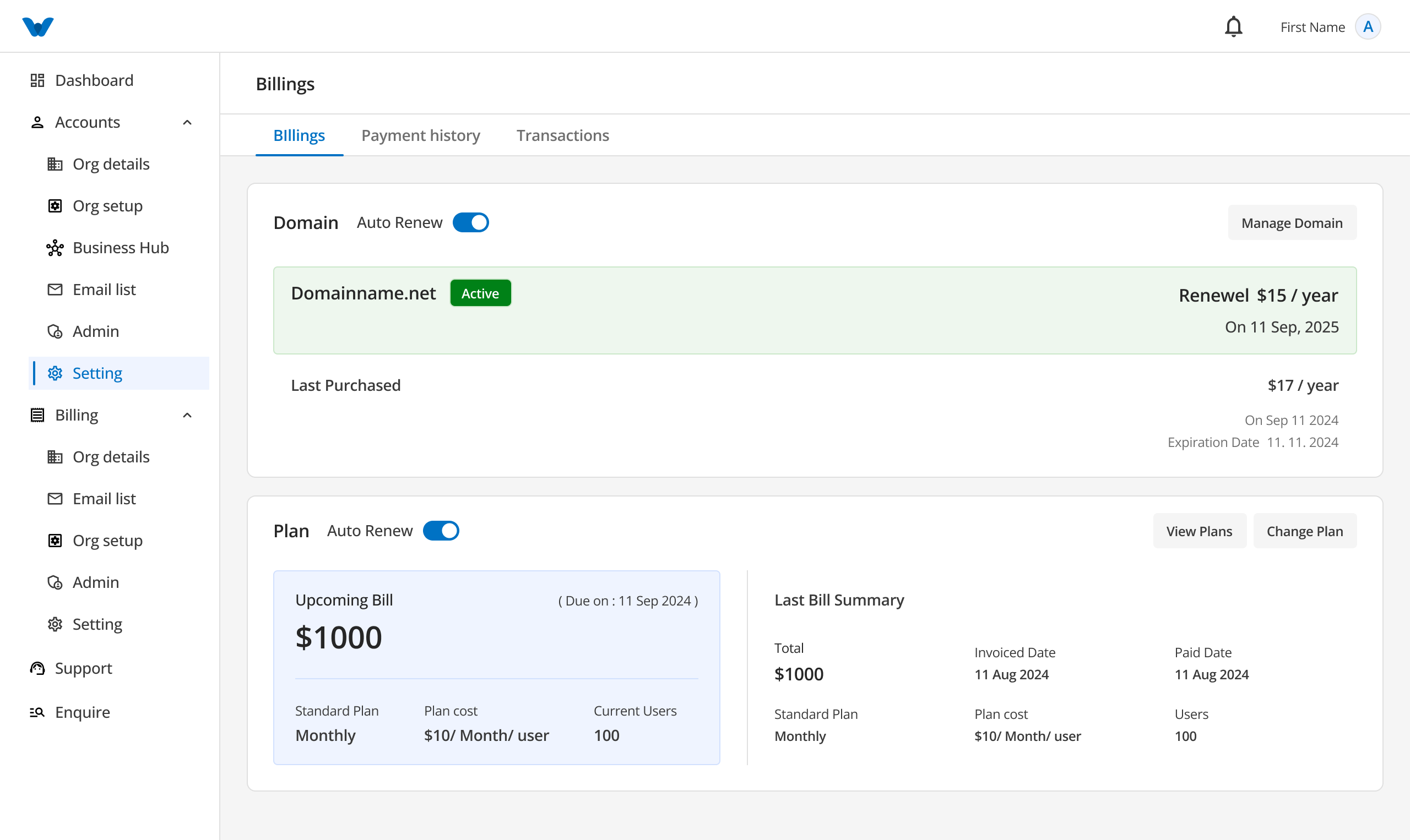
The Billing section helps you manage your organization's billing information and payment records.
It contains three tabs:
- Billing
- Payment History
- Transactions
Billing
The Billing tab displays all bills generated for your organization.
Examples include:
- Domain Purchase
- Subscription Plan
- Additional Services (if applicable)
Each bill shows information in the table below:
| Field | Description |
|---|---|
| Bill Name | Title or description of the generated bill. |
| Invoice Number | Unique invoice reference number. |
| Billing Date | Date the invoice was generated. |
| Due Date | Payment deadline date for the invoice. |
| Amount | Total payable amount. |
| Payment Status | Current status of the bill (e.g. Paid, Pending, Overdue). |
You can review your bills and keep track of outstanding payments.
Payment History
The Payment History tab displays all completed payments made by your organization.
Each record includes the following details:
| Field | Description |
|---|---|
| Payment Date | Date the payment transaction was completed. |
| Invoice Number | Reference invoice number for the payment. |
| Item | Purchased product or service item. |
| Price | Total price paid for the item. |
| Status | Payment processing status (e.g. Completed, Failed). |
| Payment Method | Payment method used (e.g. Credit Card, Bank Transfer). |
| Actions | Options to download receipt or view details. |
Use this section to review your previous payments.
Transactions
The Transactions tab provides a detailed record of every transaction related to your organization.
| Field | Description |
|---|---|
| Date | Date and timestamp of the transaction. |
| Transaction ID | Unique transaction identification code. |
| Item | Associated product or billing item. |
| Amount | Transaction monetary value. |
| Status | Transaction status (e.g. Success, Pending). |
| Payment Method | Payment gateway or method used. |
| From | Sender or source account entity. |
| To | Recipient or destination entity. |
| Action | View detailed transaction summary. |
The Action option allows you to view additional information about a specific transaction.
Workflow
Complete Organization Setup
        ↓
Accounts Module Becomes Available
        ↓
View Company Information
        ↓
Update Location Details (Optional)
        ↓
Update Finance Details (Optional)
        ↓
View Bills
        ↓
Review Payment History
        ↓
Track Transactions
Quick Summary
The Accounts module allows you to:
- View your organization details
- Update company information
- Manage location details
- Update finance settings
The Billing module allows you to:
- View invoices and bills
- Review payment history
- Track all financial transactions
- Monitor payment status