
Sign In
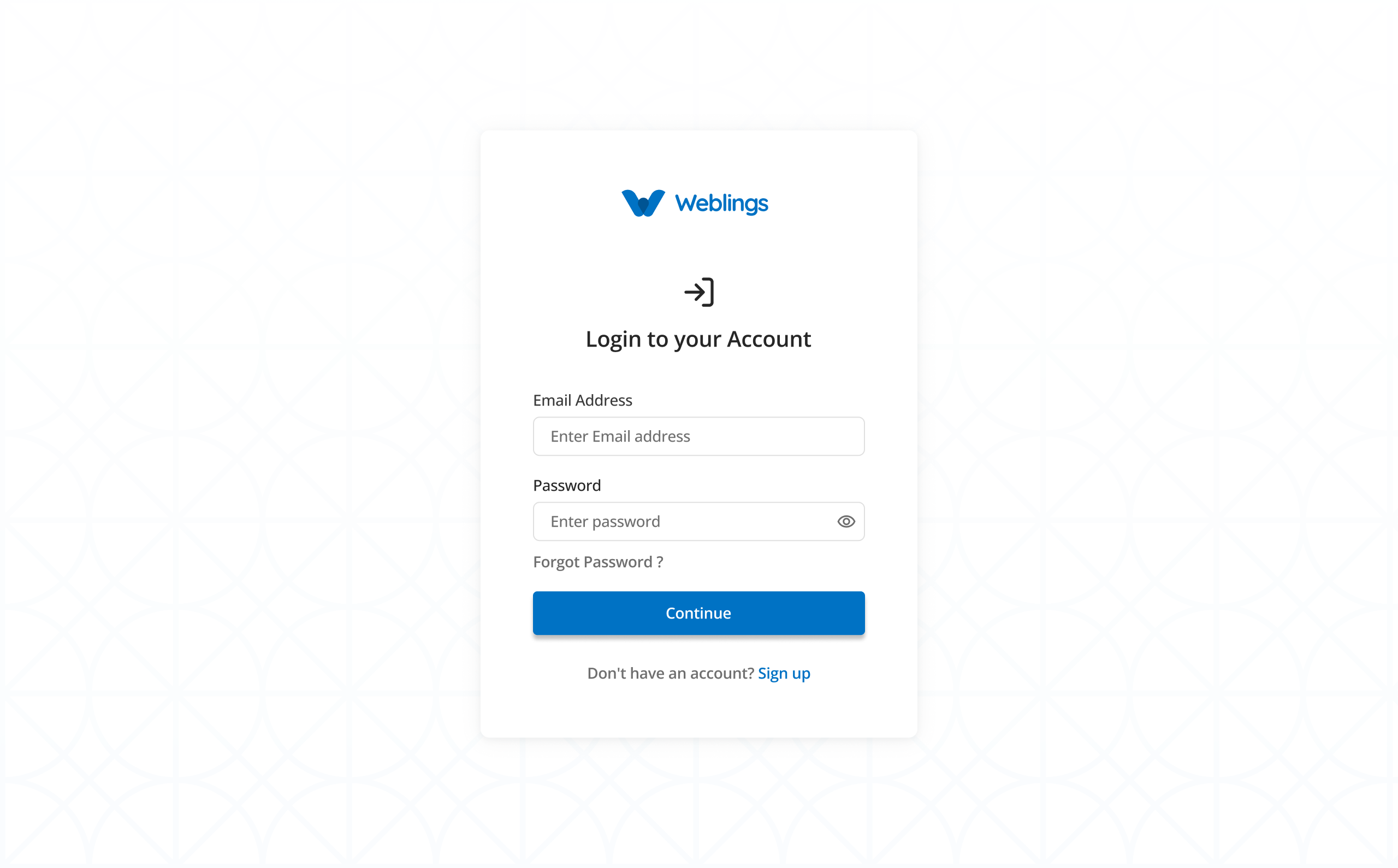
Use your registered email address and password to access your account securely.
Before You Begin
Make sure you have:
- A registered account.
- A verified email address.
- Your account password.
Steps to Sign In
- Open the Sign In page.
- Enter your registered Email Address.
- Enter your Password.
- If you want to check your password before signing in, click the Show Password (👁️) icon.
- Click Continue.
If your email address and password are correct, you will be signed in and redirected to your dashboard.
Forgot Your Password?
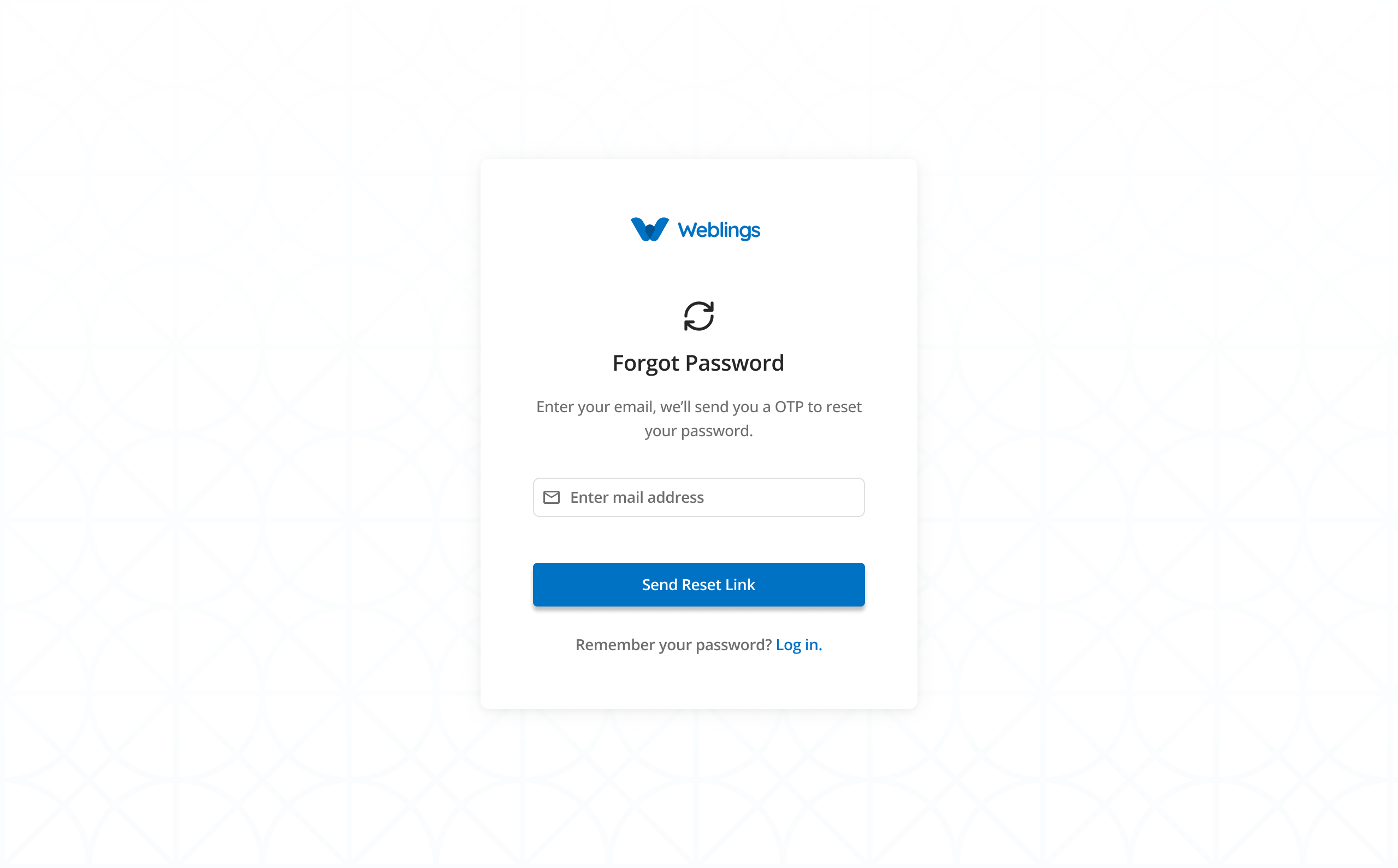
If you have forgotten your password, you can easily create a new one by verifying your email address.
On the Sign In page, click Forgot Password? to begin the password reset process.
Step 1: Enter Your Email Address
The Forgot Password page will open.
Enter the email address that is registered with your account.
Note: Make sure you enter the same email address you used when creating your account.
After entering your email address, click Send OTP.
If you remember your password before resetting it, click Log In to return to the Sign In page.
Step 2: Verify Your Email
After clicking Send OTP, a One-Time Password (OTP) will be sent to your registered email address.
At the same time, the website will display the Check Your Email page, where you will be asked to enter the OTP.
Open your email inbox and locate the email containing the verification code.
If you cannot find the email, check your Spam, Junk, or Promotions folder.
Enter the OTP exactly as it appears in the email.
Click Verify.
If the OTP is correct, you will be taken to the next step.
Note: If you do not receive the OTP, you can request a new one by clicking Resend OTP. The Resend OTP option becomes available after 60 seconds.
Step 3: Reset Your Password
After your email has been verified, the Reset Your Password page will be displayed.
Enter your new password.
Your new password must meet the following requirements:
- Be at least 8 characters long.
- Include at least one uppercase letter (A–Z).
- Include at least one lowercase letter (a–z).
- Include at least one number (0–9).
- Include at least one special character (such as **! @ # $ % & ***).
Next, enter the same password again in the Confirm Password field.
This helps ensure that your new password has been entered correctly.
After completing both fields, click Confirm.
Password Reset Successful
If your password has been updated successfully, a confirmation screen will be displayed.
You will see a message similar to:
Your password has been updated successfully.
You can now sign in using your new password.
Click Back to Sign In or Log In to return to the Sign In page.
Enter your email address and your new password to access your account.
Workflow
Sign In
    ↓
Click "Forgot Password?"
    ↓
Enter Registered Email Address
    ↓
Click "Send OTP"
    ↓
Receive OTP via Email
    ↓
Enter OTP
    ↓
Click "Verify"
    ↓
Create New Password
    ↓
Confirm New Password
    ↓
Click "Confirm"
    ↓
Password Reset Successful
    ↓
Sign In with Your New Password
Don't Have an Account?
If you're a new user:
- Click Sign Up.
- Complete the registration process.
- Verify your email address.
- Return to the Sign In page and log in with your new account.
Common Sign-In Issues
Incorrect Email or Password
- Make sure your email address is entered correctly.
- Check that your password is correct.
- Ensure that Caps Lock is turned off.
- Try entering your password again.
Email Not Verified
If your email address has not been verified, complete the email verification process before attempting to sign in.