
Backlog
Backlog & Sprint Management
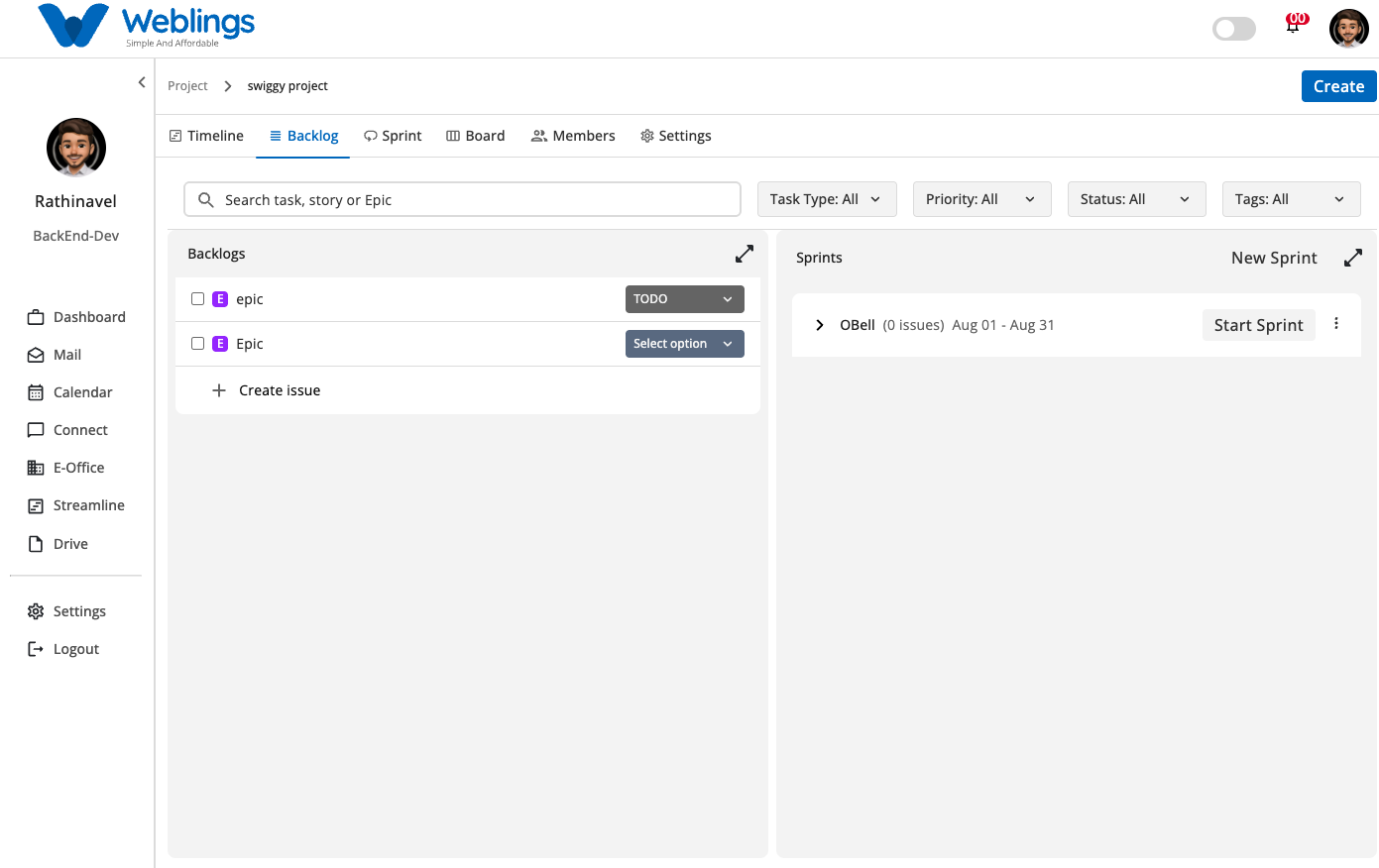
The Backlog screen helps you organize, filter, and plan work items for your project. It split-screens your unassigned work (Backlogs) alongside your active and planned development cycles (Sprints). You can use this screen to prepare issues, group them into sprints, and manage sprint lifecycles.
The screen displays two main sections:
- Backlogs Panel (Left): Lists all unallocated work items, Epics, Stories, Tasks, and Sub-tasks waiting to be prioritized or assigned to a sprint.
- Sprints Panel (Right): Displays current, planned, or completed sprints with issue counts, date ranges, and execution controls.
Managing Sprints & Assigning Work
1. Creating a New Sprint
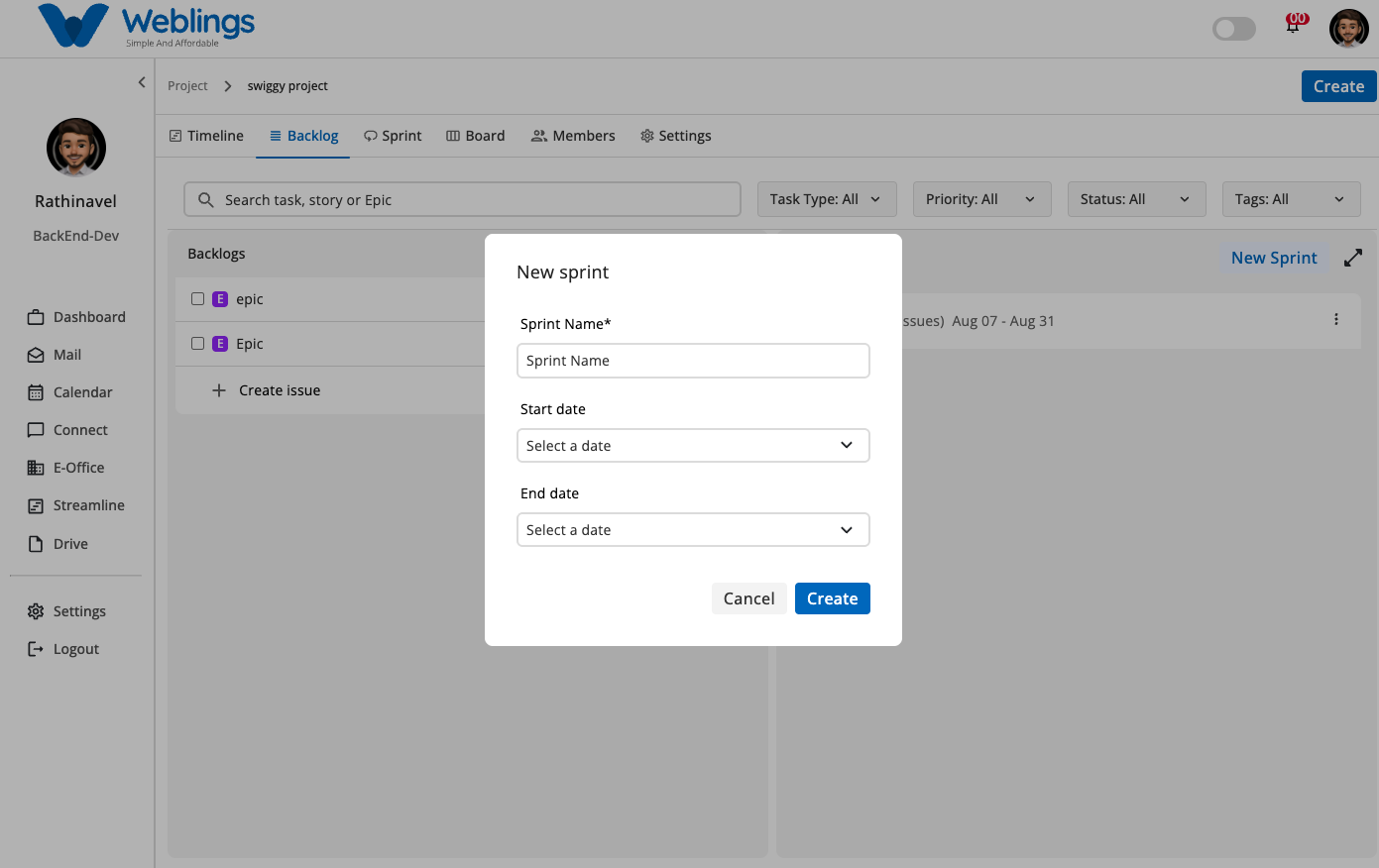
- Click the New Sprint button located at the top-right of the Sprints panel.
- The New sprint modal will appear. Fill in the details:
- Sprint Name: Enter a name for the sprint.
- Start Date: Choose when the sprint begins.
- End Date: Choose the target end date for the sprint cycle.
- Click Create to add the sprint to the panel, or Cancel to close the window.
2. Assigning Backlog Items to a Sprint (Drag & Drop)
- You can easily allocate work to a sprint by using drag and drop. Simply click and hold any task or epic from the Backlogs list on the left, drag it over to the target sprint container in the Sprints panel on the right, and release it.
3. Starting a Sprint
- Once a sprint has been created and populated with issues, click Start Sprint on the sprint card header to kick off the development cycle.
4. Editing a Sprint
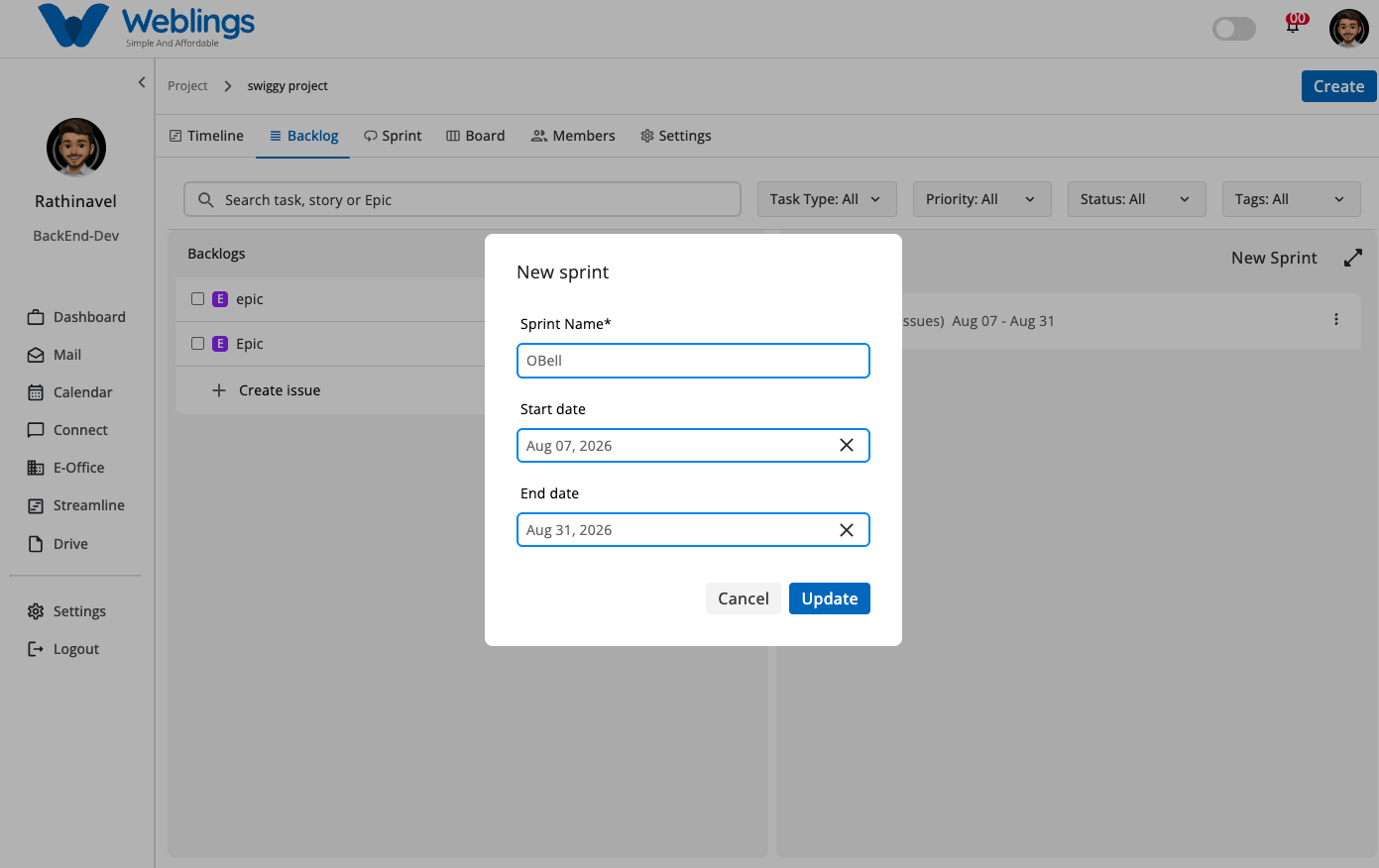
- Click the three-dot menu icon (
⋮) next to Start Sprint on any sprint card and select Edit to modify the sprint's name or date range.
Searching and Filtering Issues
At the top of the Backlog view, you can use the search bar and filter controls to narrow down items:
- Search Bar: Type keywords in
Search task, story or Epicto instantly filter work items by title. - Task Type Filter: Filter issues by specific types:
- Epic
- Story
- Task
- Sub Task
- Priority Filter: Filter issues based on priority levels:
- High
- Medium
- Low
- Status Filter: Filter issues based on workflow states:
- TODO
- Onprocess
- Hold
- Done
- Tags Filter: Search existing tags (such as
FrontendorBackend) or create a new custom tag using the+button.
Creating an Issue
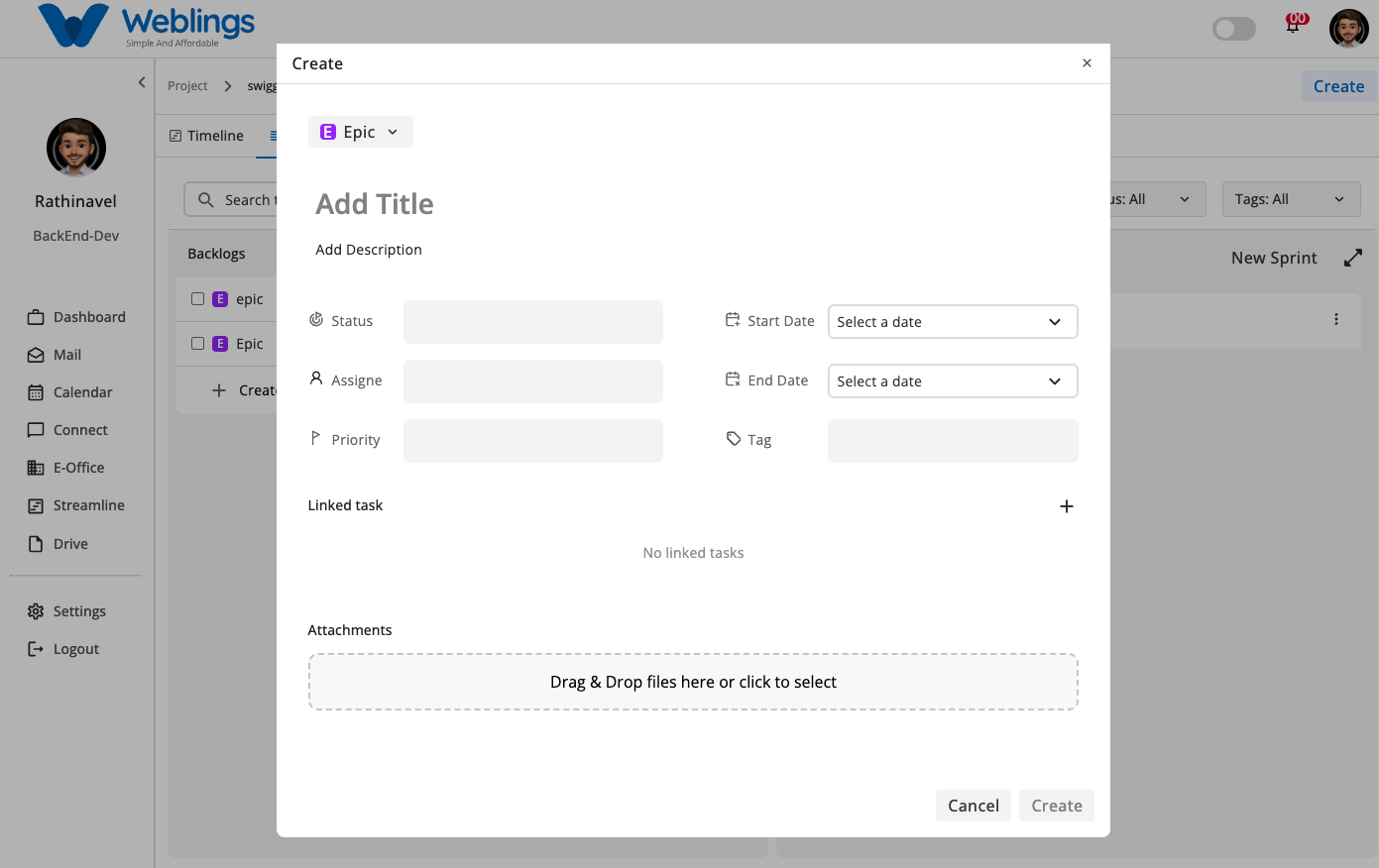
To create a new task or epic:
- Click the Create button at the top-right corner of the top header bar (or click + Create issue at the bottom of the Backlog list).
- The Create modal will open. Fill in the following details:
- Issue Type Dropdown: Choose between Epic, Story, Task, or Sub Task.
- Add Title: Enter a clear title for the work item.
- Add Description: Add detailed notes or instructions.
- Status: Select the initial state (e.g., TODO).
- Assignee: Choose the team member responsible.
- Priority: Set urgency level (e.g., Medium).
- Start Date & End Date: Pick schedule boundaries using calendar selectors.
- Tag: Assign existing tags (e.g.,
Frontend,Api). - Linked Task: Connect related tasks or dependencies by clicking
+. - Attachments: Drag & drop files or click to upload relevant documents or screenshots.
- Click Create to save the issue, or click Cancel to discard.
← PreviousFAQ
Next →FAQ