
Settings
The Settings page under Streamline allows administrators to define and manage global configuration settings across all organization projects. You can manage workflow execution stages, urgency priorities, issue hierarchies, and metadata tags across four main tabs: Status, Priority, Task Type, and Tags.
1. Status Settings
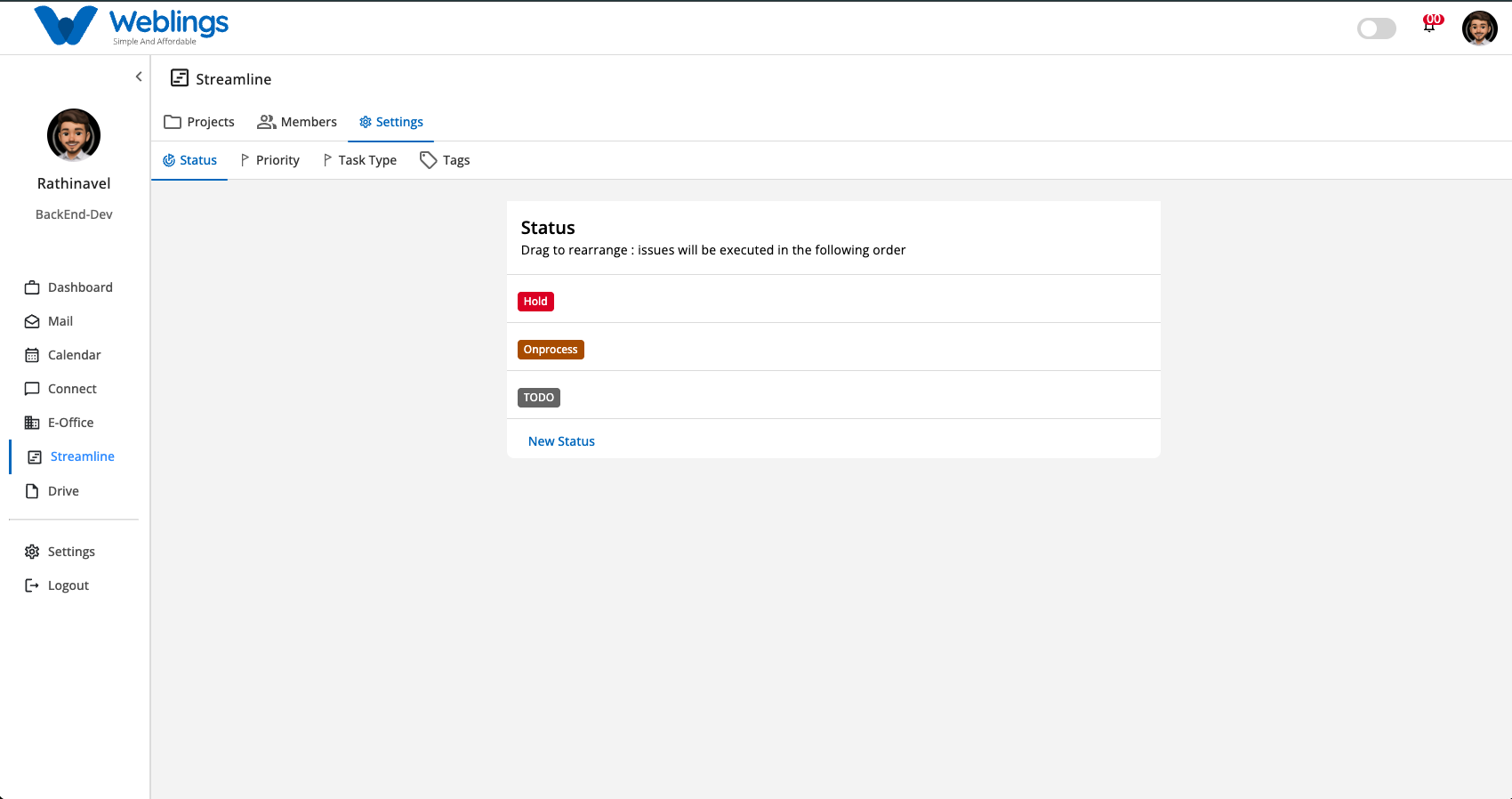
The Status tab allows you to configure workflow execution stages (e.g., Hold, Onprocess, TODO).
Creating a New Status
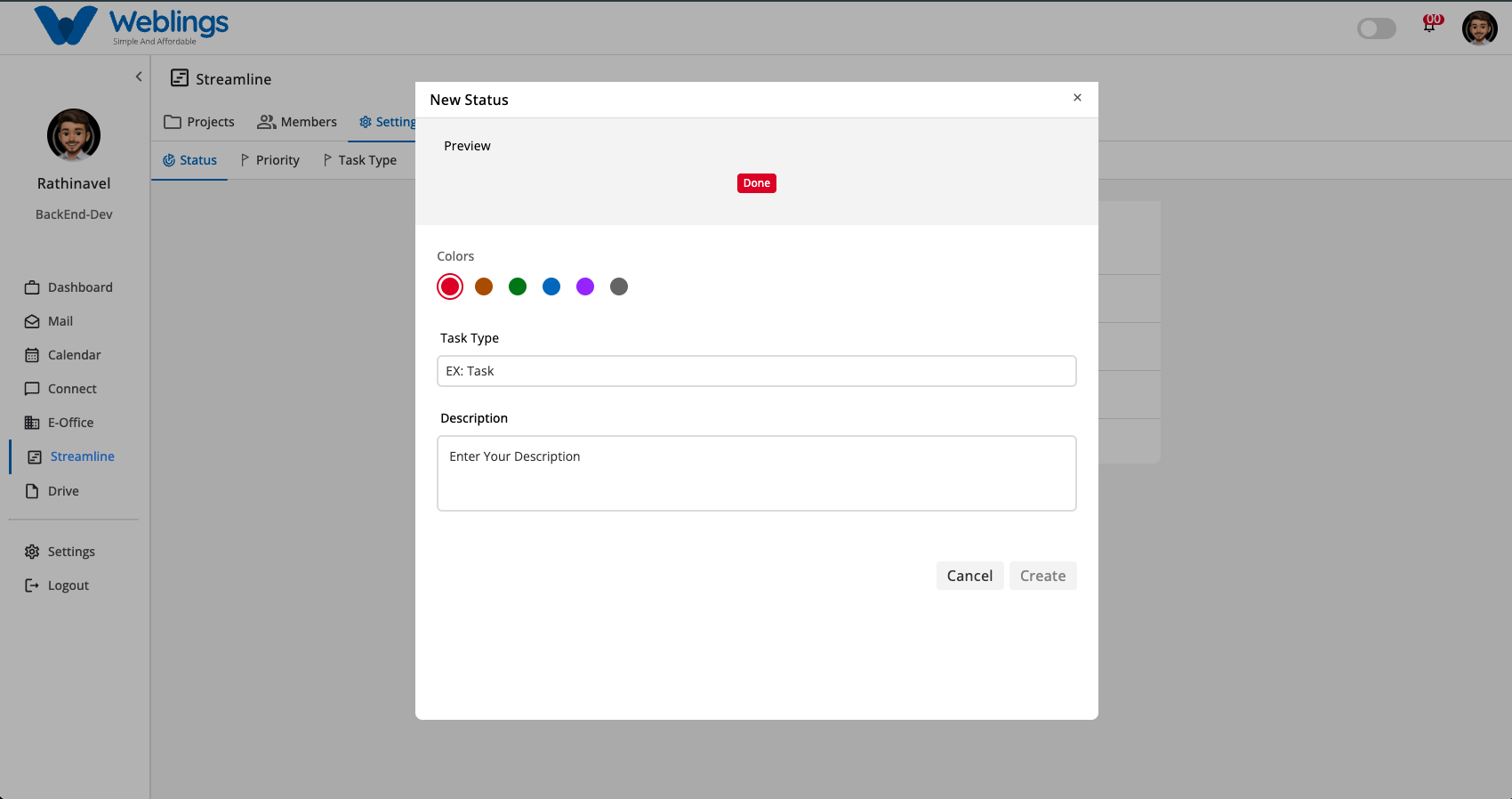
- Navigate to Streamline > Settings > Status.
- Click New Status at the bottom of the list.
- The New Status modal will open:
- Preview: Displays a real-time badge preview of the status color and name.
- Colors: Choose a badge color dot (Red, Orange, Green, Blue, Purple, or Grey).
- Task Type: Enter the title for the new status.
- Description: Enter optional notes explaining the status stage.
- Click Create to save the new status, or click Cancel to discard.
Managing Statuses (Edit & Delete)
- Reordering: Drag and drop status items vertically to set the sequence order in which issues will be executed on project boards.
- Editing: Hover over any status item, click the three-dot action icon (
⋮), and select Edit. The edit modal will open pre-populated. Modify any field and click Update (or Cancel to exit without saving). - Deleting: Hover over any status item, click the three-dot action icon (
⋮), and select Delete. A confirmation prompt will appear ("Delete Status? Deleting this status cannot be undone!"). Click Delete to confirm or Cancel to keep the status.
2. Priority Settings
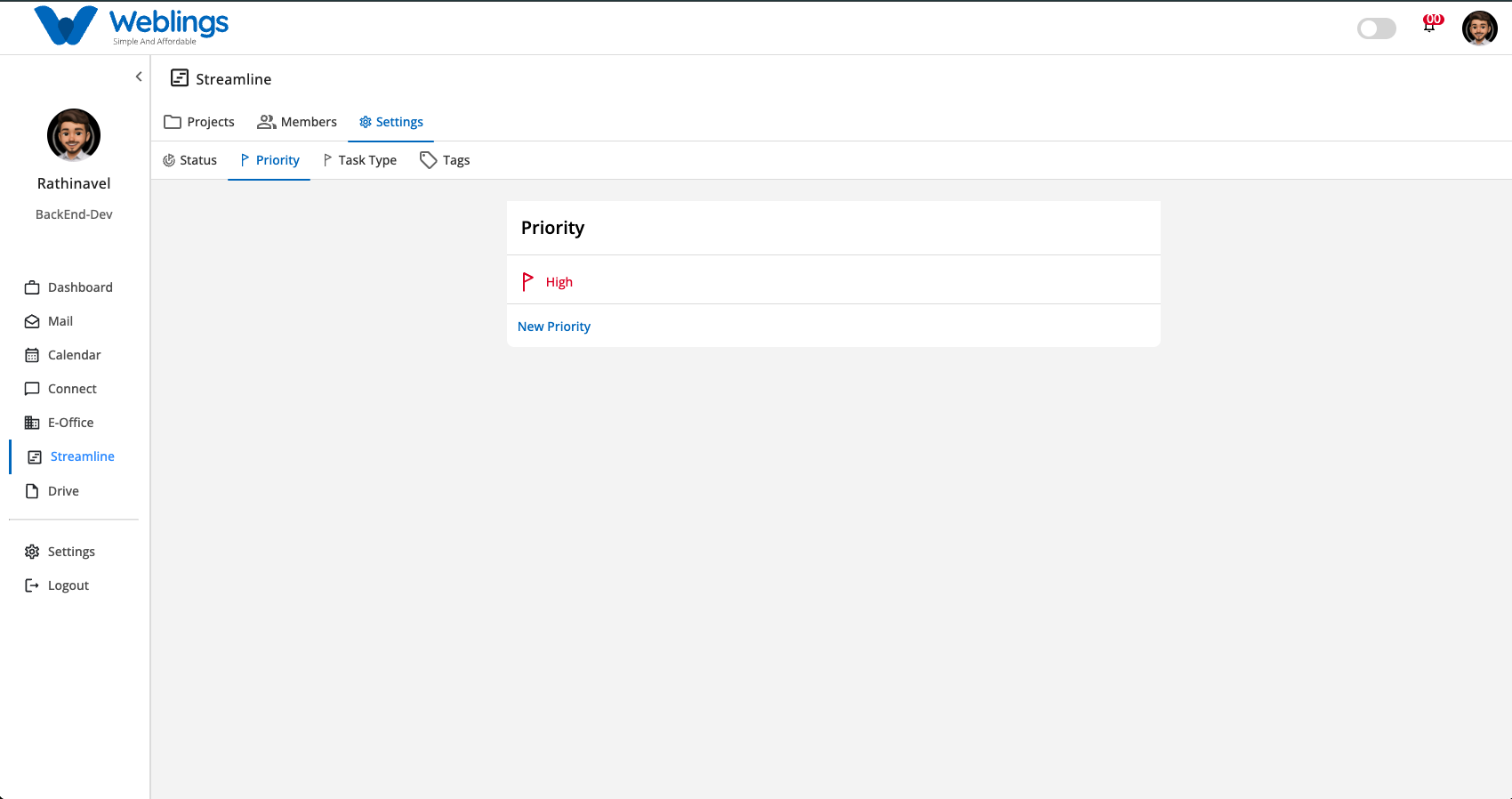
The Priority tab configures the urgency flags used across tasks and issues (e.g., High, Medium, Low).
Creating a New Priority
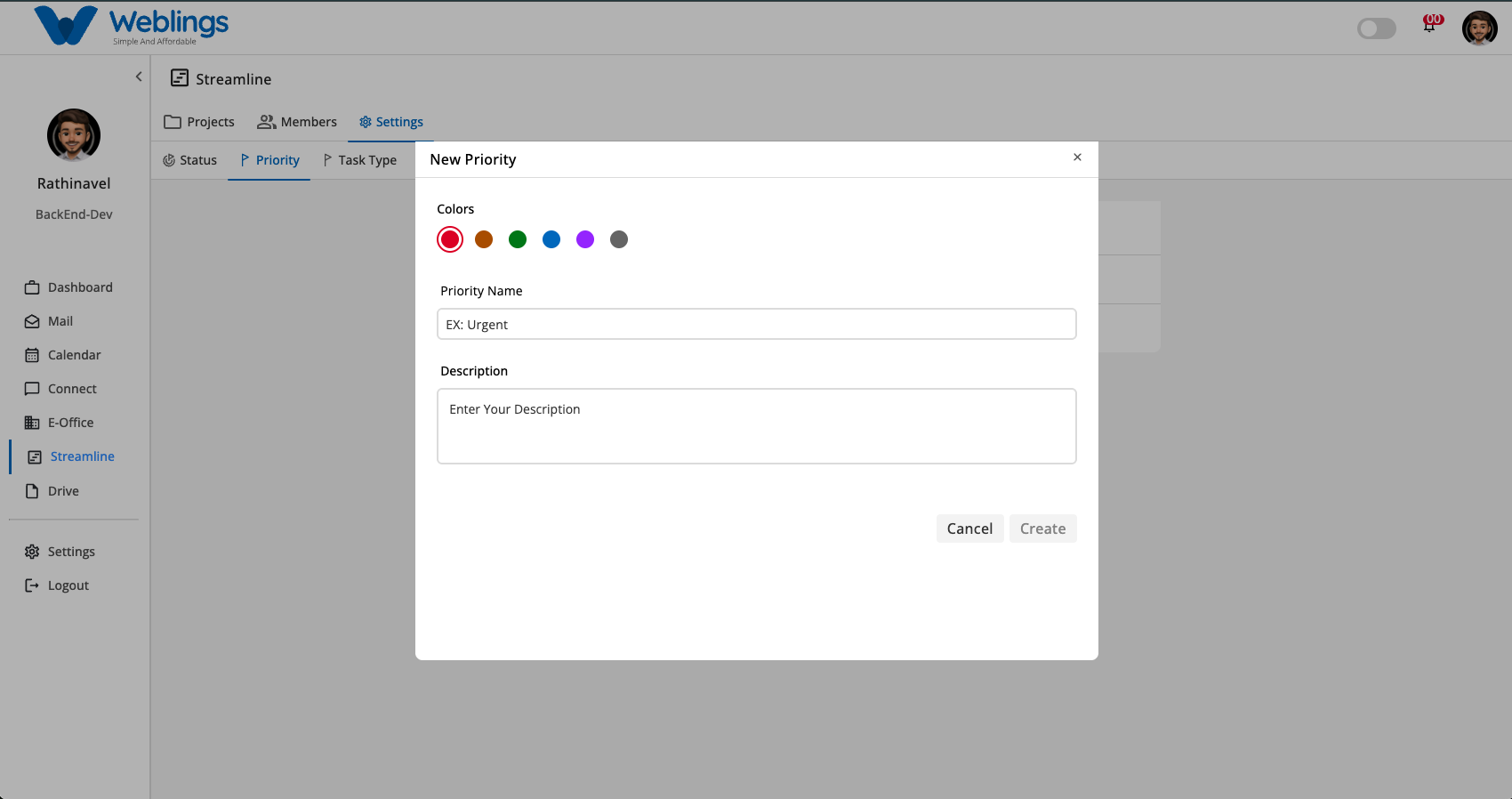
- Navigate to Streamline > Settings > Priority.
- Click New Priority at the bottom of the list.
- The New Priority modal will open:
- Colors: Select a color dot for the flag indicator.
- Priority Name: Enter the priority label (e.g., High or EX: Urgent).
- Description: Add optional details describing when to apply this priority level.
- Click Create to save, or Cancel to discard.
Managing Priorities (Edit & Delete)
- Editing: Hover over a priority row, click the three-dot action icon (
⋮), and select Edit. Modify the color, name, or description in the modal and click Update (or Cancel to discard changes). - Deleting: Hover over a priority row, click the three-dot action icon (
⋮), and select Delete. A confirmation prompt will appear ("Delete Priority? Deleting this priority cannot be undone!"). Click Delete to confirm or Cancel to cancel the operation.
3. Task Type Settings
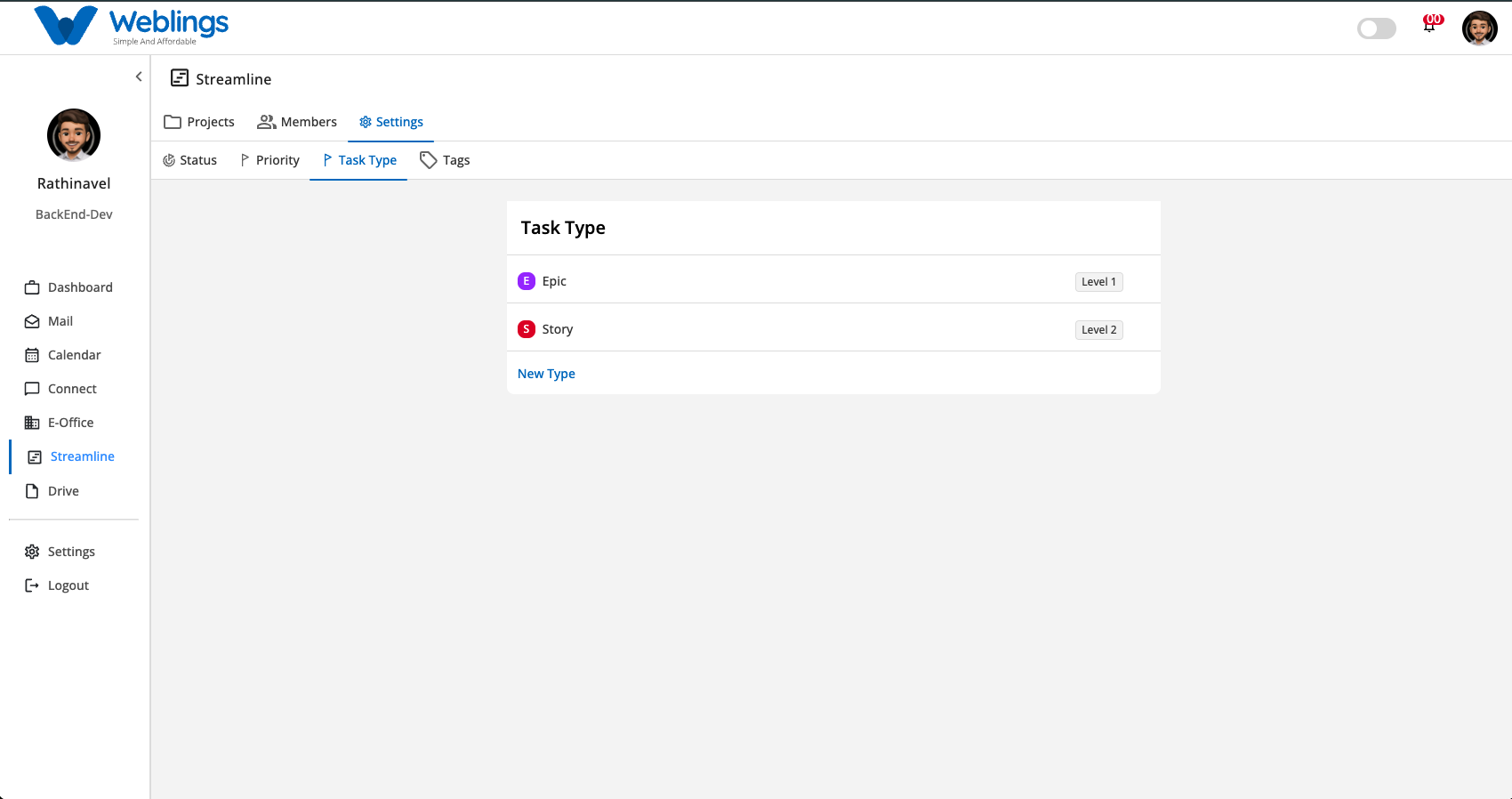
The Task Type tab manages issue classifications and level hierarchies across your projects (e.g., Epic - Level 1, Story - Level 2, Task - Level 3).
Creating a New Task Type
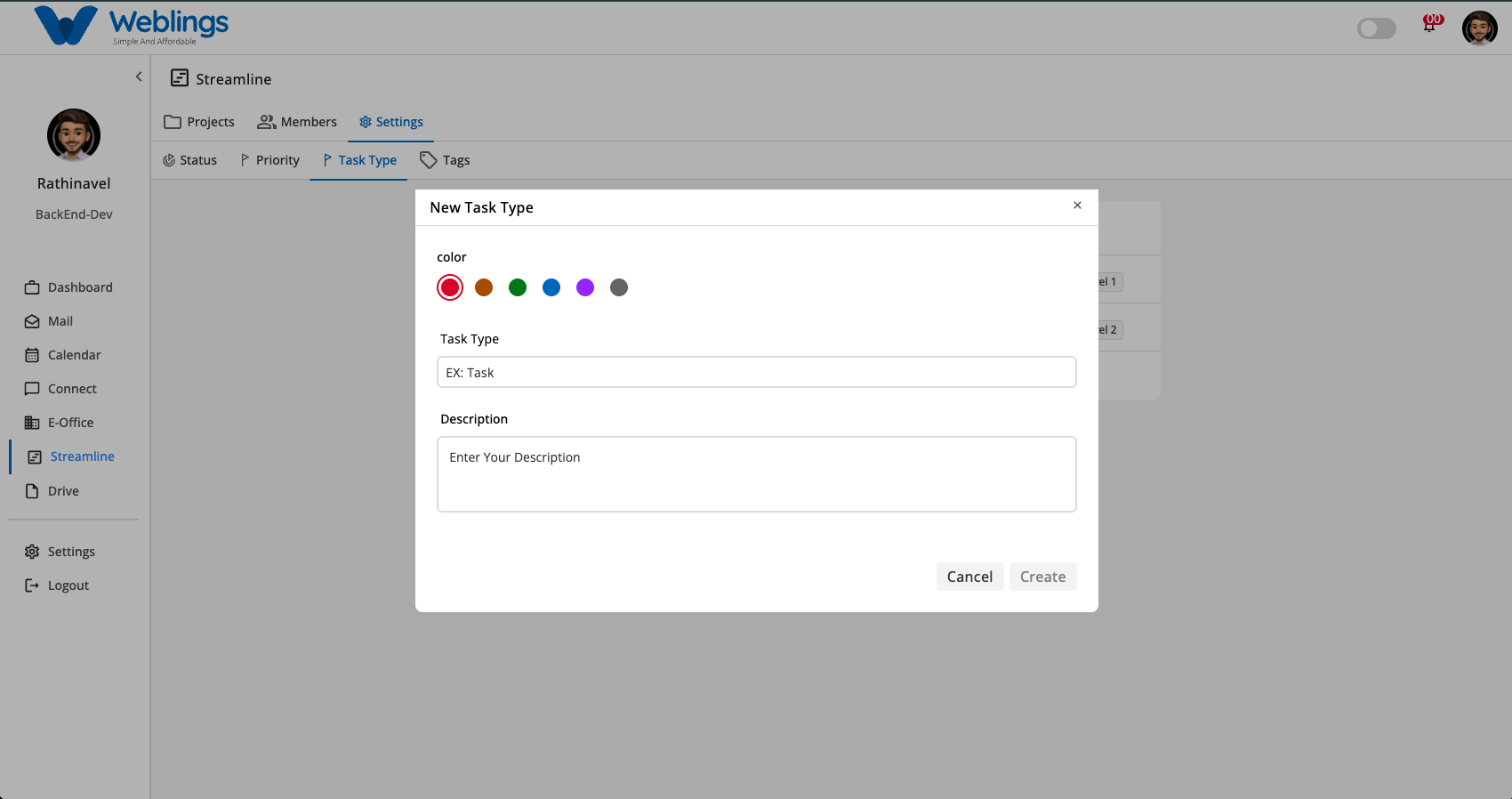
- Navigate to Streamline > Settings > Task Type.
- Click New Type at the bottom of the list.
- The New Task Type modal will open:
- color: Choose a color dot for the issue badge icon.
- Task Type: Enter the task type name.
- Description: Add optional notes describing the issue type.
- Click Create to save, or Cancel to discard.
4. Tags Settings
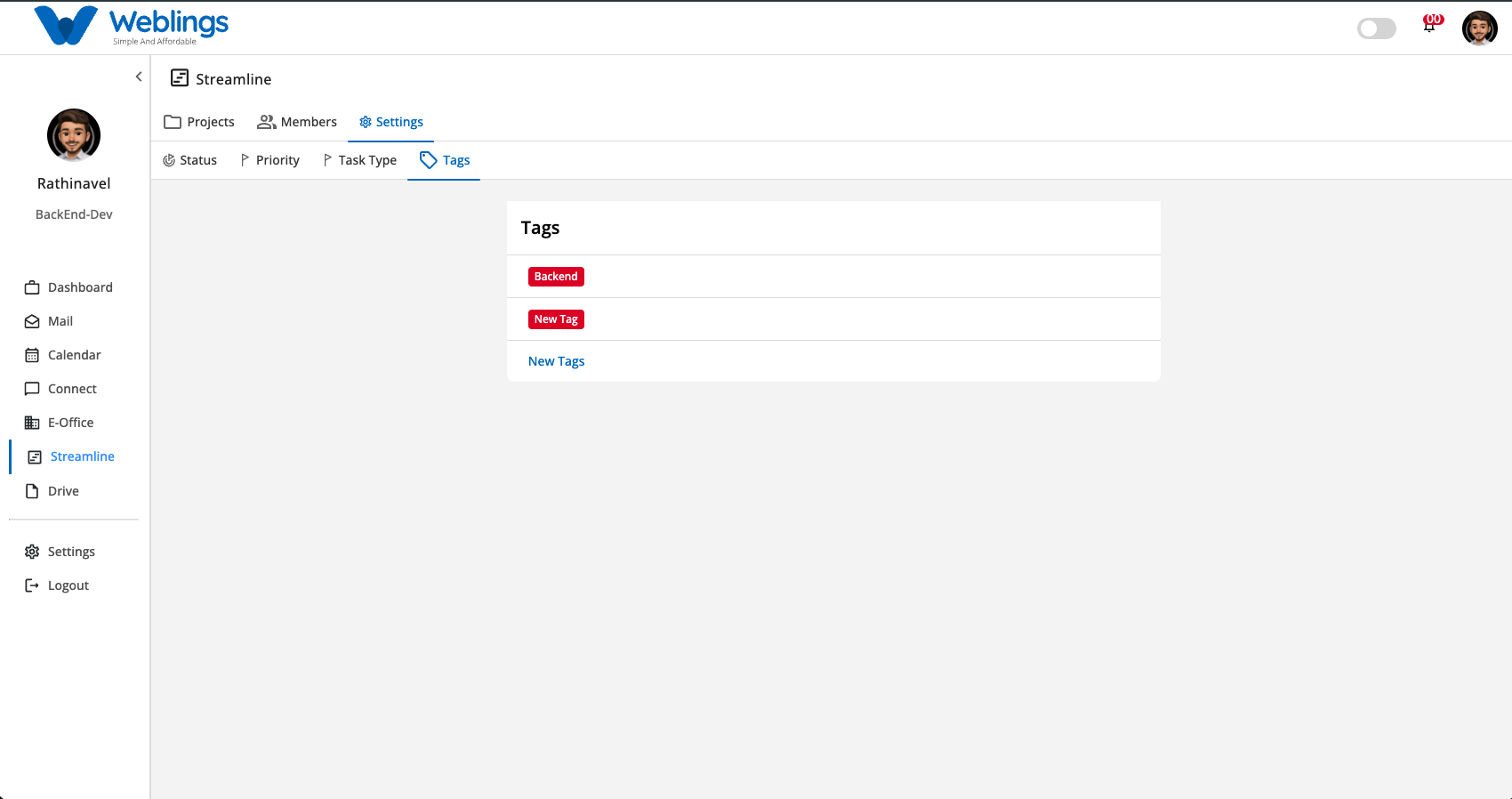
The Tags tab allows you to create and manage custom organization-wide labels used to classify work items (e.g., Backend, Frontend, API).
Creating a New Tag (Inline Creation)
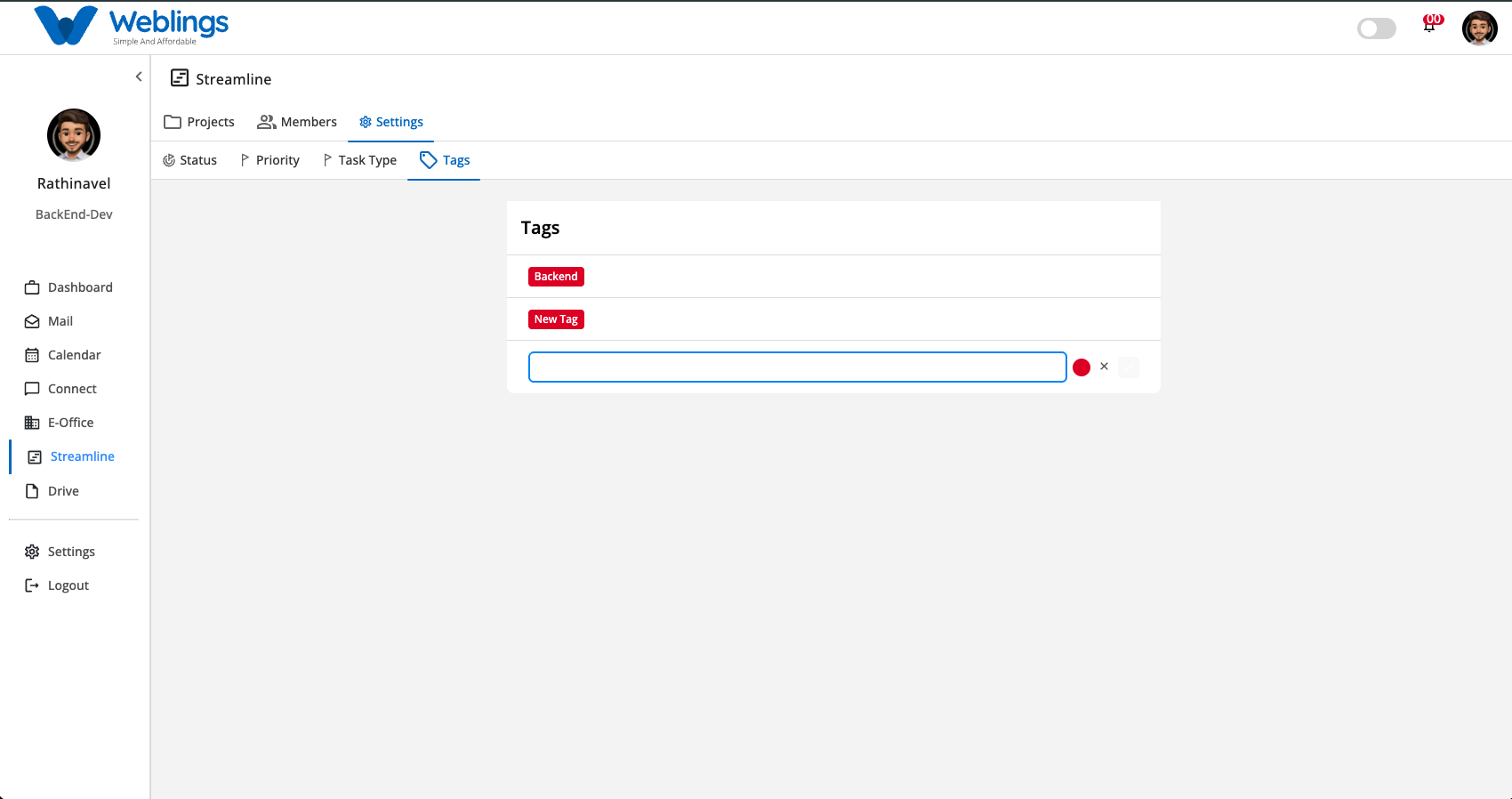
- Navigate to Streamline > Settings > Tags.
- Click New Tags at the bottom of the list.
- An inline creation box will appear directly inside the list container:
- Tag Name Box: Type the name of your new tag (e.g., Backend, New Tag).
- Color Circle: Click the color circle (defaulted to red) to choose a color for the tag badge.
- Click the checkmark button (
✓) to save and add the new tag to the list. - Click the cancel button (
✕) if you want to cancel and close the inline input without saving.
Managing Tags (Edit & Delete)
- Editing: Hover over any tag row, click the three-dot action icon (
⋮), and select Edit. Update the tag name or badge color and save. - Deleting: Hover over any tag row, click the three-dot action icon (
⋮), and select Delete. A confirmation prompt will ask you to confirm tag removal.