
Calender
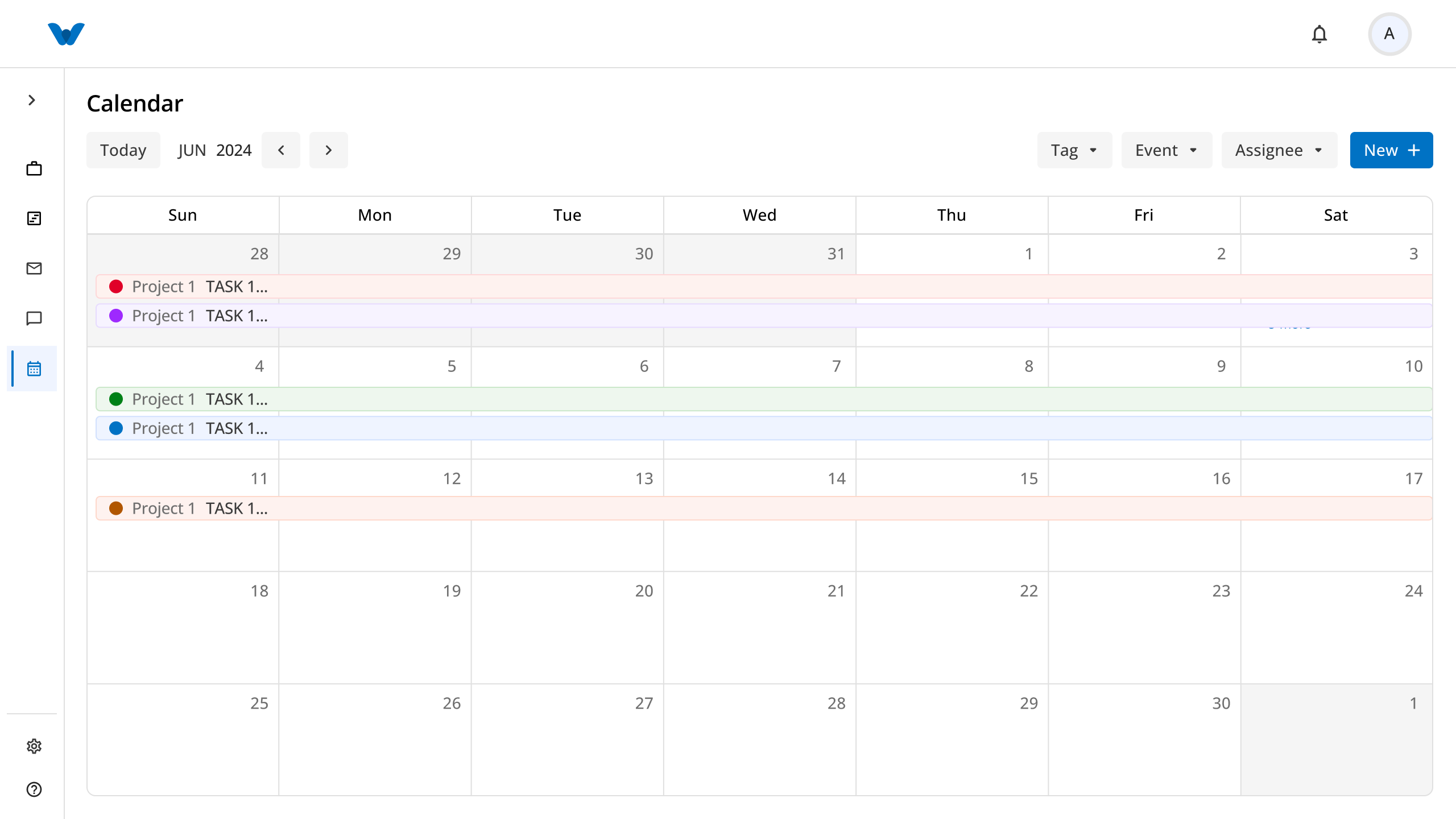
The Calendar screen provides a central hub to schedule, visualize, and manage work tasks alongside team meetings. It offers a comprehensive date grid and timeline layout where you can track task durations, review upcoming meeting schedules, filter events by specific metadata, and add new schedule items.
The screen offers multiple viewing modes and controls:
- Month Grid View: Displays a traditional full-month calendar layout with color-coded multi-day task bars and scheduled items spanning their start and end dates.
- Timeline View: Displays a chronologically stacked list view grouped by date, showing start/end times and summarie.
- Navigation Controls: Switch months or dates using the Today button and previous (
<) or next (>) directional arrows. - Filter Controls: Refine visible calendar entries using the Tag, Event (e.g., Task or Meet), and Assignee filter dropdowns.
1. Creating a Task or Meeting Schedule
To schedule a new item on the calendar:
- Click the New + button located at the top-right corner of the Calendar screen.
- The creation modal will open. Select the event type from the top dropdown menu: Task or Meet.
Option A: Creating a Task
When Task is selected from the top dropdown, fill in the following details:
- Title: Enter a descriptive name for the task.
- Tag: Select an organizational tag label from the dropdown.
- Project: Choose the associated project from the dropdown list.
- Summary: Add detailed notes or task instructions.
- From & To Dates: Select the start date and end date using the calendar pickers.
- Attachments: Upload relevant files or documents by dragging and dropping them or clicking Browse.
Option B: Creating a Meeting (Meet)
When Meet is selected from the top dropdown, fill in the following details:
- Title: Enter the title of the meeting (e.g., Scrum meeting).
- Summary: Add an agenda or detailed description for the meeting.
- Date: Select the meeting date using the calendar picker.
- From & To Time: Pick the exact meeting start time (e.g., 9:03 AM) and end time (e.g., 9:00 PM).
- People: Add attending team members by typing or selecting user names.
- Attachments: Attach meeting slides, PDFs, or reference files by dragging and dropping or browsing.
- Click Create to save and plot the task or meeting onto the calendar schedule.
- Click Cancel to discard your entry and close the modal.
2. Viewing Event Details
To inspect the details of an existing task or scheduled meeting:
- Click on any colored task bar or event entry directly on the calendar grid or timeline.
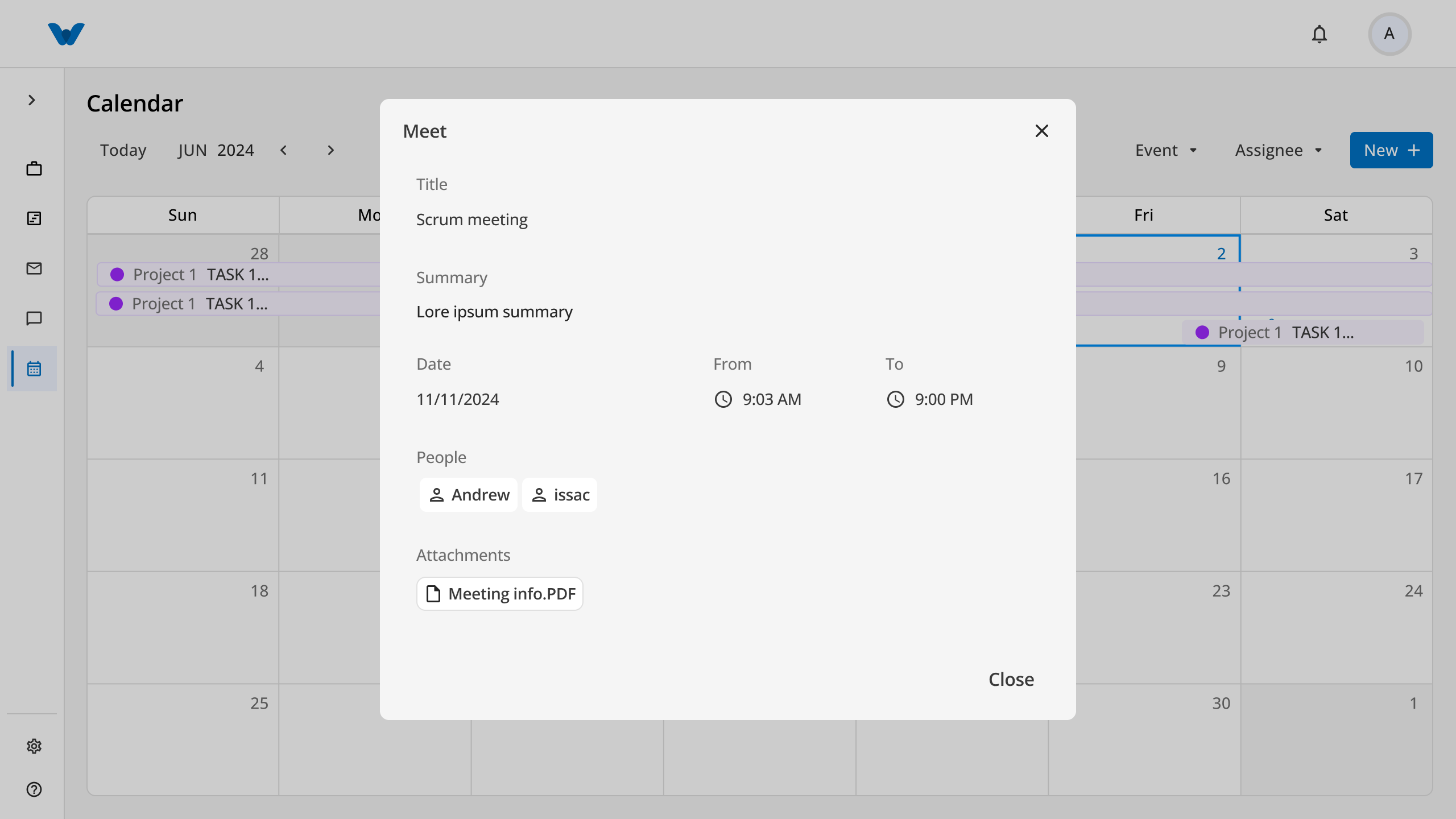
- The detail modal (e.g., Meet or Task) will open displaying complete information:
- Title: Full title of the event (e.g., Scrum meeting).
- Summary: Detailed notes or agenda summary.
- Date & Timings: Scheduled date along with exact From and To start/end times (e.g., 9:03 AM to 9:00 PM).
- People / Assignees: List of tagged attendees or assigned team members (e.g., Andrew, Issac).
- Attachments: Attached documents or reference files (e.g., Meeting info.PDF).
- Click Close (or the
✕icon) to exit the view modal.
3. Filtering Calendar Items by Tags
You can narrow down your calendar to show only items matching specific tags:
- Click the Tag filter dropdown button in the top-right control bar.
- An inline dropdown menu will open:
- Search Tag Bar: Type keywords into the
Search Tagfield to quickly find specific labels. - Tag List: Select one or multiple tag badges. A blue checkmark (
✓) will indicate active selection, and the filter button will display a numerical indicator (e.g., Tag (1))[cite: 1].
- Search Tag Bar: Type keywords into the
- The calendar grid or timeline will automatically update to show only tasks and meetings containing the selected tags.
← PreviousFAQ
Next →FAQ