
Connect
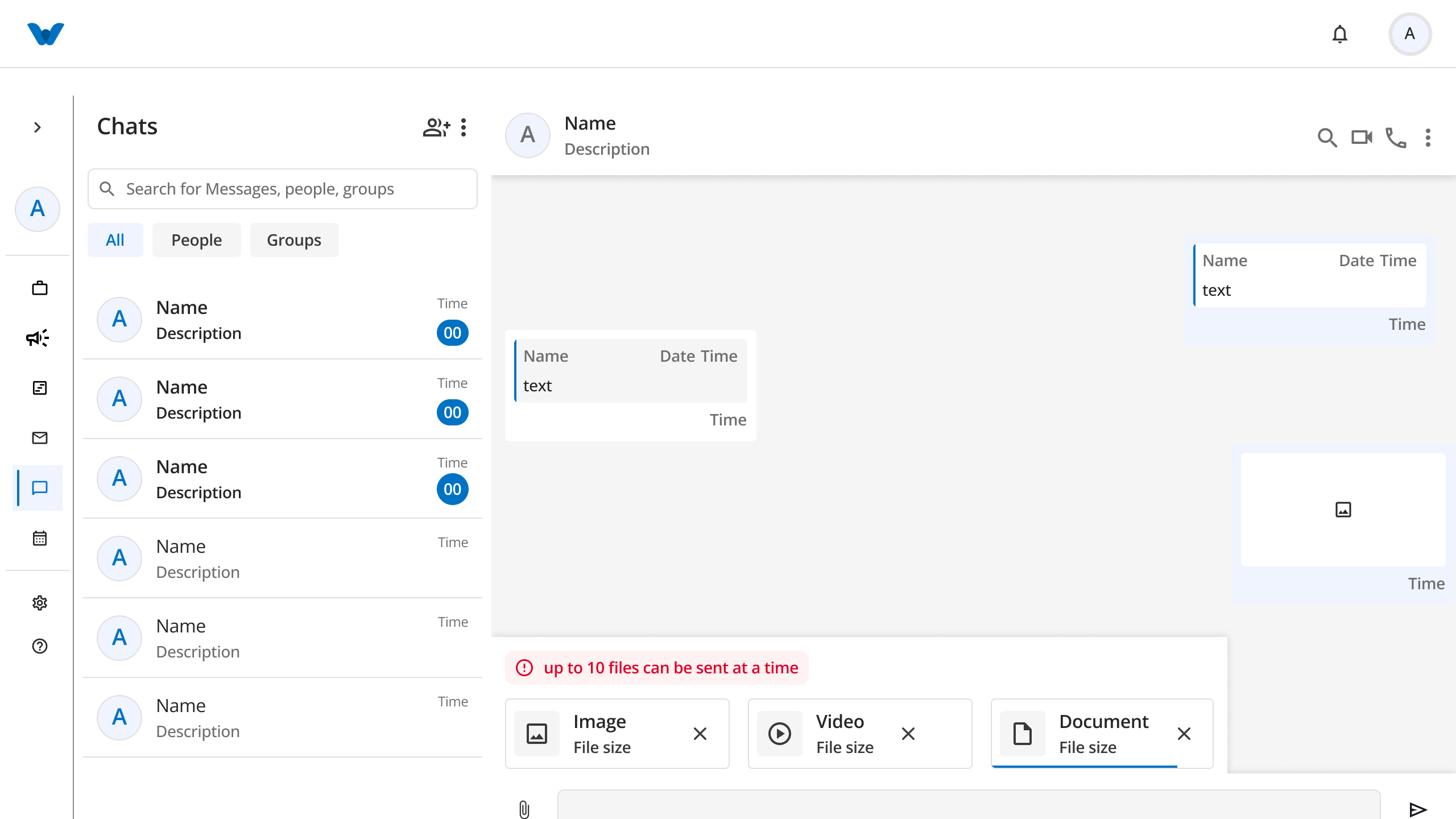
The Connect module provides real-time collaboration tools, enabling direct individual messaging, group discussions, audio/video calls, file sharing, and workspace settings customization.
1. Navigating the Chats Interface
The main messaging view is organized into a sidebar list and an active conversation panel:
- Filter Tabs: Organize your conversation list by toggling between:
- All: Displays all direct messages and group conversations.
- People: Displays individual 1-on-1 direct message threads.
- Groups: Displays team and project group channels.
- Search Bar: Type inside
Search for Messages, people, groupsto locate specific chat threads or content. - Call Header: Use the video camera (
📹) or telephone (📞) icons in the top-right header to initiate video or audio calls. - Media & Files View: Switch to the Files tab to view shared documents, images, and attachments across conversations.
2. Creating a New Group
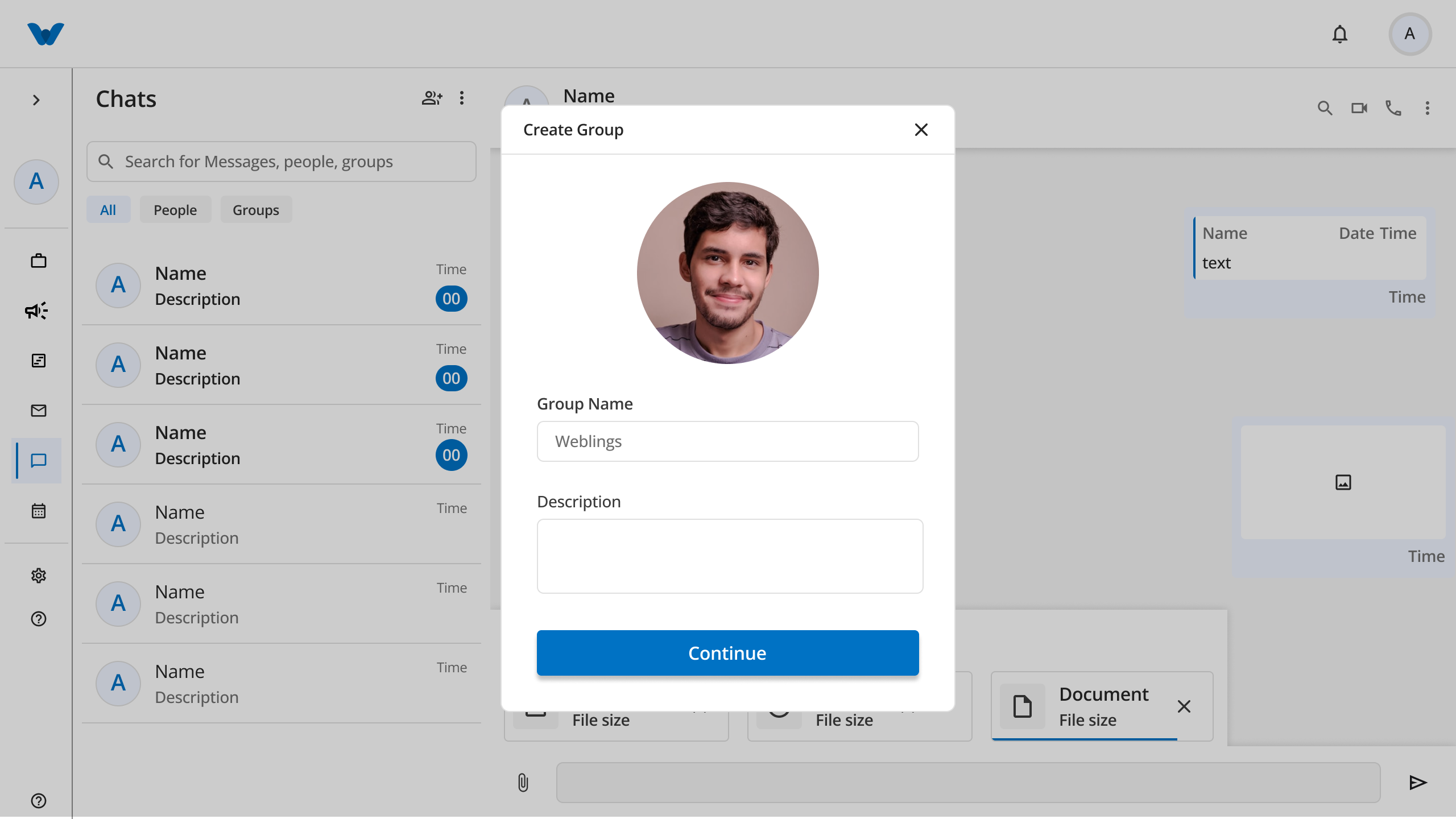
To set up a new group chat channel:
Step 1: Set Group Profile & Info
- Click the Add Group / Member icon (
👥+) at the top of the chat list. - The Create Group modal will open:
- Group Icon: Click Click here to upload Group icon to select a profile picture for the group.
- Group Name: Enter a title for the group channel.
- Description: Add optional details or the purpose of the group.
- Click Continue.
Step 2: Add Members & Finalize Creation
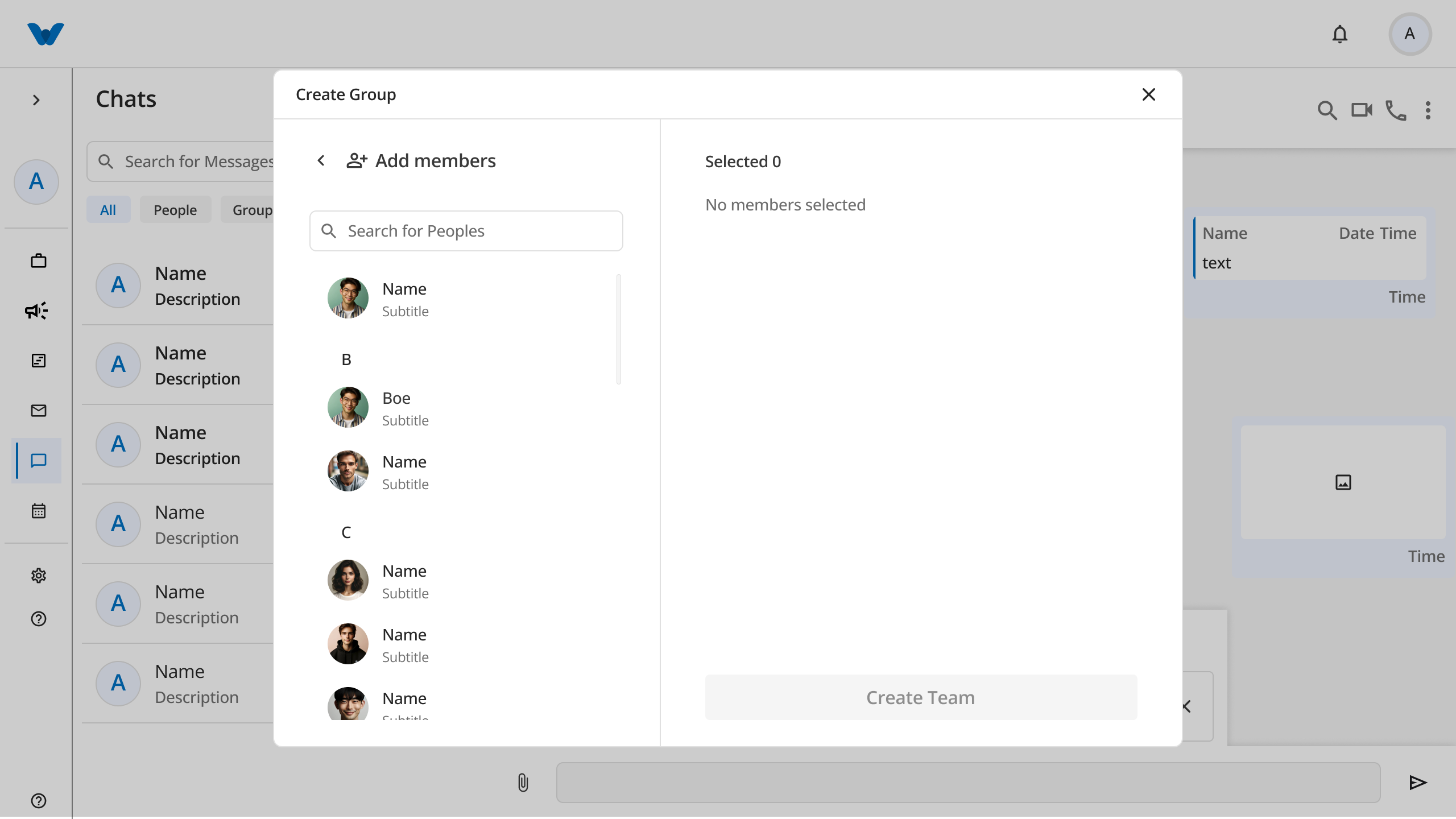
- Use the search bar or browse the member directory to add team members.
- Check or select members to add them to the selection panel (Selected X).
- Click Create Team (or Create Group).
- Once created, the new group will appear in your Groups chat list, ready for messaging.
3. Messaging, Attachments & Forwarding
Sending Messages & Files
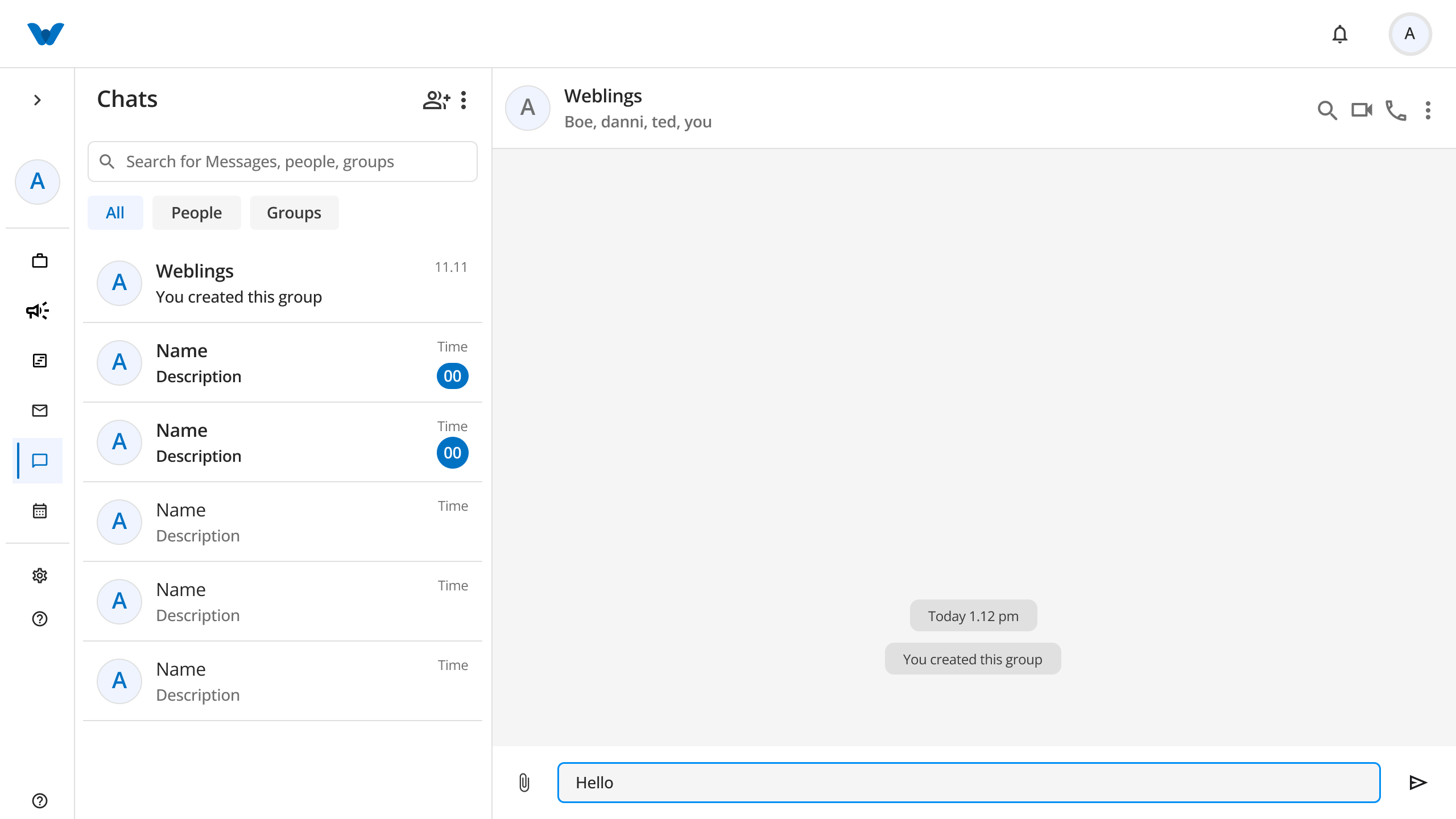
- Type your message into the bottom input field and press
Enteror click the send button (➤). - Click the Attachment paperclip icon (
📎) to send files or photos. You can upload up to 10 files at a time (Images, Videos, or Documents).
Forwarding Messages
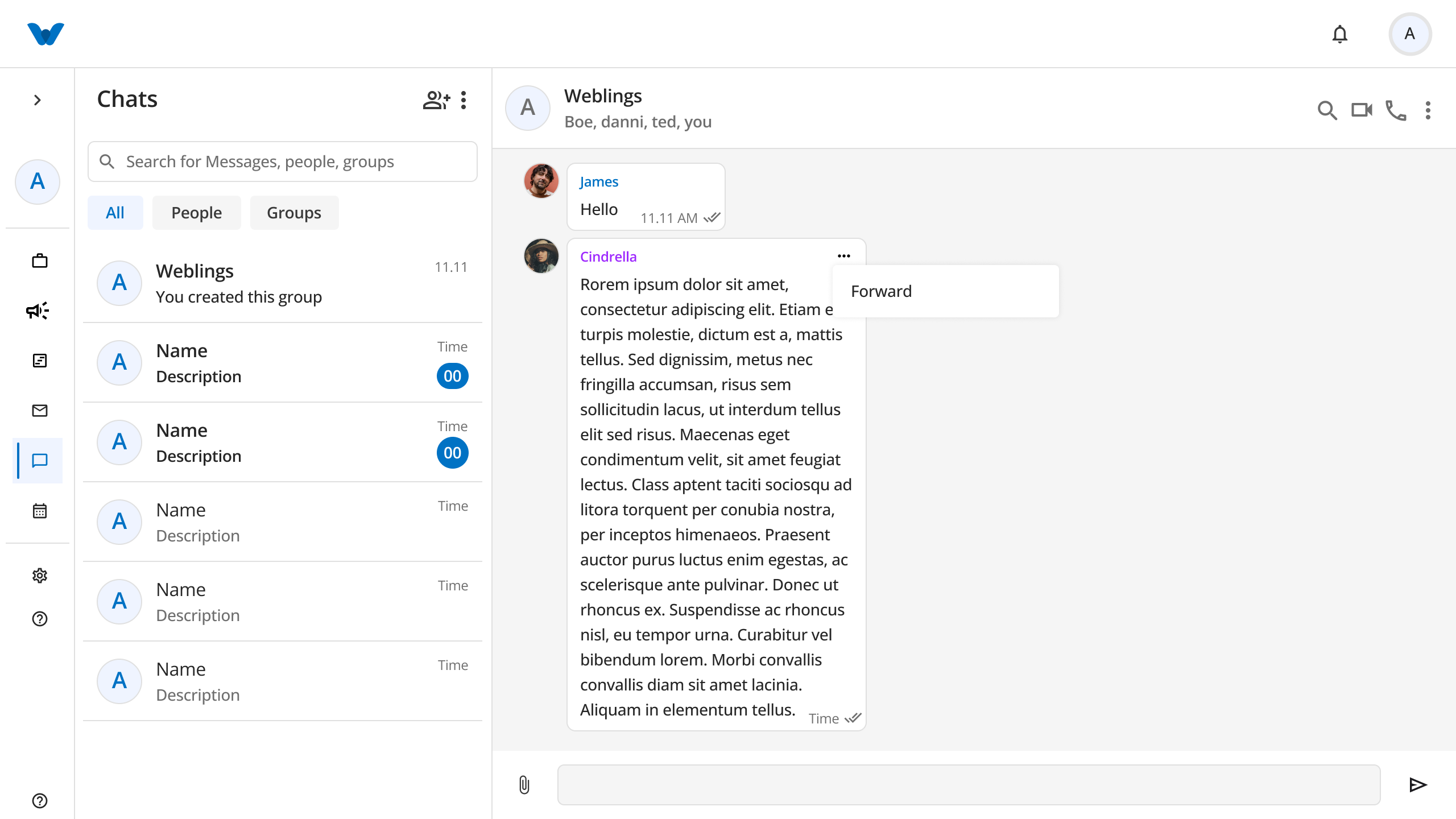
- Hover over or click the options icon (
⋮) next to a message bubble. - Select Forward.
- The Forward message to modal will appear:
- Search or select target members/groups by checking their selection boxes.
- Review selected recipients in the bottom preview pane.
- Click the blue Forward button to send the message to the selected contacts.
4. Group Info & Member Management
Clicking the three vertical dots (⋮) in the top-right header of an active group chat opens Group Info:
- Edit Group Info: Modify the group name, description, or group icon.
- Manage Members:
- Click Add Member to invite additional people to the group.
- Remove existing members or assign group moderator privileges.
5. Settings & Theme Customization
Access the Settings tab within Connect to adjust user preferences:
- Role Permissions: Manage messaging capabilities, member invite rights, and group creation permissions.
- Theme Settings:
- Mode: Switch between Light Mode and Dark Mode.
- Accent Color: Select a primary color theme for chat highlights and buttons.
- Click Save Changes to apply your updated theme and role settings.
← PreviousFAQ
Next →FAQ