
Billing Type
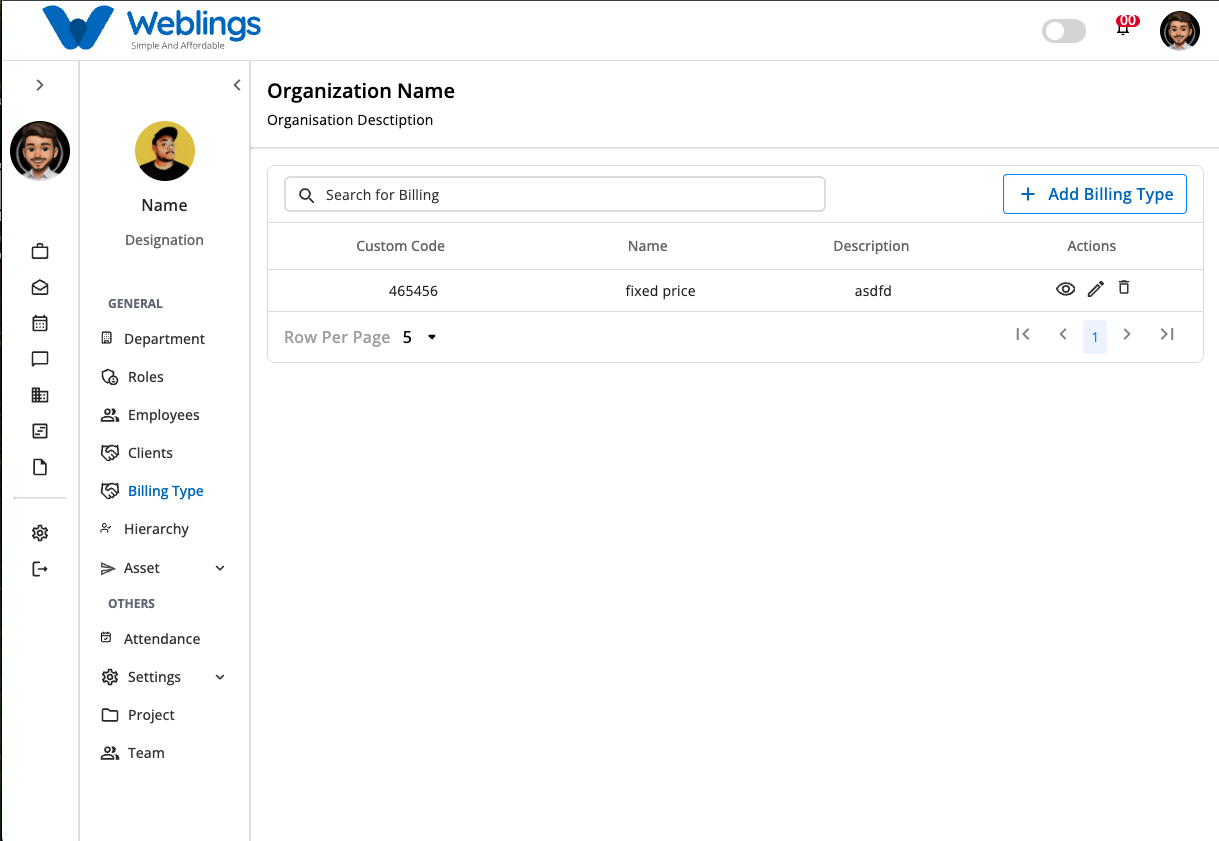
The Billing Type screen allows you to create and manage the billing methods used for clients and projects within your organization.
Billing Types help define how projects or services are charged to clients, ensuring consistent billing across your organization.
From this screen, you can:
- View all billing types.
- Search for a billing type.
- Add a new billing type.
- View billing type details.
- Edit an existing billing type.
- Delete a billing type.
Billing Type List
The Billing Type table displays all billing types available in your organization.
The table contains the following information:
- Custom Code – A unique identifier for the billing type.
- Name – The billing type name.
- Description – A brief explanation of the billing type.
- Actions – Options to View, Edit, or Delete the billing type.
Use the Search Billing Type box to quickly locate a billing type by entering its Name or Custom Code.
Add a Billing Type
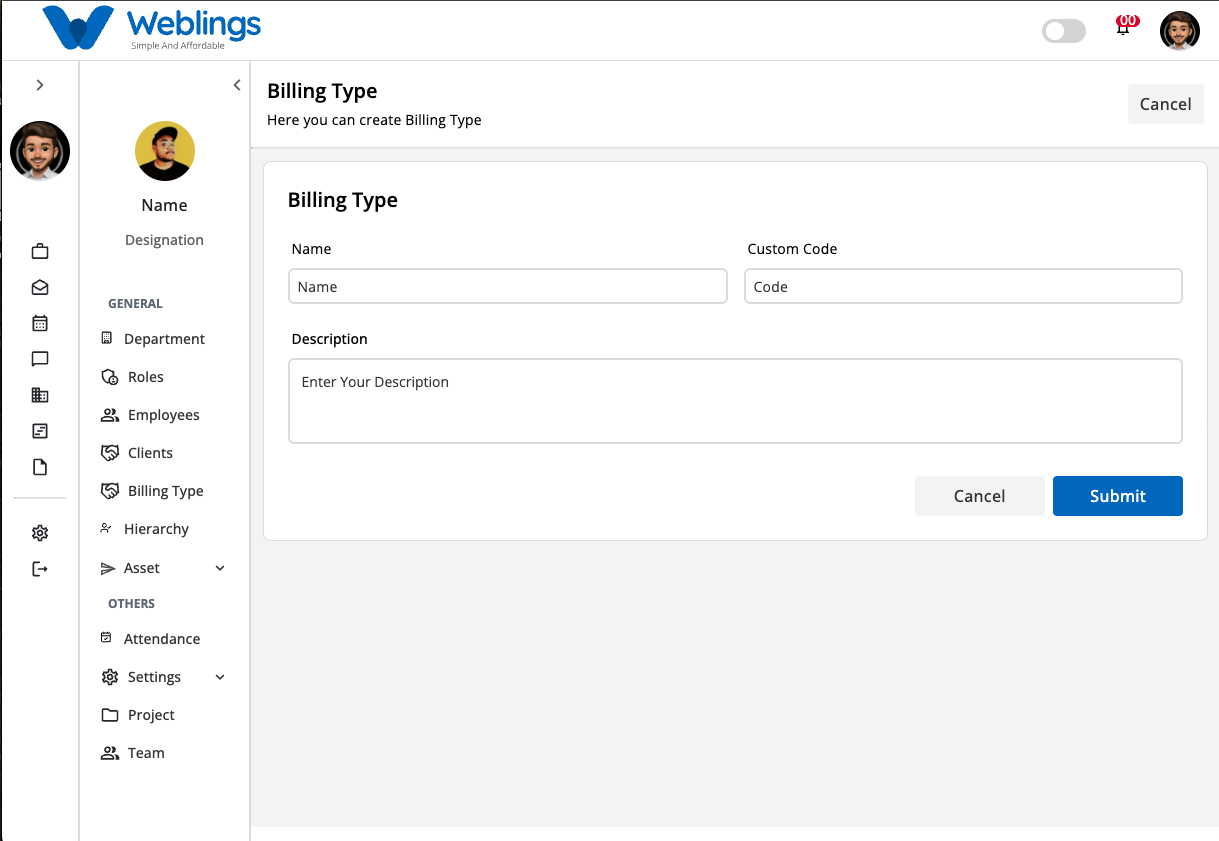
To create a new billing type, click Add Billing Type.
The Add Billing Type window will open.
Complete the following information.
Name
Enter a unique name for the billing type.
Examples:
- Fixed Price
- Hourly Billing
- Monthly Billing
- Project Based
- Milestone Based
Custom Code
Enter a unique custom code for the billing type.
Examples:
- BT001
- FIXED
- HOUR
- MONTH
Description
Provide a short description explaining when this billing type should be used.
Example:
Used for projects that are billed at a fixed agreed price regardless of the number of hours worked.
Save or Cancel
After entering the required information:
- Click Submit to create the billing type.
- Click Cancel to close the window without saving.
If all required information is valid, the billing type will be created successfully.
View Billing Type
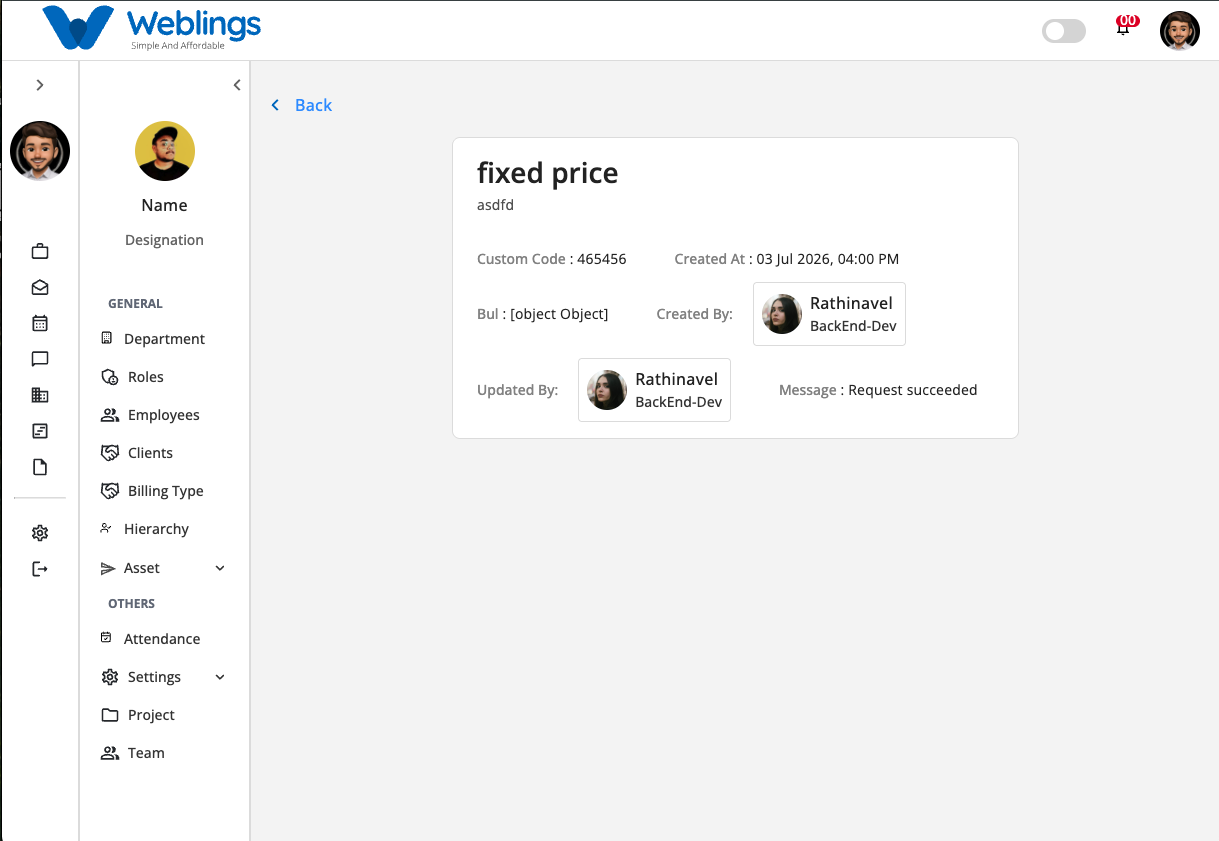
Click the View (👁️) icon from the Actions column.
The View page displays the following information:
Billing Type Information
- Name
- Custom Code
- Description
System Information
- Created At
- Business Unit Location
- Created By
- Updated By
- Status Message
The View page is read-only.
Edit a Billing Type
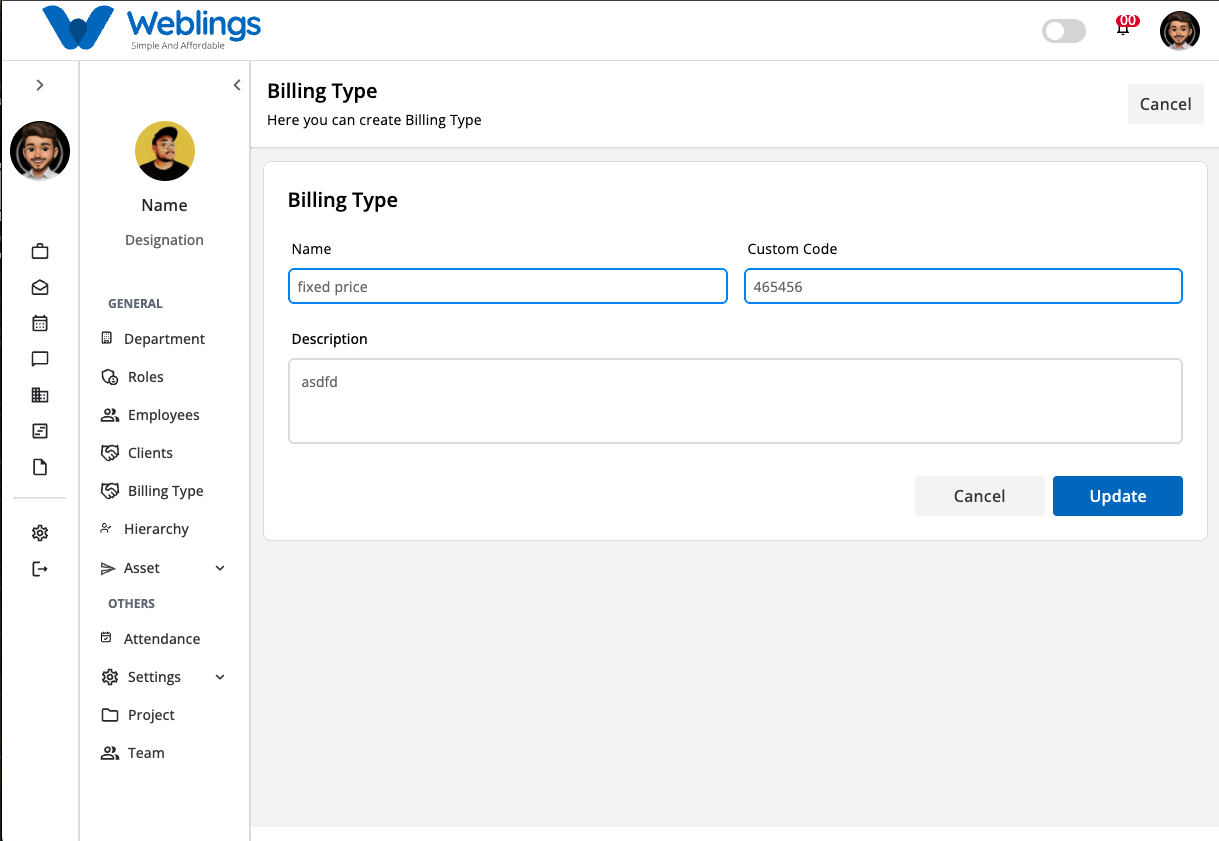
To modify an existing billing type:
- Click the Edit (✏️) icon.
- Update the required information.
- Click Update to save your changes.
You can edit:
- Name
- Custom Code
- Description
Click Cancel to discard your changes.
Delete a Billing Type
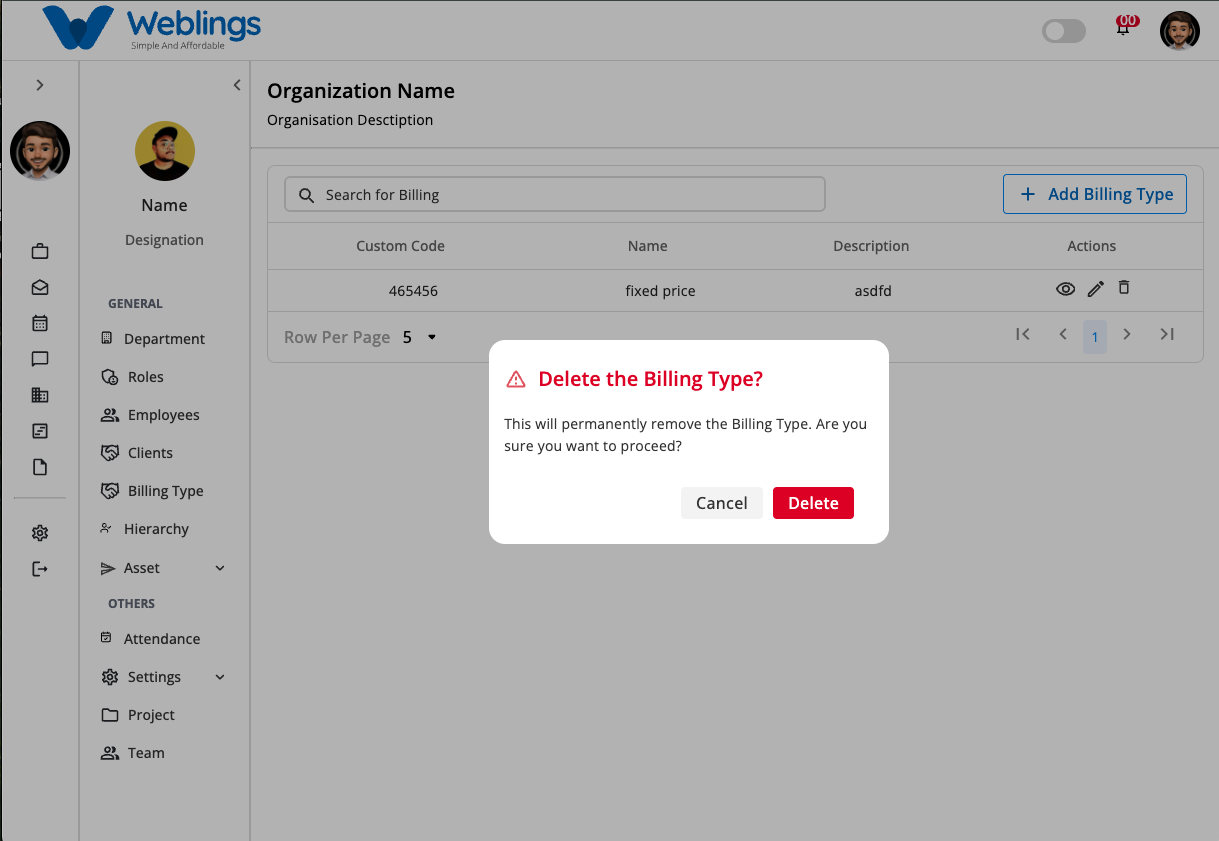
To remove a billing type:
- Click the Delete (🗑️) icon.
- A confirmation dialog will appear.
Confirmation Message
Delete Billing Type?
This action will permanently delete this billing type from your organization.
Billing types that are currently assigned to clients or projects cannot be deleted until they are removed or reassigned.
Choose one of the following options:
Delete
Permanently removes the billing type.
Cancel
Closes the confirmation window without deleting the billing type.
Search Billing Types
Use the Search Billing Type box to quickly find a billing type.
You can search using:
- Billing Type Name
- Custom Code
Matching results are displayed automatically as you type.
Workflow
Open Billing Type
        ↓
View Billing Type List
        ↓
Search Billing Type (Optional)
        ↓
Add Billing Type
        ↓
Enter Name, Custom Code & Description
        ↓
Click Submit
        ↓
View Billing Type Details
        ↓
Edit Billing Type (Optional)
        ↓
Delete Billing Type (Optional)
Quick Summary
The Billing Type module allows you to:
- Create billing types for your organization.
- Assign unique custom codes to billing methods.
- Search billing types quickly.
- View complete billing type information.
- Update billing type details.
- Delete unused billing types.
- Maintain consistent billing methods across clients and projects.