
Department
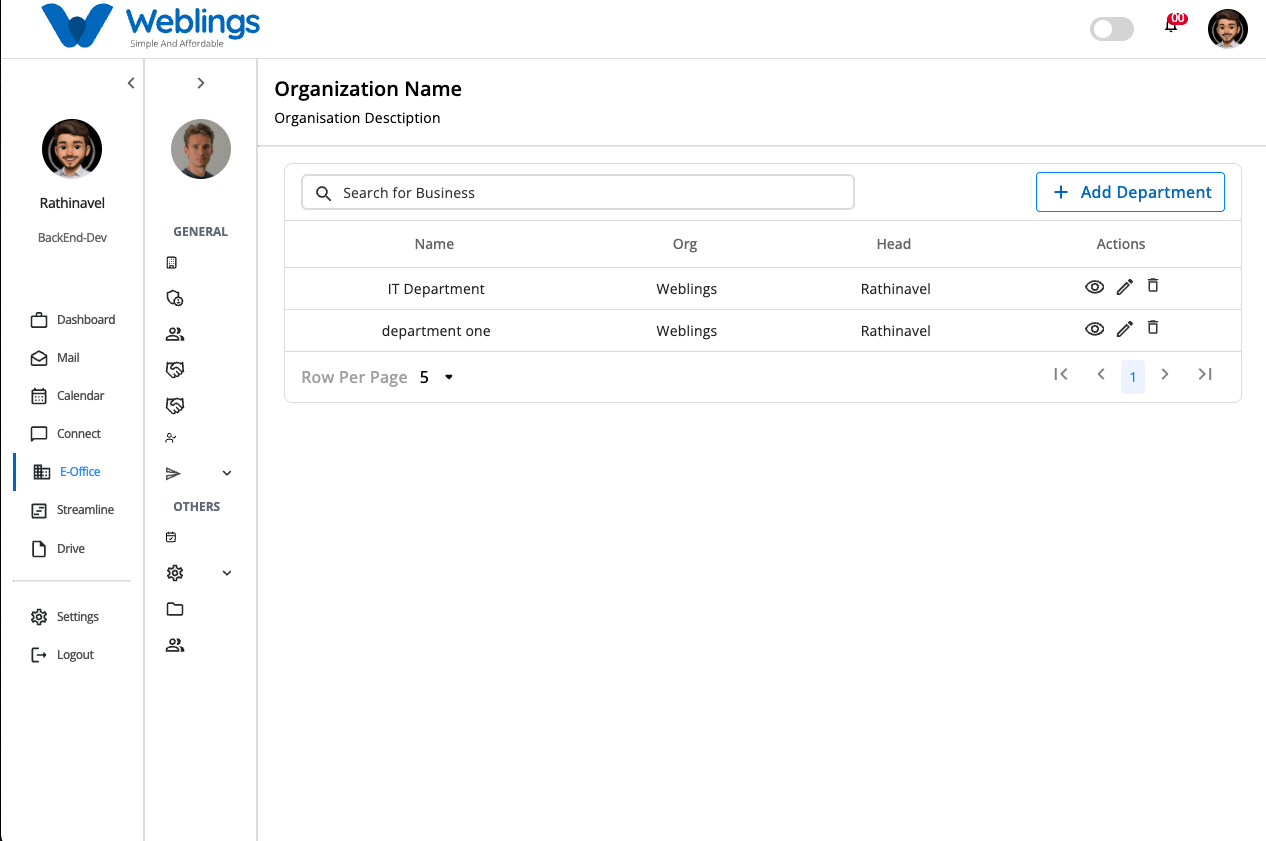
The Departments screen helps you organize your business by creating and managing departments within your selected business unit.
From this screen, you can:
- View all departments.
- Search for a department.
- Create a new department.
- View department details.
- Edit department information.
- Delete a department.
Department List
The Department table displays all departments created for the selected business unit.
The table includes the following information:
- Name – The department name.
- Organization – The organization to which the department belongs.
- Head – The employee assigned as the department head.
- Actions – Options to view, edit, or delete the department.
Use the search box at the top of the page to quickly find a department by name.
Create a Department
To create a new department, click Add Department.
The Create Department page will open.
Enter Department Information
Fill in the following details:
Department Name
Enter a unique and meaningful name for the department.
Example:
- Human Resources
- Information Technology
- Finance
- Sales
Description
Enter a short description explaining the purpose or responsibilities of the department.
Department Head
Select the employee who will manage the department from the Head drop-down list.
Organization
The Organization field is filled in automatically based on the organization you signed in to.
This field cannot be changed.
Business Unit Location
The Business Unit Location is automatically selected based on the business location you used to log in.
This field cannot be changed.
Save or Cancel
After entering all required information:
- Click Submit to create the department.
- Click Cancel to close the page without saving.
If all information is valid, the new department will be added to the Department list.
View Department Details
To view complete information about a department, click the View (👁) icon in the Actions column.
The Department Details page displays:
- Department Name
- Description
- Organization
- Department Head
- Business Unit Location
- Created By
- Created Date and Time
- Message (if available)
This page is for viewing information only.
Edit a Department
To update department information, click the Edit (✏️) icon in the Actions column.
You can update the following information:
- Department Name
- Description
- Department Head
The Organization and Business Unit Location remain unchanged.
After making your changes:
- Click Update to save the changes.
- Click Cancel to discard your changes.
If the information is valid, the department details will be updated successfully.
Delete a Department
To remove a department, click the Delete (🗑) icon in the Actions column.
Before the department is deleted, a confirmation message will appear.
This will permanently remove the Department. Are you sure you want to proceed?
You can choose one of the following options:
- Delete – Permanently removes the department.
- Cancel – Closes the confirmation window without deleting the department.
Note: Once a department is deleted, it cannot be recovered.
Search Departments
Use the Search for Business box at the top of the page to quickly locate a department.
Start typing the department name, and the table will automatically display matching results.