
Employees
Employees
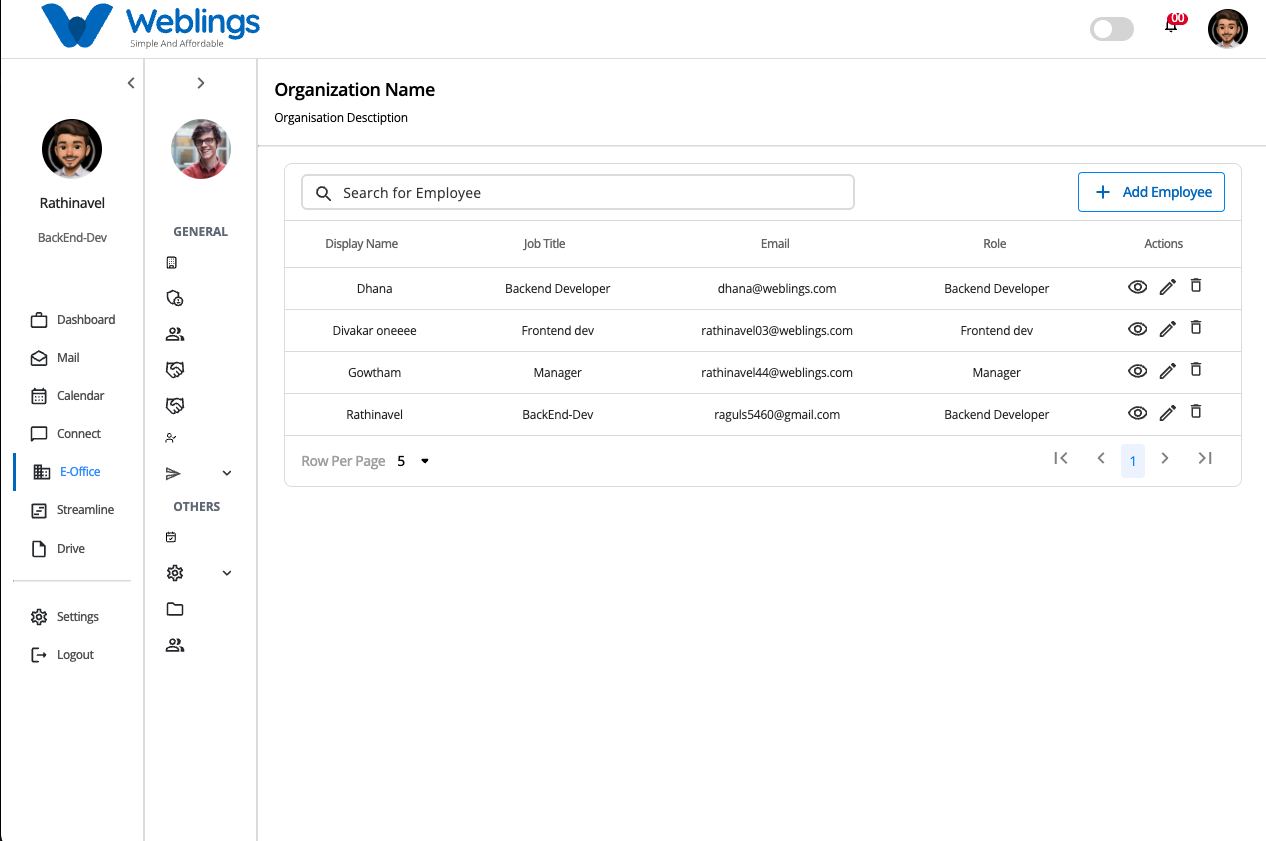
The Employees section allows administrators to manage employee records within the organization. From this screen, you can add new employees, view employee information, update employee details, or remove employees when required.
The Employees page displays a list of all employees in the organization.
Each employee record contains:
- Display Name – The name displayed throughout the system.
- Job Title – The employee's assigned position.
- Email – The employee's organization email address.
- Role – The role assigned to the employee.
- Actions – View, Edit, and Delete options.
You can also use the Search bar to quickly find an employee by entering their display name, email address, or job title.
Add a New Employee
To create a new employee account, click the Add Employee button located in the top-right corner of the Employees page.
Employee creation is completed in four simple steps.
Step 1 – Basic Details
The first step collects the employee's personal information, organization email, contact details, and role.
Personal Details
Fill in the following information:
- First Name
- Middle Name (Optional)
- Last Name
- Display Name
- Custom Code
- Gender (Select from the dropdown)
- Date of Birth (Select from the calendar)
- Nationality (Select from the dropdown)
Make sure all information is entered correctly, as these details will be used throughout the organization.
Organization Email
Create the employee's official organization email.
Complete the following fields:
Email Address
Enter the preferred email name.
Select the organization's email domain.
Click the Check button to verify whether the email address is available.
Example:
john.smith@company.com
If the email address is available, continue with the remaining fields.
Display Name
Enter the display name that will appear in emails and throughout the application.
New Password
Create a secure password that meets all of the following requirements:
- Be at least 8 characters long.
- Include at least one uppercase letter (A–Z).
- Include at least one lowercase letter (a–z).
- Include at least one number (0–9).
- Include at least one special character, such as **! @ # $ % & **.
Change Password on First Login
If you want the employee to create their own password during their first login, enable the Change Password on First Login checkbox.
After completing the email details, click Create Email.
Contact Details
Provide the employee's contact information.
Fields include:
- Personal Email
- Alternate Email (Optional)
- Mobile Number
- Alternate Mobile Number (Optional)
Job Title
Assign a role to the employee.
Select the employee's Role from the dropdown list.
The selected role determines the employee's access permissions within the system.
After completing all information, click Next.
Step 2 – Job Details
The second step records the employee's employment and organization information.
This step contains two sections.
Job Details
Complete the following fields:
- Joining Date (Select from the calendar)
- Shift Type (Select from the dropdown)
Organizational Details
Assign the employee to the correct organization structure.
Complete the following fields:
- Business Unit (Dropdown)
- Location (Dropdown)
The available locations depend on the selected Business Unit.
- Department (Dropdown)
- Worker Type (Dropdown)
- Reporting Manager (Dropdown)
- Probation Policy (Dropdown)
- Notice Period (Dropdown)
Once all information has been entered, click Next.
Step 3 – Work Details
The Work Details step allows you to assign the employee's work schedule and leave policies.
Complete the following fields:
- Leave Plan (Dropdown)
- Week Off Plan (Dropdown)
- Holiday Plan (Dropdown)
- Asset Assignment (Dropdown)
After completing all required fields, click Next.
Step 4 – Compensation Details
The final step records the employee's salary structure.
Complete the following fields:
- Pay Scale (Dropdown)
- Pay Grade (Dropdown)
After reviewing the information, click Finish.
The employee will be created successfully and added to the Employees list.
View Employee Details
To view an employee's information, click the View (Eye) icon.
The Employee Details page displays all information entered during employee creation, including:
- Personal Details
- Contact Information
- Organization Email
- Job Information
- Organizational Details
- Work Details
- Compensation Details
- Assigned Role
- Department
- Business Unit
- Reporting Manager
This page is read-only and is intended for reviewing employee information.
Edit an Employee
To update an employee's information:
- Click the Edit (Pencil) icon.
- Modify the required information.
- Click Save Changes.
The employee information will be updated immediately.
If you do not wish to save the changes, click Cancel.
Delete an Employee
To remove an employee from the organization:
- Click the Delete (Trash) icon.
- A confirmation dialog will appear.
Confirmation Message
This will permanently remove the Employee.
Are you sure you want to proceed?
You will have two options:
- Cancel – Return without deleting the employee.
- Delete – Permanently remove the employee.
Note: Deleted employee records cannot be recovered.
Search Employees
Use the search bar to quickly find an employee.
You can search using:
- Display Name
- Email Address
- Job Title
The employee list updates automatically to show matching results.