
Organization Tree
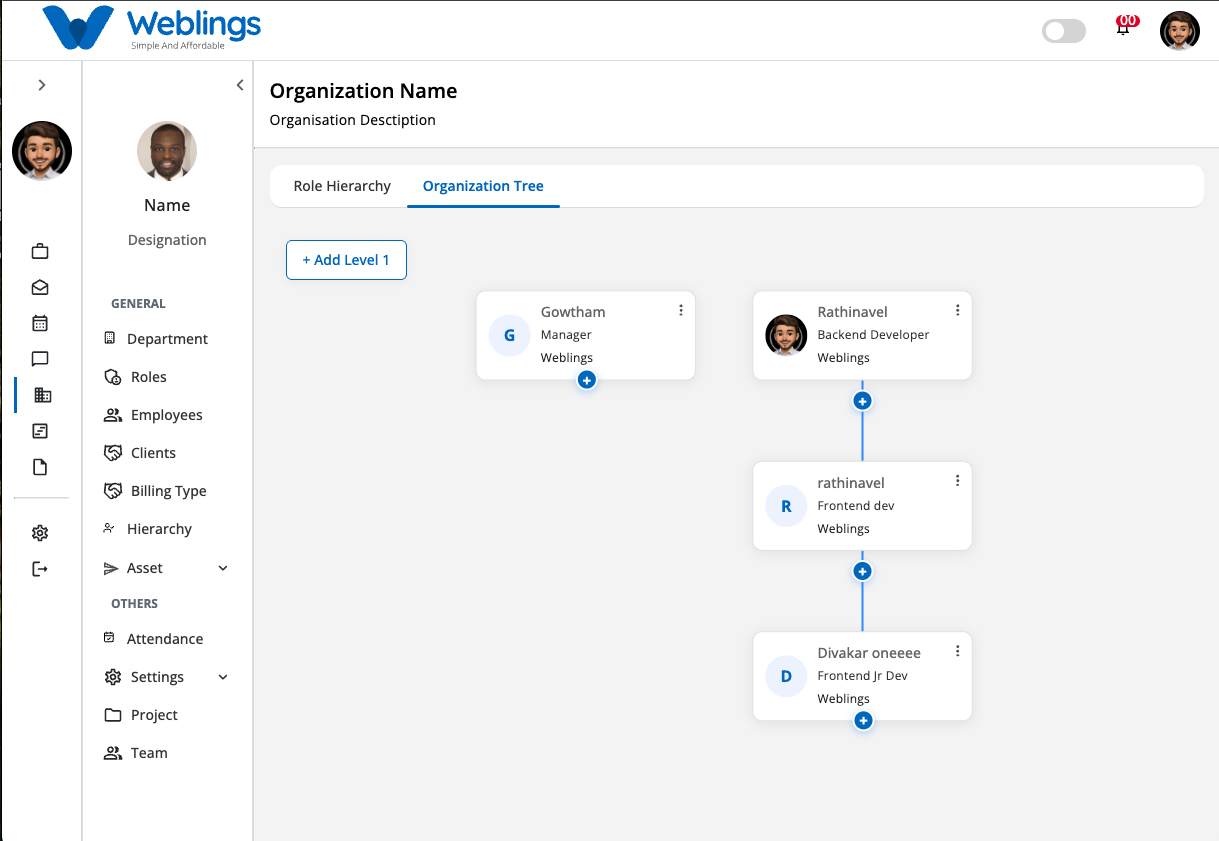
The Organization Tree tab allows you to build and manage your organization's employee reporting structure based on the roles created in the Role Hierarchy module.
The tree displays employees assigned to their respective roles, making it easy to visualize reporting relationships throughout the organization.
You can:
- View the complete organization structure.
- Add employees to the hierarchy.
- Edit employee assignments.
- Delete employees from the hierarchy.
- Maintain reporting relationships.
Note: The available roles are automatically loaded from the Role Hierarchy module. Employees can only be assigned according to the hierarchy you have already defined.
Add a Level 1 Employee
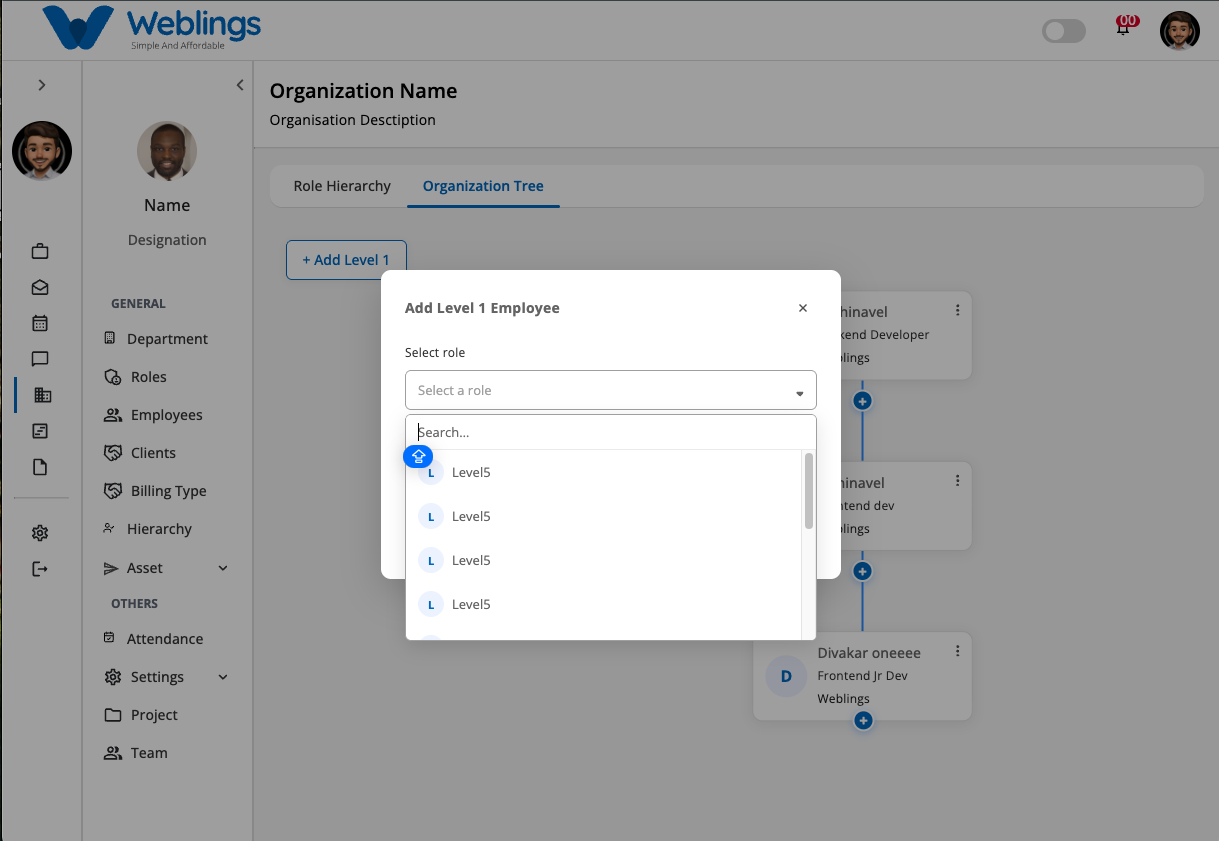
To create the first employee in the organization tree, click the Add Level 1 button.
The Add Level 1 Employee dialog will open.
Enter Employee Information
Complete the following fields.
Select Role
Choose a role from the dropdown list.
The available roles are displayed based on the hierarchy created in the Role Hierarchy module.
Example:
- CEO
- Director
- Manager
Select Member
Choose the employee who should be assigned to the selected role.
Only employees who are eligible for the selected role will be displayed.
Save or Cancel
After completing the required information:
Done
Creates the employee at Level 1 of the organization tree.
Cancel
Closes the dialog without saving.
Add Child Employees
Once an employee has been added, an Add (+) icon appears.
Click the Add (+) icon to add employees under the selected manager.
The Add Employee dialog opens.
Complete the following information:
Select Role
The available roles follow the hierarchy created in the Role Hierarchy module.
For example:
CEO
 ├── Director
      ├── Manager
            ├── Team Lead
                  ├── Employee
Only valid child roles will be available for selection.
Select Member
Choose the employee who will be assigned to the selected role.
Click Done to add the employee.
You can continue adding employees until your organization structure is complete.
Edit an Employee Assignment
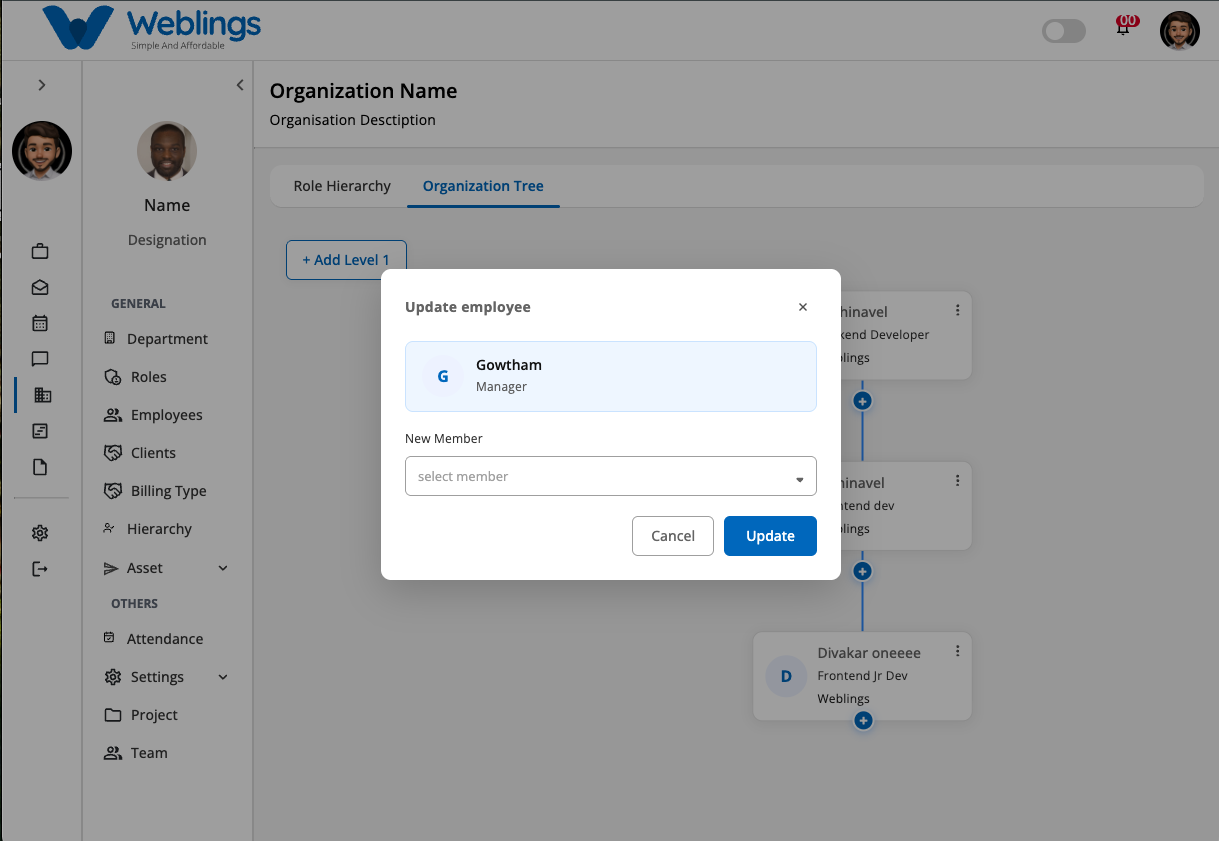
To change the employee assigned to a role:
- Click the More Options (⋮) icon.
- Select Edit.
The Update Employee dialog opens.
The dialog displays:
- Current Assigned Member
- Assigned Role
New Member
Select another employee from the dropdown list.
The role remains unchanged.
Save or Cancel
Update
Assigns the newly selected employee to the role.
Cancel
Closes the dialog without saving changes.
Delete an Employee from the Organization Tree
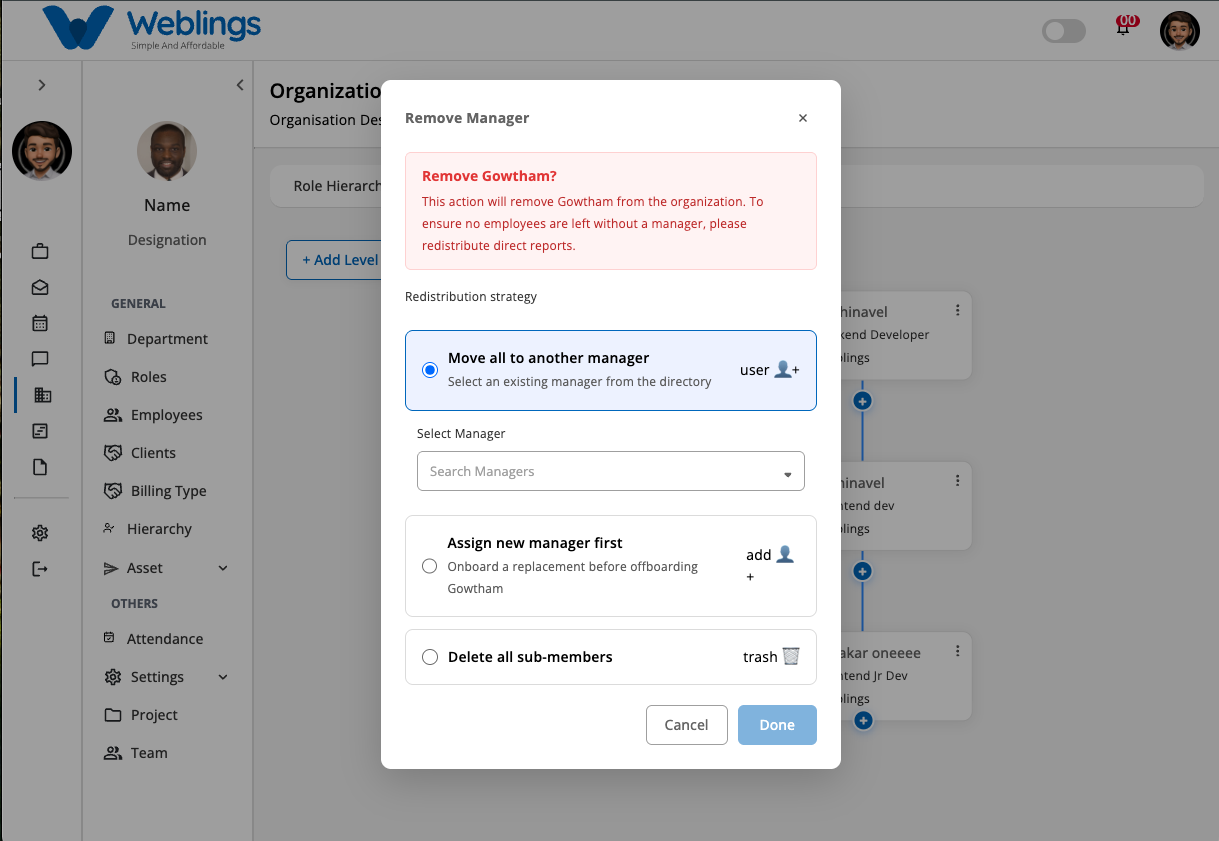
To remove an employee:
- Click the More Options (⋮) icon.
- Select Delete.
A confirmation dialog appears.
Confirmation Message
Remove Manager?
Remove Rathinavel?
This action will remove Rathinavel from the organization. To ensure no employees are left without a manager, please redistribute direct reports before continuing.
Redistribution Strategy
Choose one of the following options before deleting the employee.
Option 1 — Move All to Another Manager
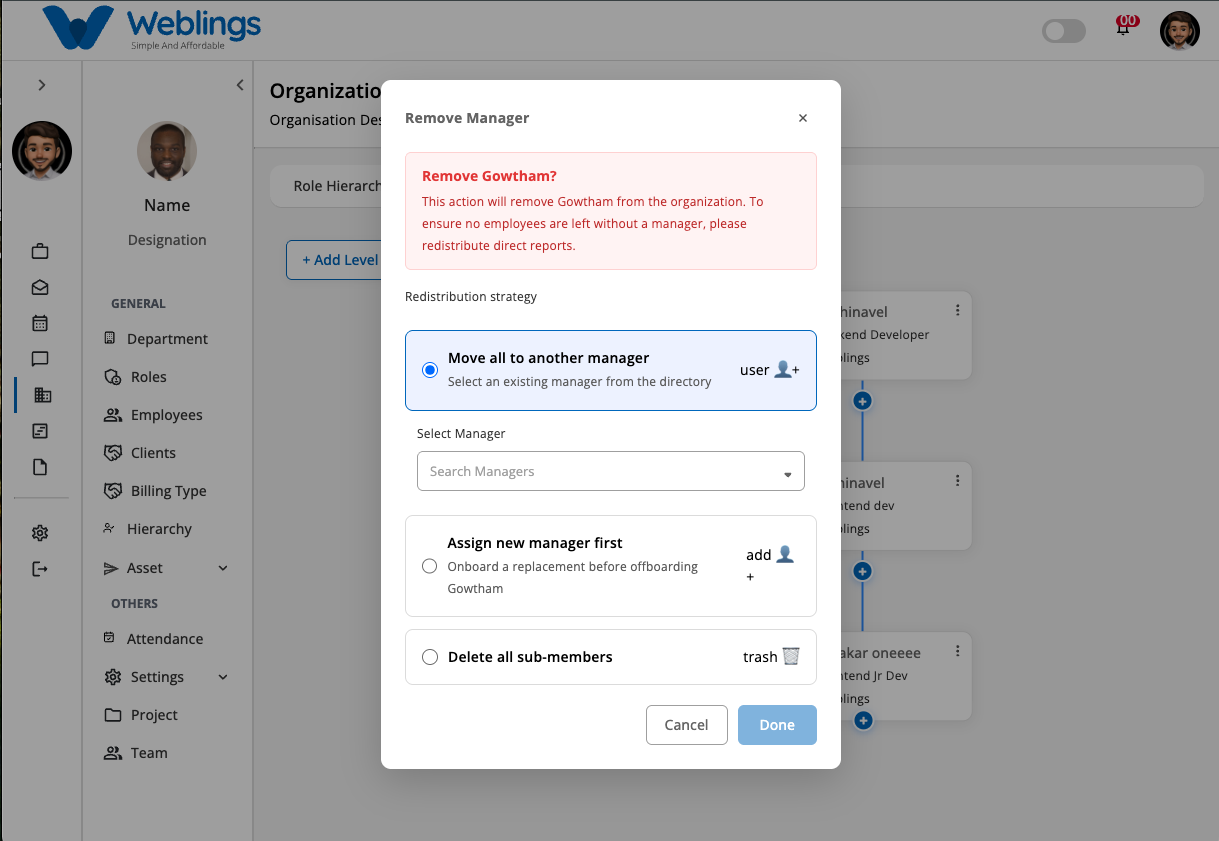
All direct reports will be reassigned to another existing manager.
After selecting this option:
- Choose the new manager from the dropdown.
- Click Done.
Option 2 — Assign New Manager First
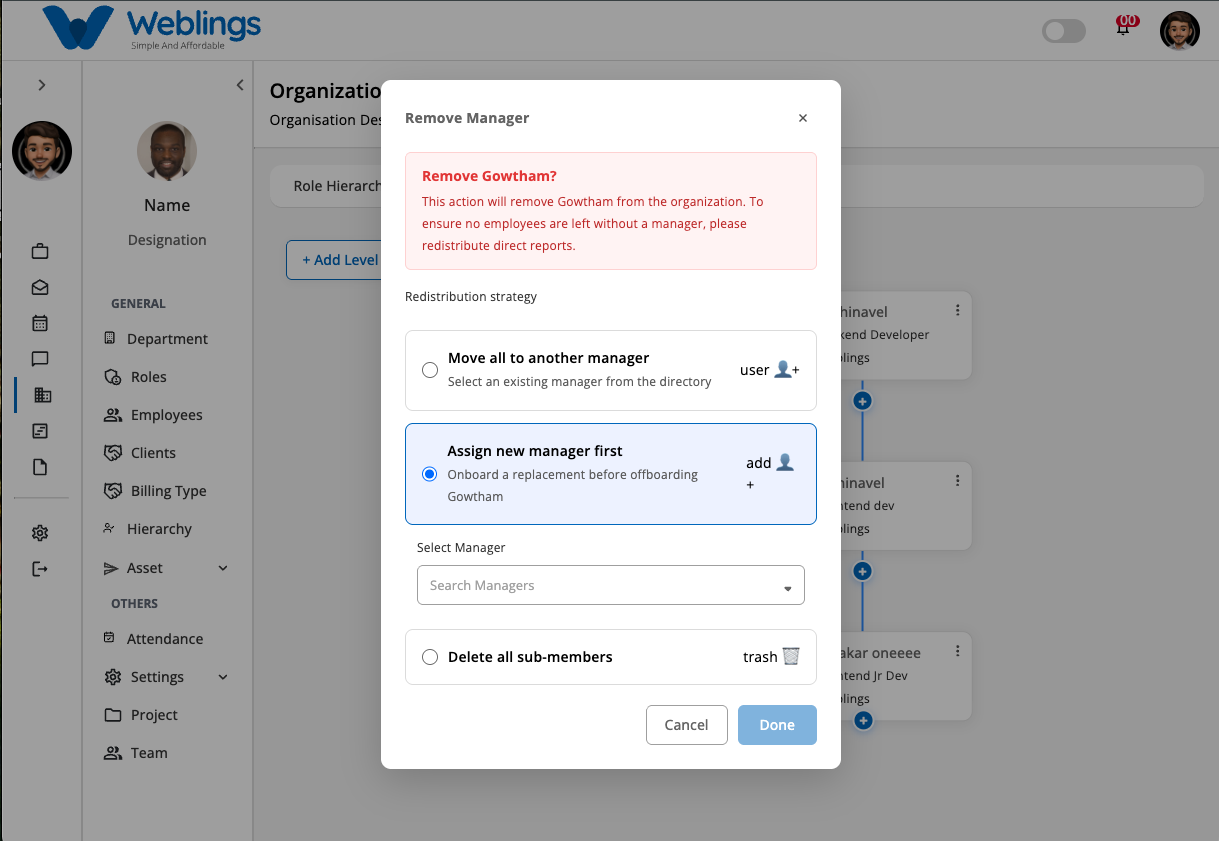
Assign a replacement manager before removing the current employee.
Select the new manager from the dropdown list.
Click Done.
All direct reports will be transferred automatically.
Option 3 — Delete All Sub-Members
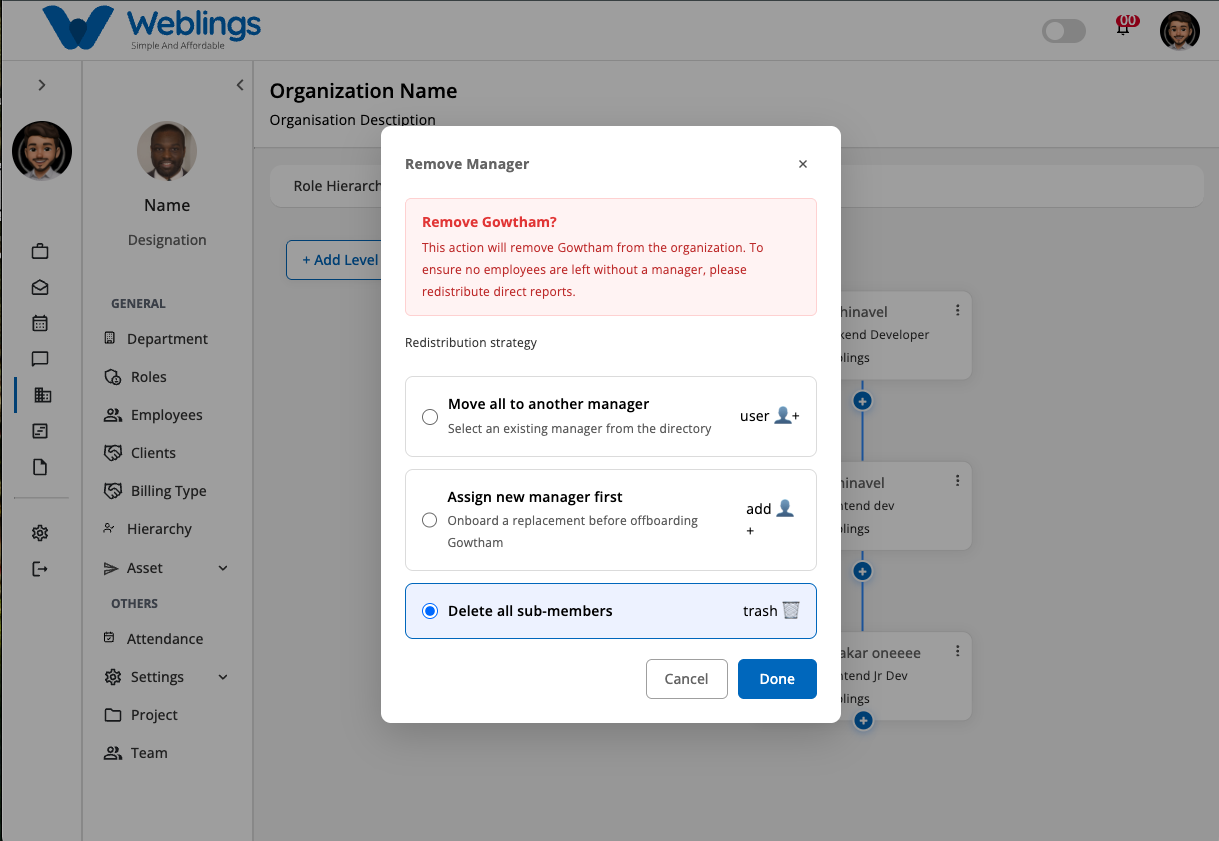
This option removes the selected employee along with all employees reporting under them.
Warning: This action permanently deletes the entire reporting branch and cannot be undone.
Cancel
Closes the dialog without deleting the employee.
Organization Tree Structure
The organization tree visually displays:
- Employee Name
- Assigned Role
- Reporting Manager
- Direct Reports
You can expand or collapse branches to navigate large organizational structures easily.