
Role Hierarchy
Hierarchy
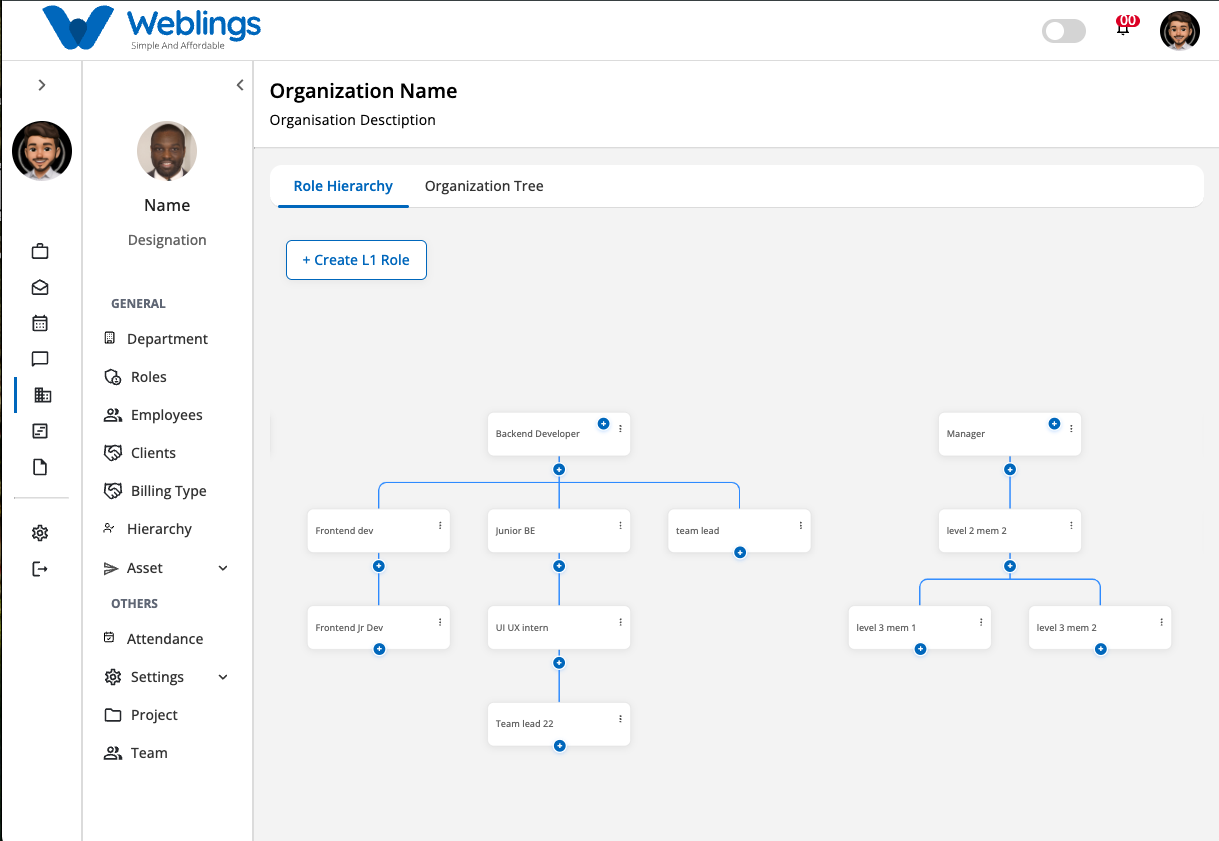
The Hierarchy module helps you define your organization's reporting structure. It allows you to create role-based hierarchies and visualize your organizational structure.
The Hierarchy module contains two tabs:
- Role Hierarchy
- Organization Tree
Role Hierarchy
The Role Hierarchy tab allows you to create and manage reporting levels within your organization.
You can create multiple hierarchy levels, such as:
- Level 1
- Level 2
- Level 3
- Level 4
- Additional levels as required
Each role can have one or more child roles, creating a complete reporting structure.
Create Level 1 Role
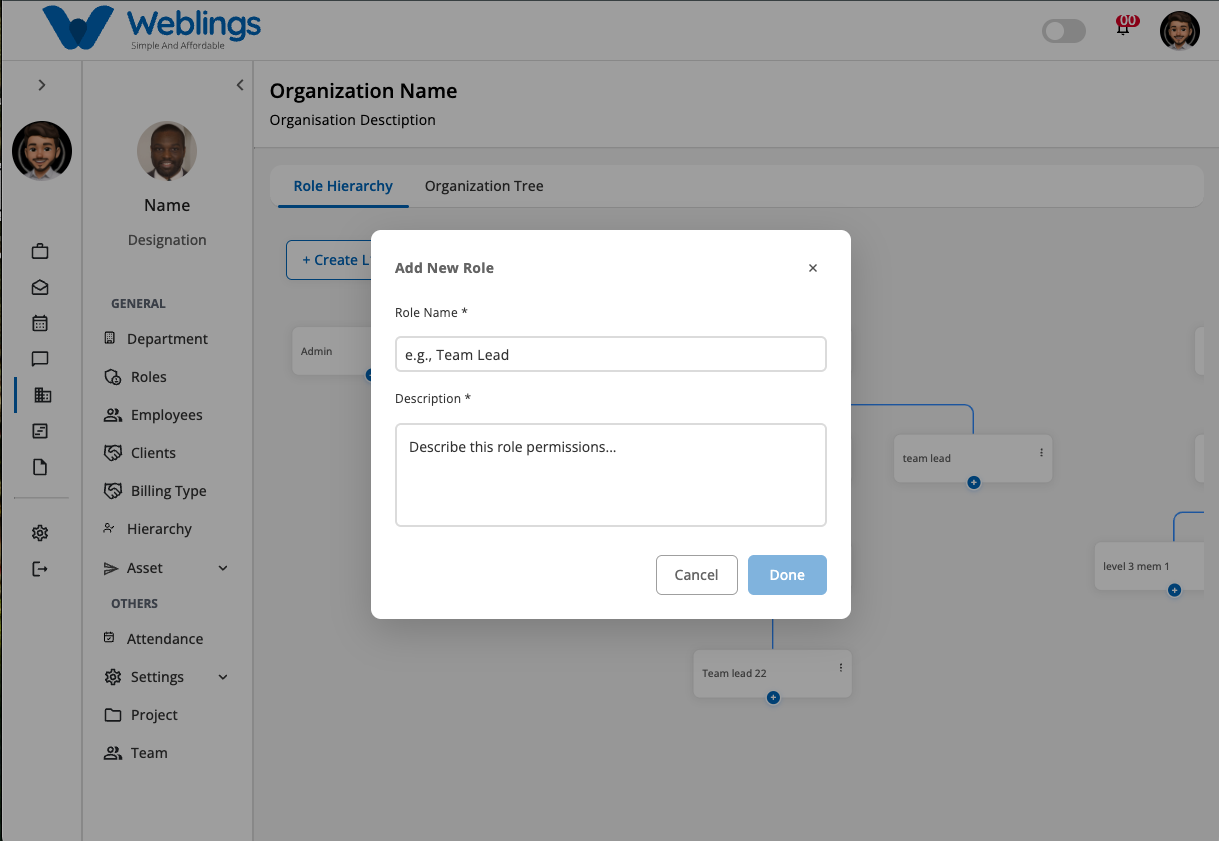
To create your first role, click the Create L1 Role button in the top-left corner of the screen.
Once the first Level 1 role is created, an Add (+) icon appears beside the role, allowing you to create additional Level 1 roles.
Example:
CEO
Director
Manager
These roles exist at the same hierarchy level.
Create Child Roles
Every role displays one or more Add (+) icons.
Depending on which Add icon you select, you can:
- Create another role at the same level.
- Create a child role under the selected role.
For example:
CEO
├── Director
│   ├── Manager
│   │   ├── Team Lead
│   │   │   └── Employee
There is no fixed limit to the number of hierarchy levels you can create.
Add a New Role
Click the Add (+) icon where you want to create the role.
The Add New Role dialog will open.
Complete the following information:
Role Name
Enter the name of the role.
Examples:
- HR Manager
- Finance Manager
- Senior Developer
- Team Lead
Description
Enter a brief description of the role and its responsibilities.
Save or Cancel
After entering the required information:
Done
Creates the new role in the selected hierarchy position.
Cancel
Closes the dialog without creating the role.
Edit a Role
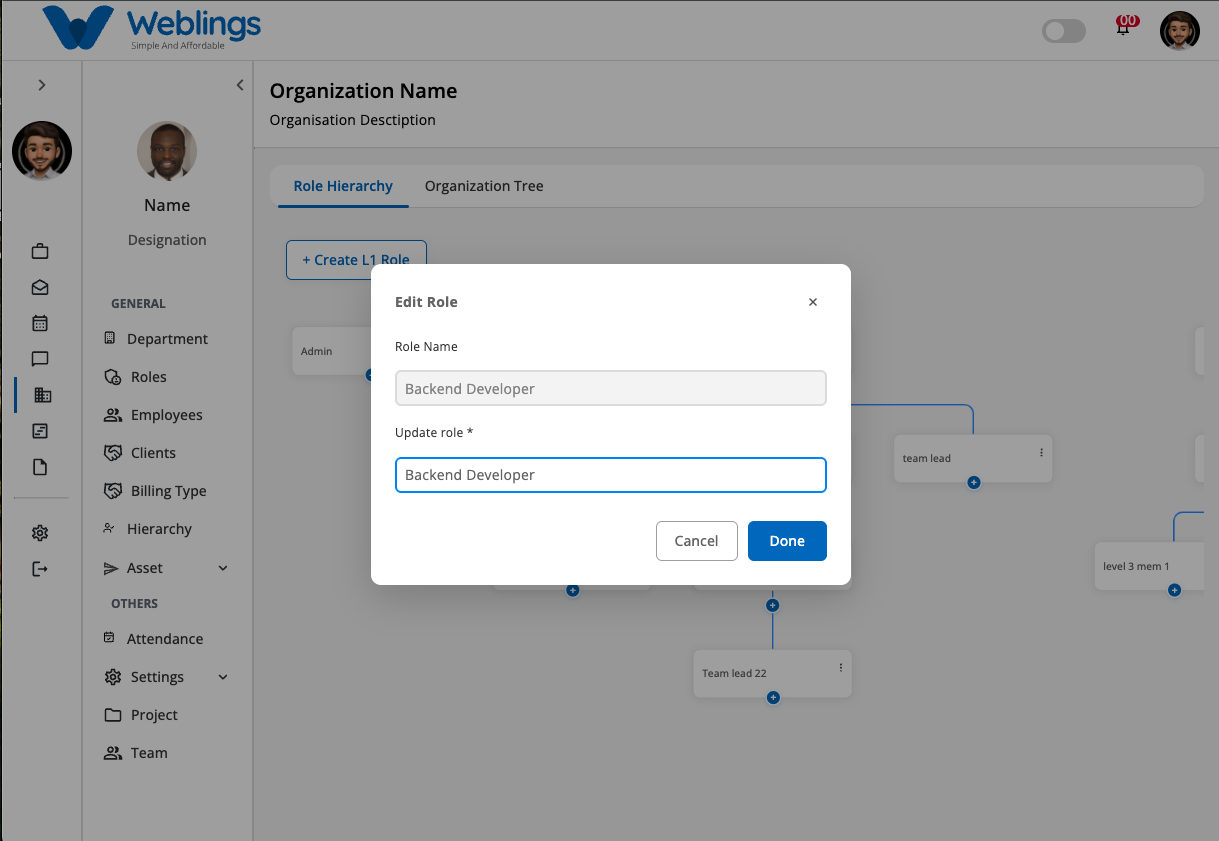
To modify an existing role:
- Click the More Options (⋮) icon.
- Select Edit.
The Update Role dialog opens.
Update the following information:
- Role Name
- Description
After making your changes:
Done
Saves the updated role.
Cancel
Closes the dialog without saving changes.
Delete a Role
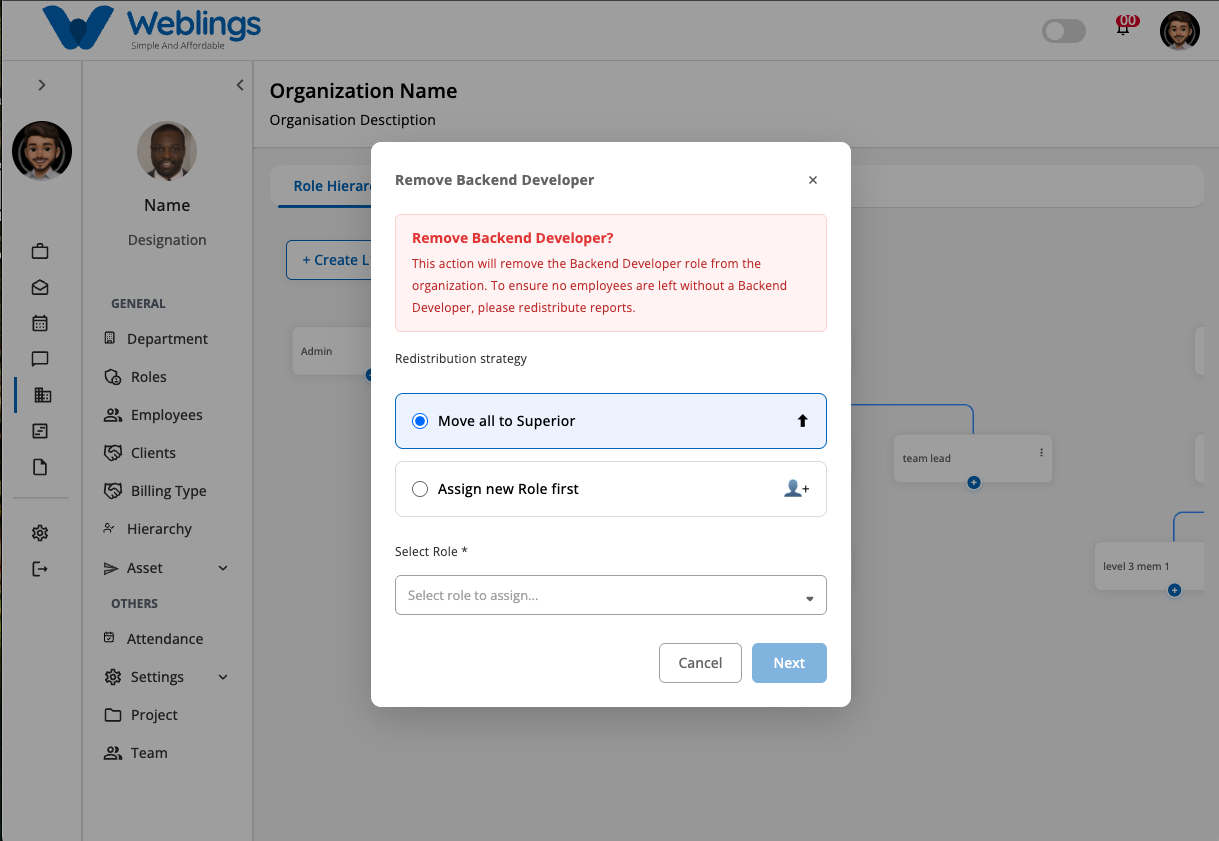
To remove a role:
- Click the More Options (⋮) icon.
- Select Delete.
A confirmation dialog appears.
Confirmation Message
Remove Manager?
This action will remove the Manager role from the organization. To ensure no employees are left without a Manager, please redistribute reports before continuing.
Redistribution Strategy
Before deleting the role, choose how employees assigned to the role should be reassigned.
Option 1 — Move All to Superior Role
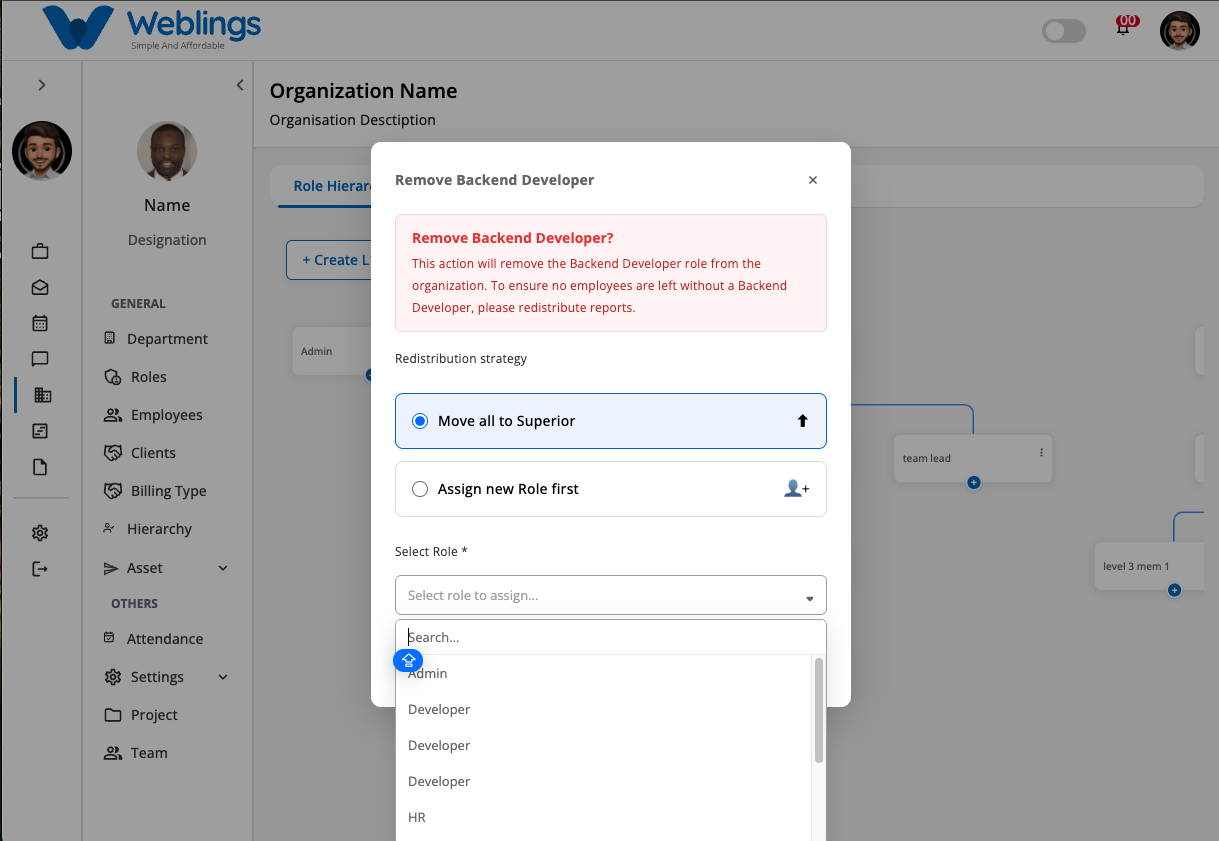
All employees assigned to the selected role will automatically be moved to its immediate parent (superior) role.
After selecting this option:
- Choose the superior role from the dropdown list.
- Click Delete to complete the process.
Option 2 — Assign New Role First
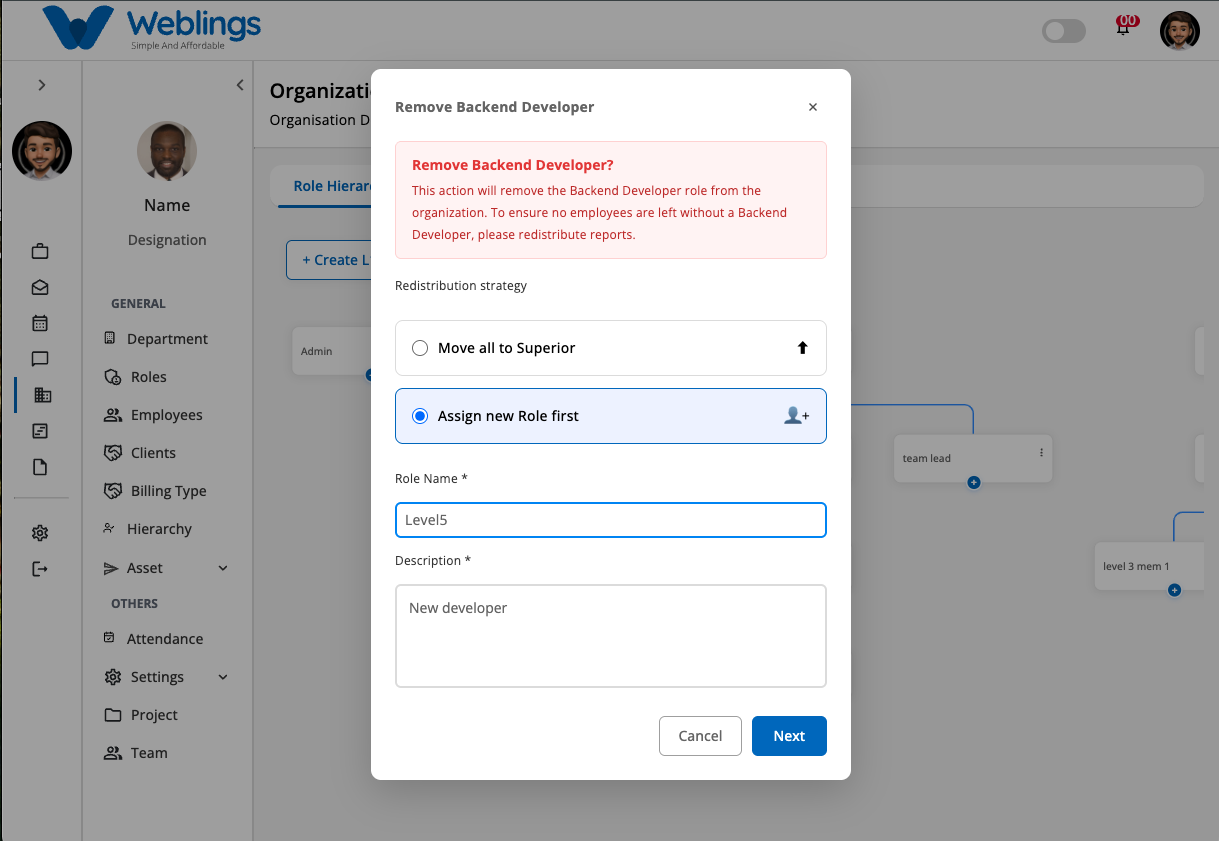
Create a replacement role before removing the current one.
Enter:
- Role Name
- Description
Click Next.
The new role will be created, and employees assigned to the deleted role will be transferred to the new role.
Cancel
Closes the dialog without deleting the role.
Note: A role cannot be deleted until all employees assigned to that role have been reassigned.