
Project
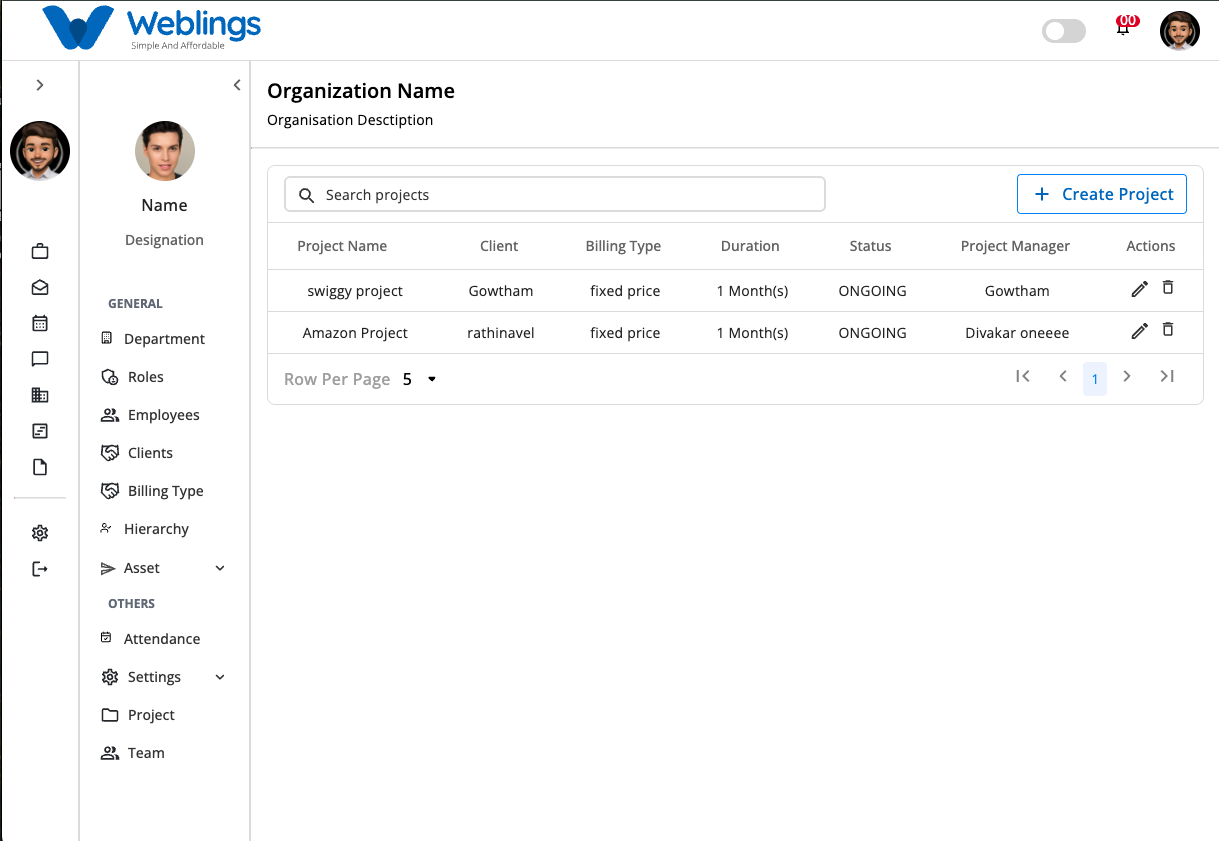
The Projects screen allows you to create, manage, edit, and delete projects within your organization.
Project List
The Project List displays all available projects in a table format. Each project includes the following details:
- Project Name – The name of the project.
- Client – The client associated with the project.
- Billing Type – The project's billing method.
- Duration – The project's start and end dates or overall duration.
- Status – The current status of the project.
- Project Manager – The employee responsible for managing the project.
- Actions – Options to view, edit, or delete the project.
To create a new project:
- Click the Create Project button.
- The Create Project screen will open.
Create Project
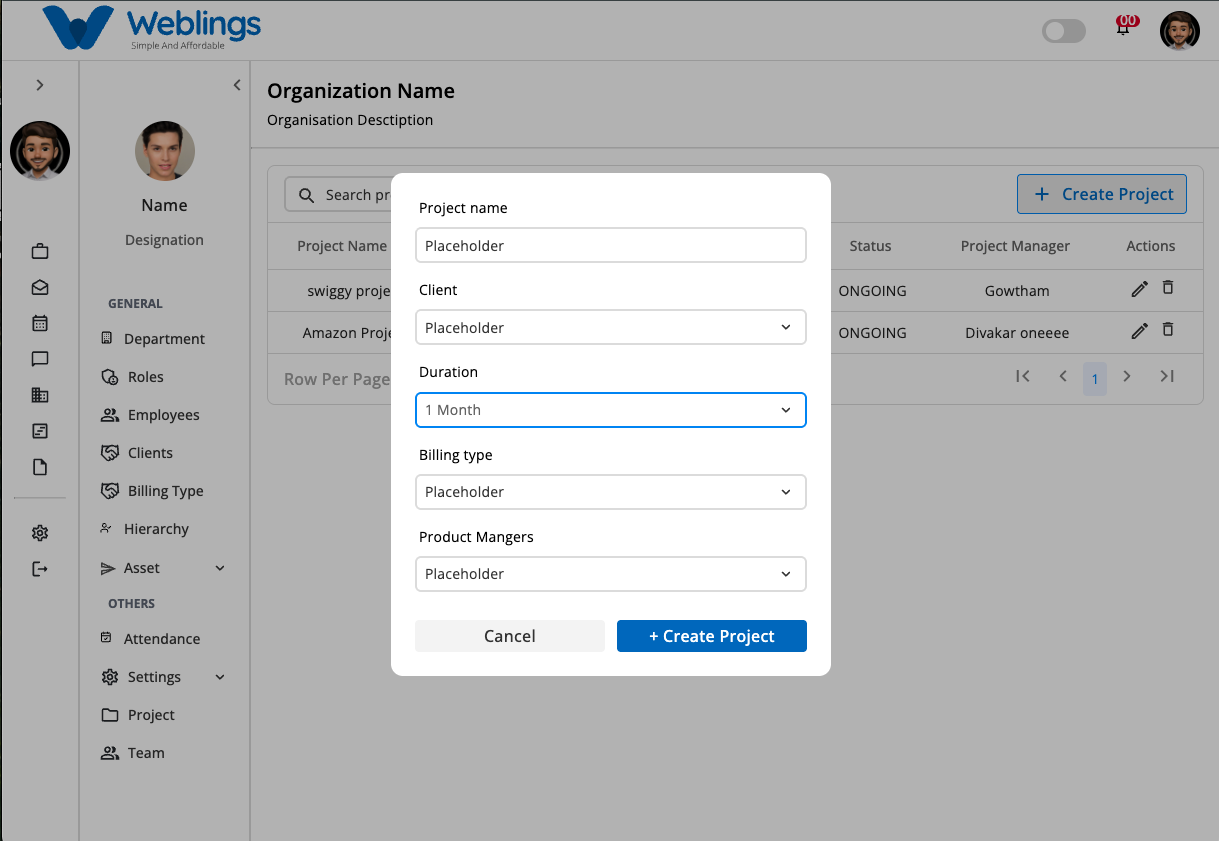
The Create Project screen allows you to add a new project by entering the required details.
Fill in the following fields:
- Project Name
- Client – Select a client from the dropdown list.
- Duration
- Billing Type
- Project Manager – Select a project manager from the dropdown list.
After completing all required fields:
- Click Create Project to save the project.
- Click Cancel to discard the changes.
Edit Project
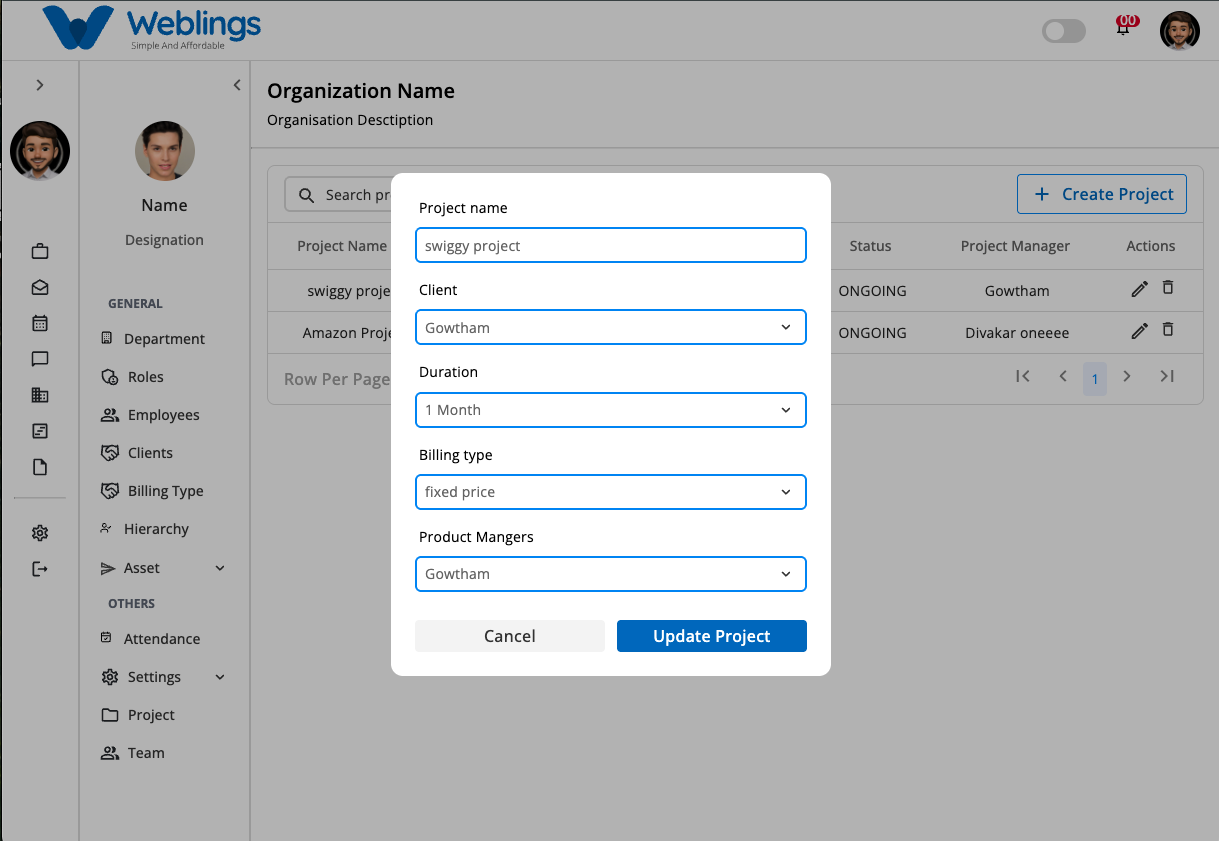
To update an existing project:
- Click the Edit action for the desired project.
- The Edit Project screen will open.
You can modify the following fields:
- Project Name
- Client – Select a client from the dropdown list.
- Duration
- Billing Type
- Project Manager – Select a project manager from the dropdown list.
After making the necessary changes:
- Click Save Changes to update the project.
- Click Cancel to exit without saving.
Delete Project
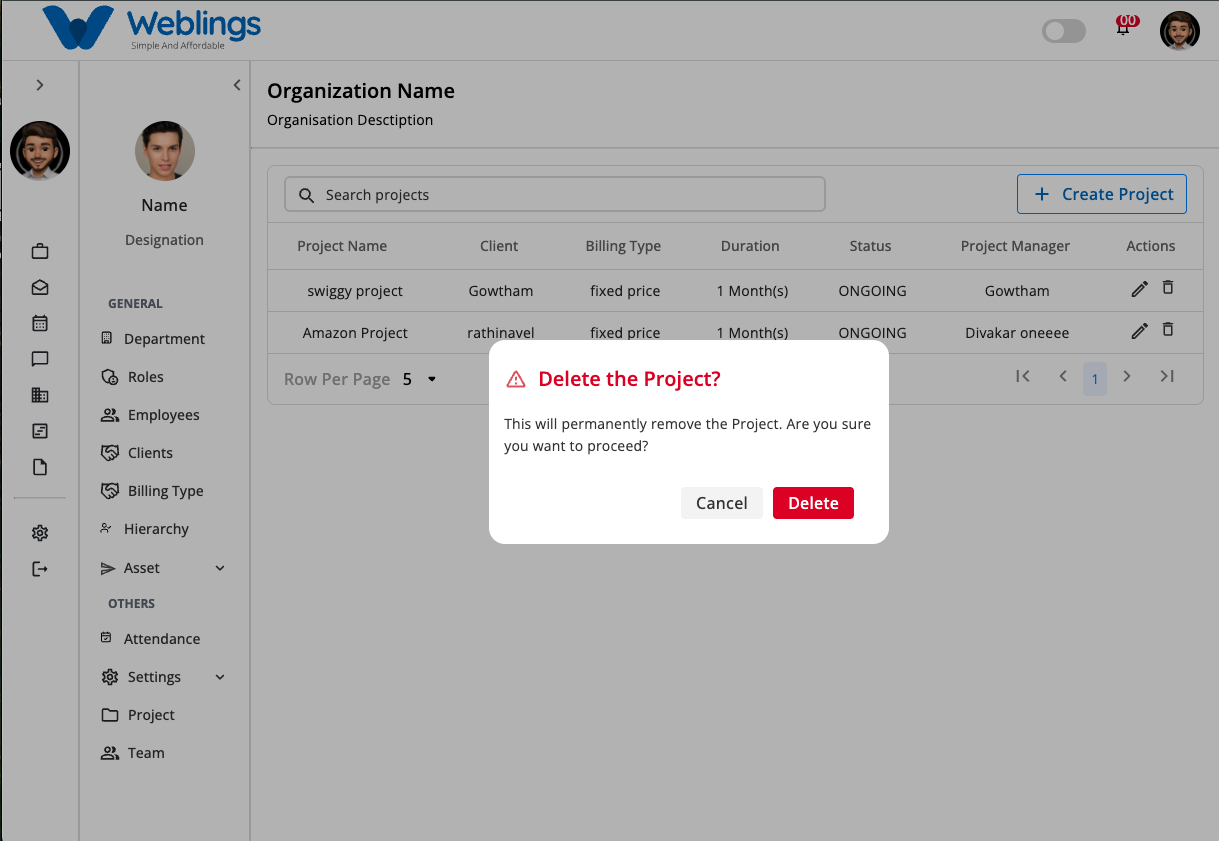
To remove a project:
- Click the Delete action for the desired project.
- A confirmation dialog will appear.
Choose one of the following options:
- Delete – Permanently removes the project.
- Cancel – Closes the dialog without deleting the project.
← PreviousFAQ
Next →FAQ