
Probation period
Probation
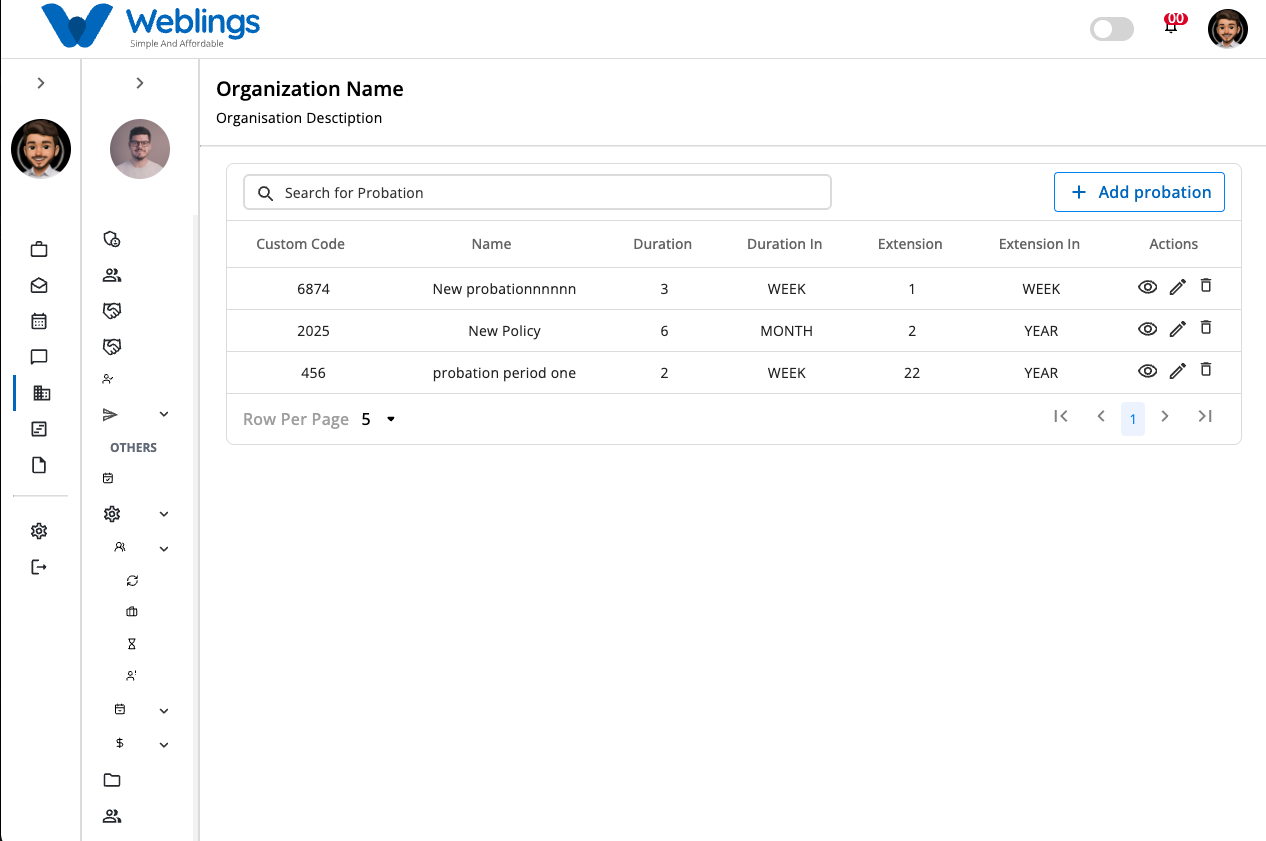
The Probation screen displays a list of all probation policies available in your organization.
Each probation policy includes the following information:
- Custom Code
- Probation Policy Name
- Duration
- Duration Unit (Week / Month / Year)
- Extension Duration
- Extension Unit (Week / Month / Year)
- Actions (View, Edit, Delete)
You can also use the Search bar to quickly find a probation policy by its name or custom code.
Create a New Probation Policy
To create a new probation policy, click the Add Probation button in the top-right corner of the screen.
The New Probation Period page will open.
Complete the following fields:
Probation Policy
- Probation Policy Name
- Custom Code
- Policy Description
- Probation Period Duration
- Duration Unit (Week / Month / Year)
- Extension Duration
- Extension Unit (Week / Month / Year)
After entering all the required information, choose one of the following options:
- Submit – Creates the new probation policy and adds it to the probation list.
- Cancel – Returns to the previous screen without saving.
View Probation Policy
Click the View (👁️) icon to open the probation policy details.
The details page displays:
- Probation Policy Name
- Description
- Custom Code
- Probation Period Duration
- Duration Unit
- Extension Duration
- Extension Unit
- Created Date & Time
- Last Updated Date & Time
- Business Unit Location
- Created By
- Updated By
- Status Message
This page is for viewing information only and cannot be edited.
Edit a Probation Policy
To update an existing probation policy:
- Click the Edit (✏️) icon.
- The Edit Probation Policy page will open.
- Update any of the following information:
- Probation Policy Name
- Custom Code
- Policy Description
- Probation Period Duration
- Duration Unit (Week / Month / Year)
- Extension Duration
- Extension Unit (Week / Month / Year)
- Click Update to save your changes.
The updated information will be reflected immediately in the probation list.
If you do not want to save your changes, click Cancel to return without making any updates.
Delete a Probation Policy
To remove a probation policy:
- Click the Delete (🗑️) icon.
- A confirmation dialog will appear.
Confirmation Message
This will permanently remove the probation policy. Are you sure you want to proceed?
You will have two options:
- Cancel – Return without deleting the probation policy.
- Delete – Permanently remove the selected probation policy.
Note: Deleting a probation policy cannot be undone. Ensure the policy is no longer assigned to any employees before deleting it.