
Shift
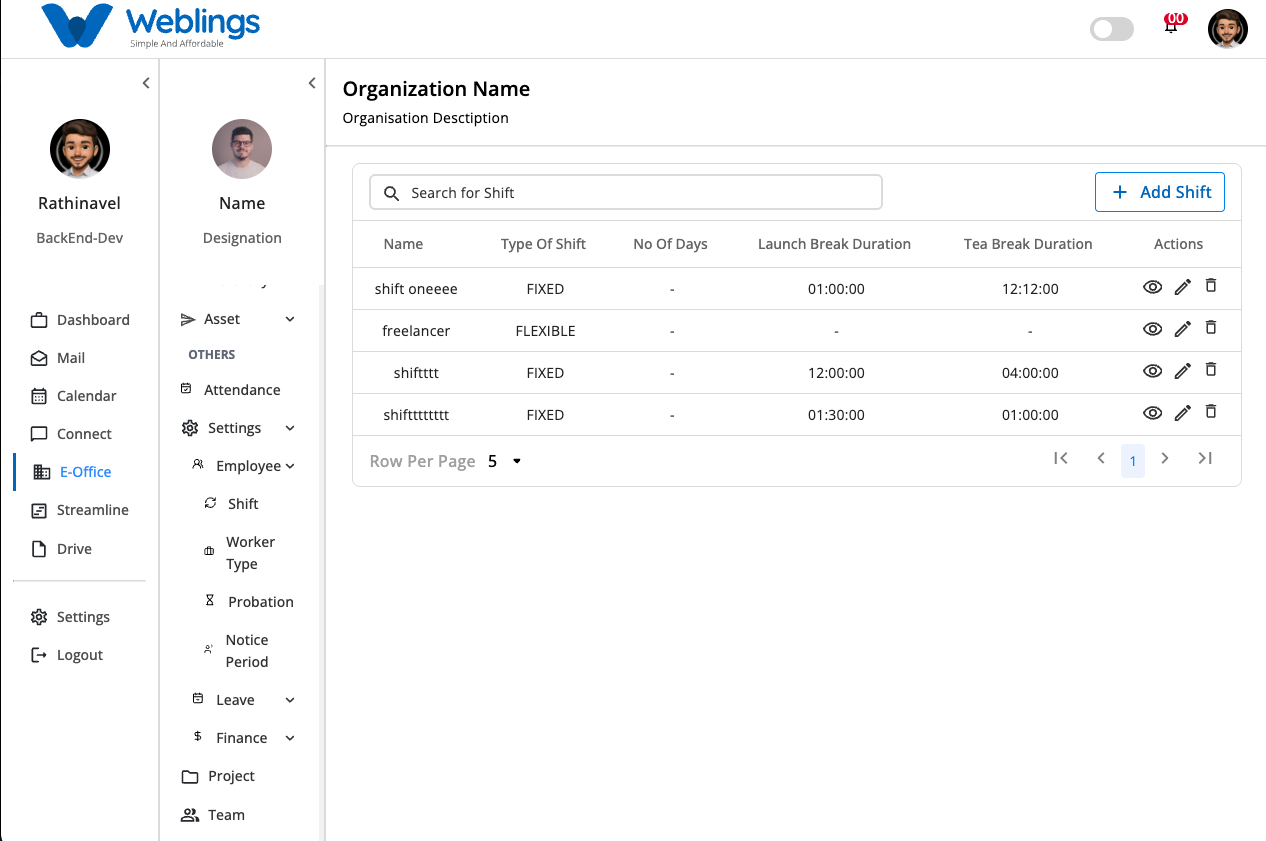
Shift Management
The Shift Management screen helps you create, manage, and organize employee work shifts. You can define working days, working hours, tea break duration, and lunch break duration for each shift. Employees assigned to a shift will follow the schedule configured here.
The screen displays a list of all available shifts with the following information:
- Shift Name
- Shift Type (Fixed or Flexible)
- Number of Working Days
- Lunch Break Duration
- Tea Break Duration
- Actions (View, Edit, Delete)
You can also use the Search bar to quickly find a shift by its name.
Create a New Shift
To create a new shift, click the Add Shift button located at the top-right corner of the screen.
The New Shift page will open.
Step 1: Enter Shift Information
Fill in the following details:
Shift Name
Enter a meaningful name for the shift.
Example:
- Morning Shift
- General Shift
- Customer Support Shift
- Night Shift
Custom Code
Enter a unique code that helps identify the shift.
Example:
- MS001
- GS101
- NS001
Select Shift Type
Choose one of the following:
- Fixed Shift – Employees work the same schedule every working day.
- Flexible Shift – Employees can work flexible timings based on company policy.
Step 2: Configure Shift Timings
Choose the working days by selecting the required day buttons.
Available days:
- Monday
- Tuesday
- Wednesday
- Thursday
- Friday
- Saturday
- Sunday
Only the selected days will be treated as working days.
Shift Timing
Select the daily working hours.
Choose:
- Shift Start Time
- Shift End Time
Example:
- Start Time: 09:00 AM
- End Time: 06:30 PM
Tea Break
Enter the duration of the tea break.
Example:
- 15 Minutes
- 30 Minutes
Lunch Break
Enter the duration of the lunch break.
Example:
- 30 Minutes
- 1 Hour
Step 3: Save the Shift
After completing all the required details:
Click Submit.
The new shift will be created and added to the Shift Management list.
If you do not want to create the shift, click Cancel to return to the previous screen without saving.
View Shift Details
Click the View (👁️) icon beside any shift to see its complete information.
The details page displays:
- Shift Name
- Custom Code
- Shift Type
- Working Days
- Shift Start Time
- Shift End Time
- Tea Break Duration
- Lunch Break Duration
- Created At
- Business Unit location
- Created By
- Updated By
- Message
This page is for viewing only and cannot be edited.
Edit a Shift
If you need to change an existing shift:
- Click the Edit (✏️) icon.
- The Edit Shift page will open.
- Update any of the following details:
- Shift Name
- Custom Code
- Shift Type
- Working Days
- Shift Timing
- Tea Break Duration
- Lunch Break Duration
- After making your changes, click Update.
The updated shift information will be saved immediately.
If you decide not to save the changes, click Cancel to return without updating the shift.
Delete a Shift
If a shift is no longer required:
- Click the Delete (🗑️) icon.
- A confirmation message will appear.
Message
This will permanently remove the shift. Are you sure you want to proceed?
You will see two options:
- Cancel – Return without deleting the shift.
- Delete – Permanently remove the selected shift.
Note: Deleting a shift cannot be undone. Make sure the shift is no longer assigned to employees before deleting it