
Worker Type
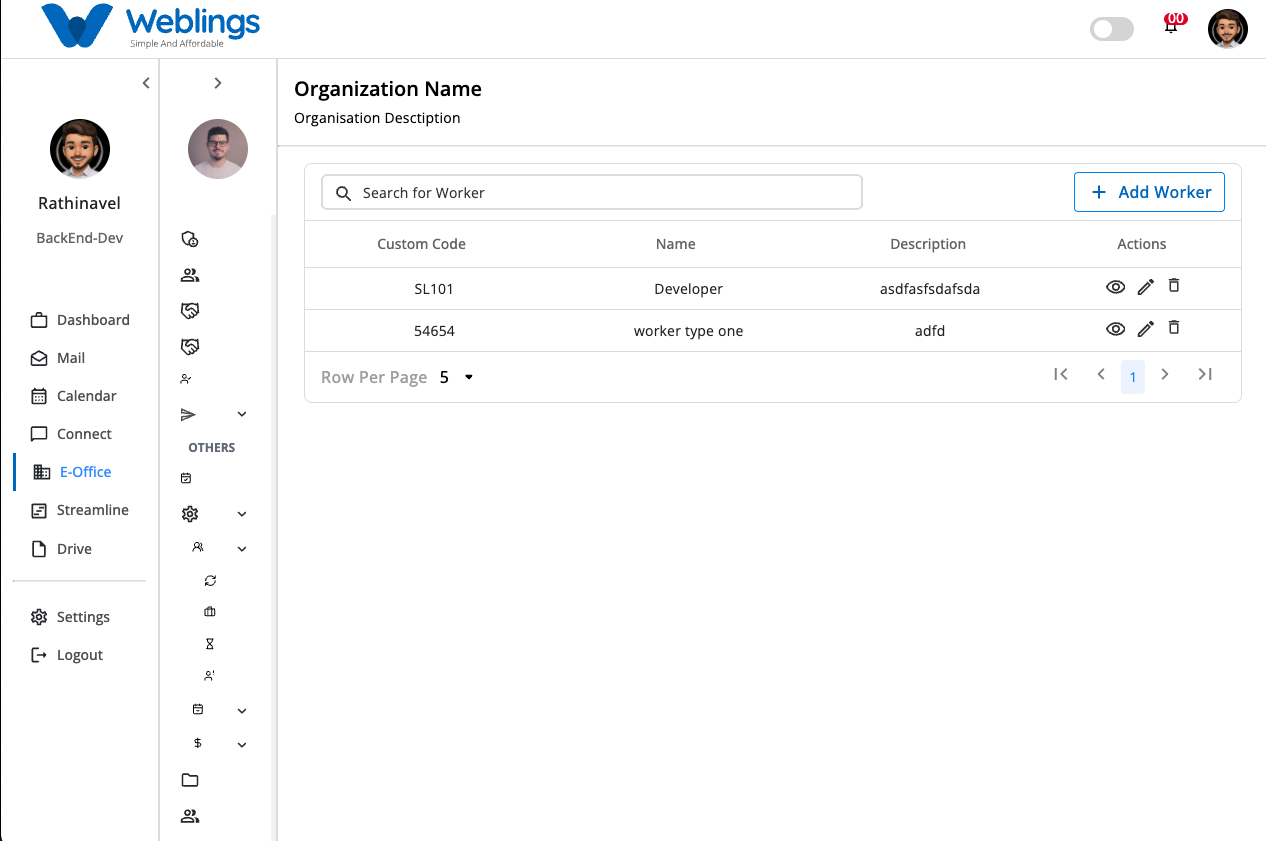
Worker Type Management
The Worker Type Management screen helps you create and manage different categories of workers in your organization. Worker Types can be used to classify employees based on the nature of their work, such as Full-Time, Part-Time, Freelancer, Contract, or Intern.
The screen displays a list of all available worker types with the following information:
- Custom Code
- Worker Type Name
- Description
- Actions (View, Edit, Delete)
You can also use the Search bar to quickly find a worker type by its name or custom code.
Create a New Worker Type
To create a new worker type, click the Add Worker button in the top-right corner of the screen.
The New Worker Type page will open.
Step 1: Enter Worker Type Details
Fill in the following information.
Worker Type Title
Enter a name for the worker type.
Examples:
- Full-Time Employee
- Part-Time Employee
- Freelancer
- Contract Worker
- Intern
Custom Code
Enter a unique code to identify the worker type.
Examples:
- FT001
- PT001
- FR001
- CT001
Description
Provide a short description explaining the purpose of this worker type.
Example:
Employees assigned to this worker type will follow the organization's standard employment policies and working schedule.
Step 2: Save the Worker Type
After entering all the required details, click Submit.
The worker type will be created and added to the Worker Type list.
If you do not want to create the worker type, click Cancel to return without saving.
View Worker Type Details
Click the View (👁️) icon to open the Worker Type details page.
The details page displays:
- Worker Type Name
- Description
- Custom Code
- Created Date & Time
- Last Updated Date & Time
- Business Unit Location
- Created By
- Status Message
This page is for viewing information only.
Edit a Worker Type
If you need to modify an existing worker type:
- Click the Edit (✏️) icon.
- The Edit Worker Type page will open.
- Update any of the following information:
- Worker Type Title
- Custom Code
- Description
- Click Update to save your changes.
The updated information will be reflected immediately in the Worker Type list.
If you do not want to save your changes, click Cancel to return without updating.
Delete a Worker Type
If a worker type is no longer required:
- Click the Delete (🗑️) icon.
- A confirmation message will appear.
Message
This will permanently remove the Worker Type. Are you sure you want to proceed?
You will have two options:
- Cancel – Return without deleting the worker type.
- Delete – Permanently remove the selected worker type.
Note: Deleting a worker type cannot be undone. Make sure it is no longer assigned to any employees before deleting it.