
Leave Plan
Leave Plan
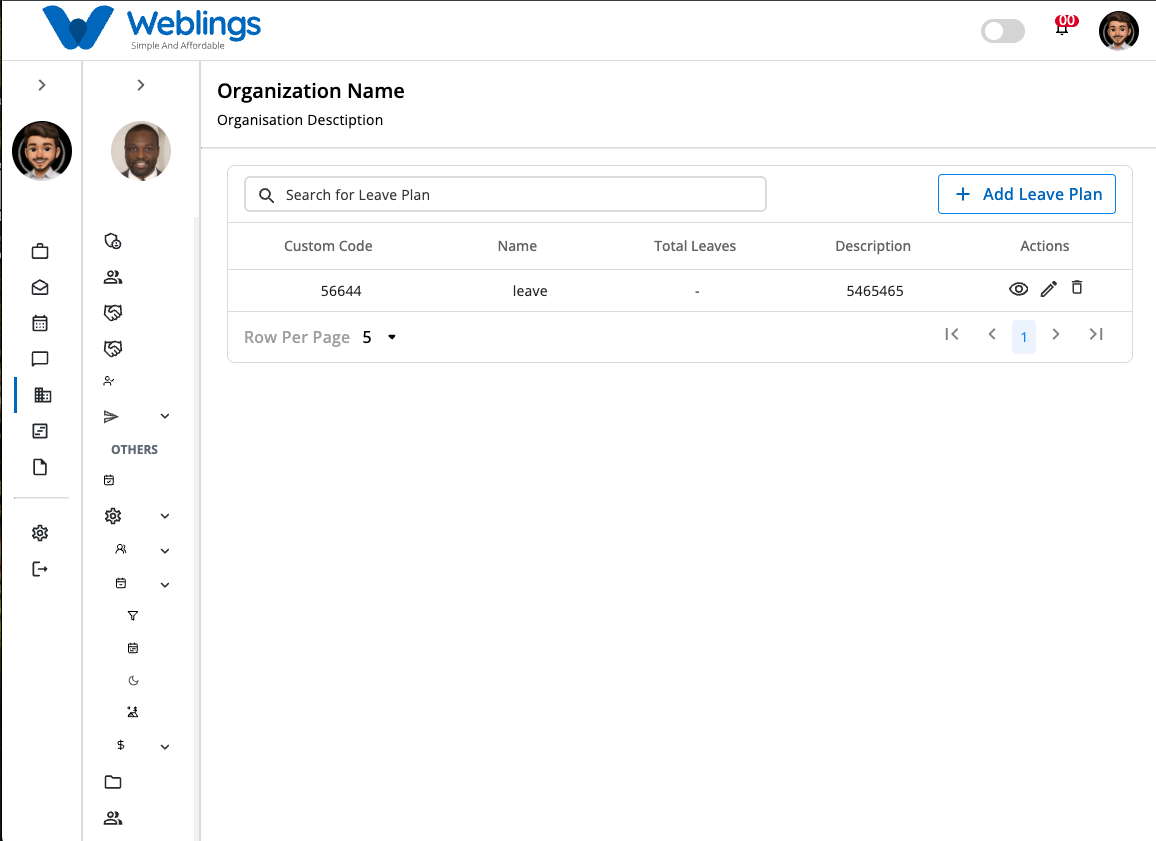
The Leave Plan screen allows you to create and manage leave plans for your organization. A Leave Plan defines the leave entitlements available to employees, the number of leave days allocated each year, how late arrivals are handled, and which leave type should be used for unplanned absences.
The screen displays a list of all available leave plans with the following information:
- Custom Code
- Leave Plan Name
- Total Leaves
- Description
- Actions (View, Edit, Delete)
You can also use the Search Leave Plan bar to quickly find a leave plan by entering its name or custom code.
Create a New Leave Plan
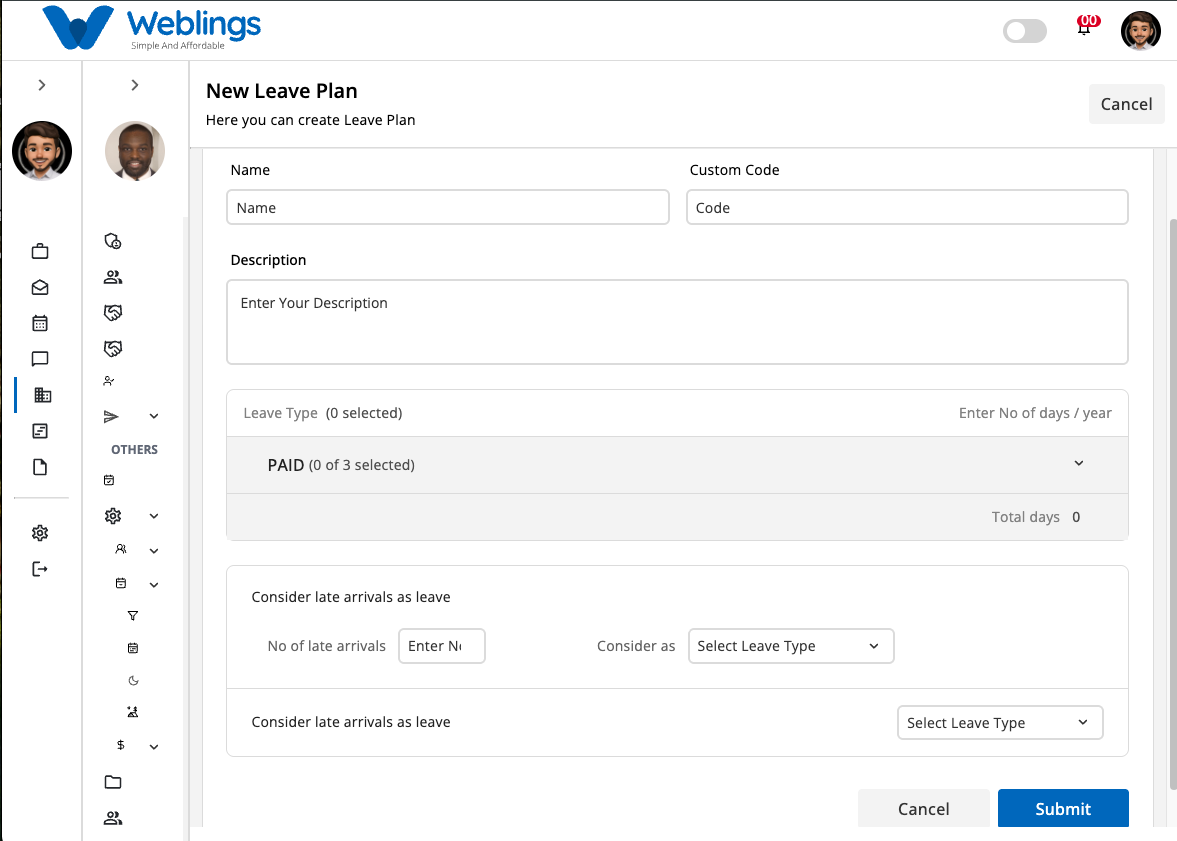
To create a new leave plan, click the Add Leave Plan button in the top-right corner of the screen.
The New Leave Plan page will open.
Step 1: Enter Leave Plan Details
Complete the following information.
Leave Plan Name
Enter a unique name for the leave plan.
Examples:
- Standard Employee Leave Plan
- Executive Leave Plan
- Factory Staff Leave Plan
Custom Code
Enter a unique code for the leave plan.
Examples:
- LP001
- STD001
- EXEC001
Description
Provide a brief description of the leave plan.
Example:
Standard leave plan for full-time employees with annual, casual, and sick leave entitlements.
Leave Types
Select one or more Leave Types from the dropdown.
For each selected leave type, enter the number of leave days available per year.
Example:
| Leave Type | Days / Year |
|---|---|
| Annual Leave | 15 |
| Casual Leave | 10 |
| Sick Leave | 12 |
The total number of leave days will be calculated automatically.
Consider Late Arrivals as Leave
Enable this option if repeated late arrivals should be converted into leave deductions.
When enabled, configure the following settings:
Number of Late Arrivals
Specify the number of late arrivals that will count as one leave deduction.
Example:
3 Late Arrivals = 1 Leave
Consider As
Select the leave type that should be deducted when the late arrival limit is reached.
Example:
- Casual Leave
- Annual Leave
Unplanned Leave Type
Select the leave type that should be used when an employee takes an unplanned absence.
Example:
- Casual Leave
- Sick Leave
Step 2: Save the Leave Plan
After entering all the required information:
- Click Submit to create the leave plan.
- Click Cancel to return without saving.
The new leave plan will appear in the Leave Plan list.
View Leave Plan Details
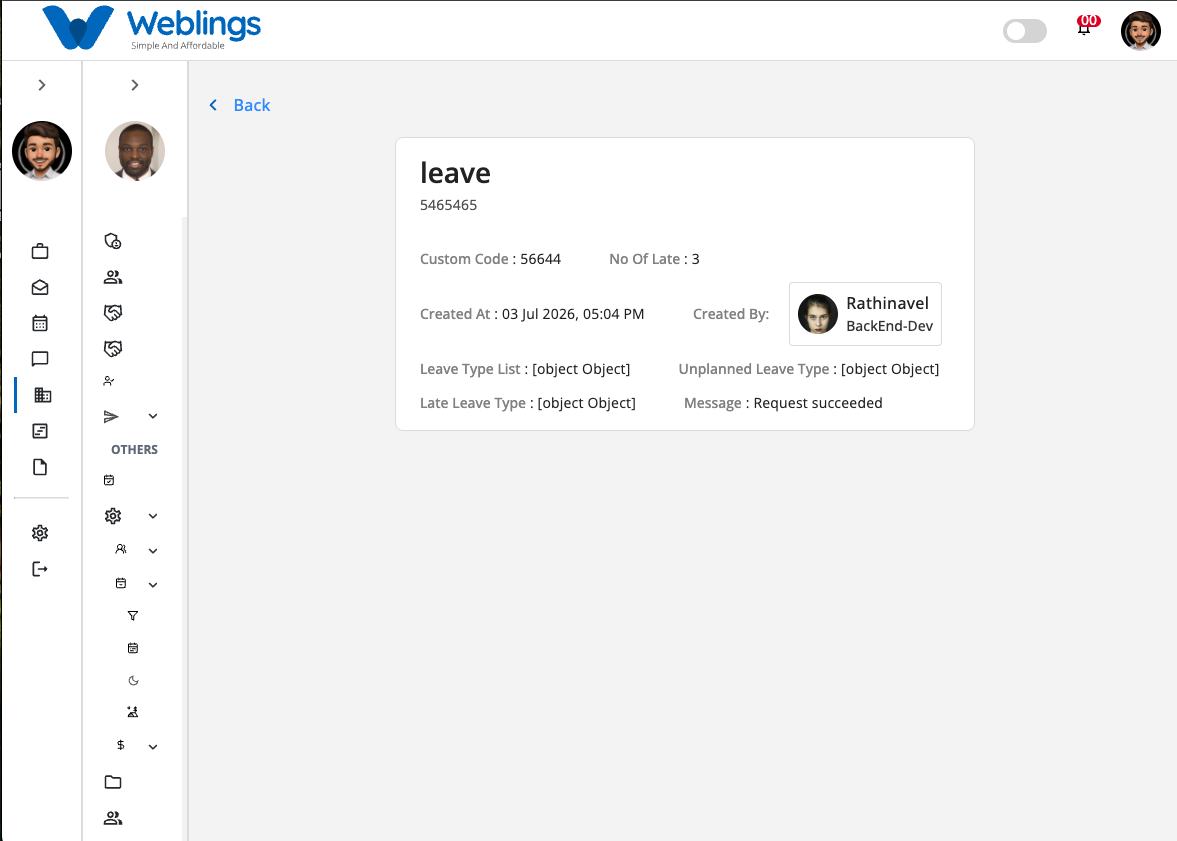
Click the View (👁️) icon to open the Leave Plan details page.
The details page displays:
- Leave Plan Name
- Description
- Custom Code
- Number of Late Arrivals
- Leave Type List
- Unplanned Leave Type
- Late Leave Type
- Created Date & Time
- Created By
- Status Message
This page is for viewing information only.
Edit a Leave Plan
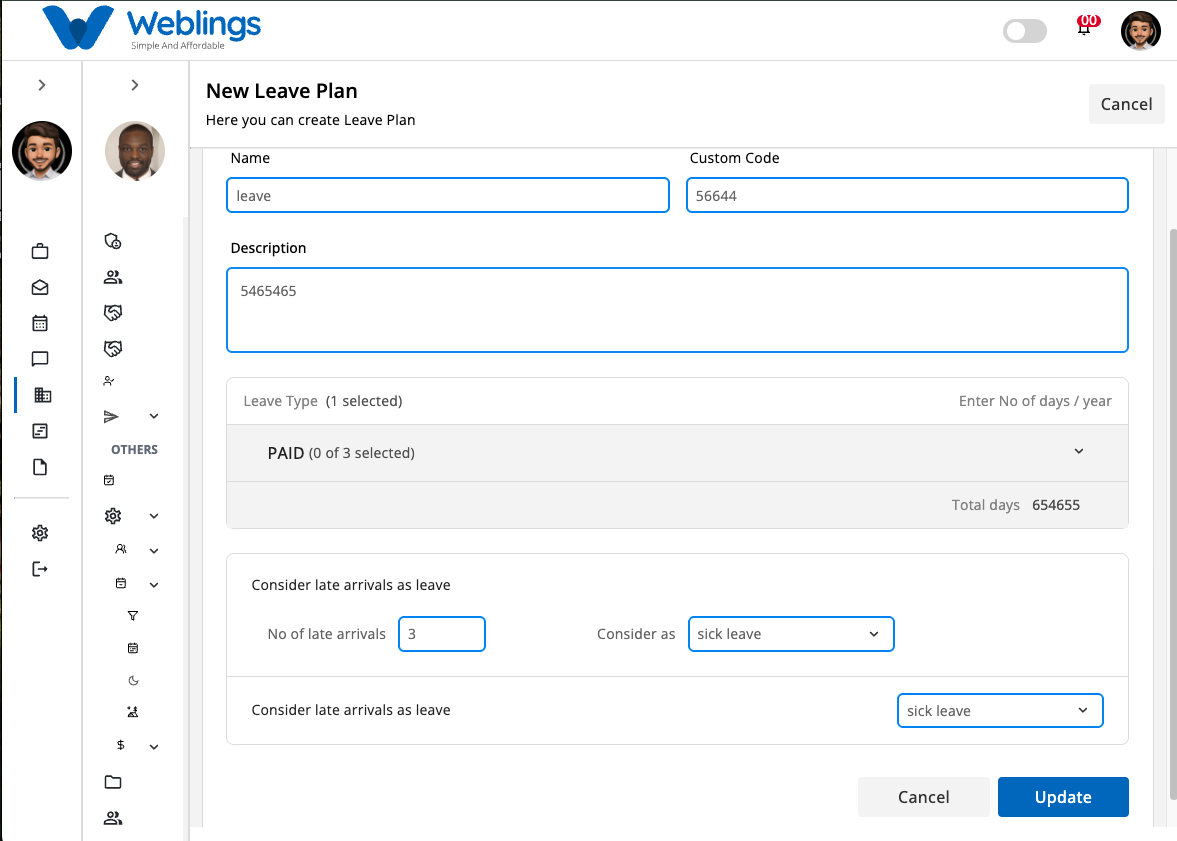
To modify an existing leave plan:
- Click the Edit (✏️) icon.
- The Edit Leave Plan page will open.
- Update any of the following information:
- Leave Plan Name
- Custom Code
- Description
- Leave Types
- Leave Days per Year
- Consider Late Arrivals as Leave
- Number of Late Arrivals
- Leave Type for Late Arrivals
- Unplanned Leave Type
- Click Update to save your changes.
The updated information will immediately appear in the Leave Plan list.
If you do not want to save your changes, click Cancel.
Delete a Leave Plan
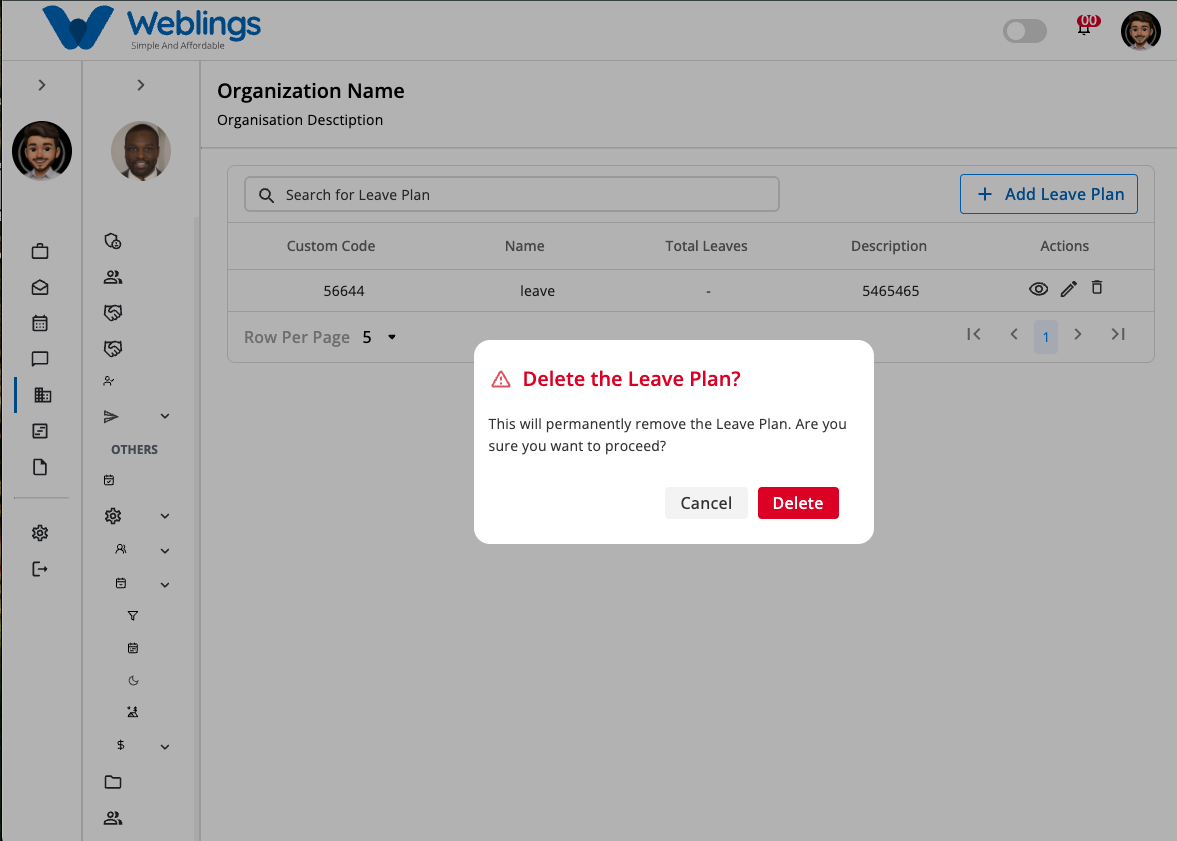
To remove a leave plan:
- Click the Delete (🗑️) icon.
- A confirmation dialog will appear.
Confirmation Message
This will permanently remove the Leave Plan. Are you sure you want to proceed?
You will have two options:
- Cancel – Return without deleting the leave plan.
- Delete – Permanently remove the selected leave plan.
Note: Deleting a Leave Plan cannot be undone. Ensure it is no longer assigned to employees or leave policies before deleting it.