
Week Off
Week Off
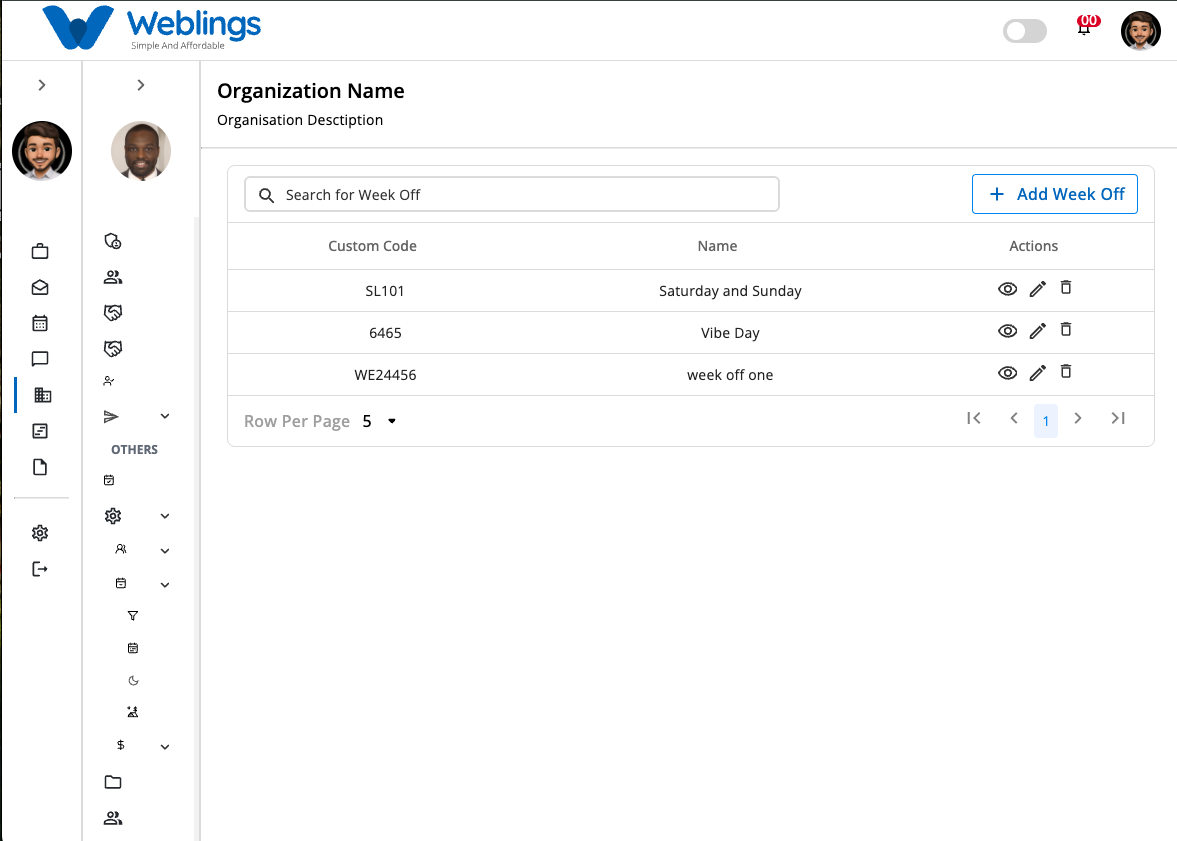
The Week Off screen allows you to create and manage weekly off patterns for your organization. A Week Off defines the regular days employees are scheduled to be off, helping maintain consistent work schedules across departments or business units.
The screen displays a list of all available week off patterns with the following information:
- Custom Code
- Week Off Name
- Actions (View, Edit, Delete)
You can also use the Search Week Off bar to quickly find a week off pattern by entering its name or custom code.
Create a New Week Off
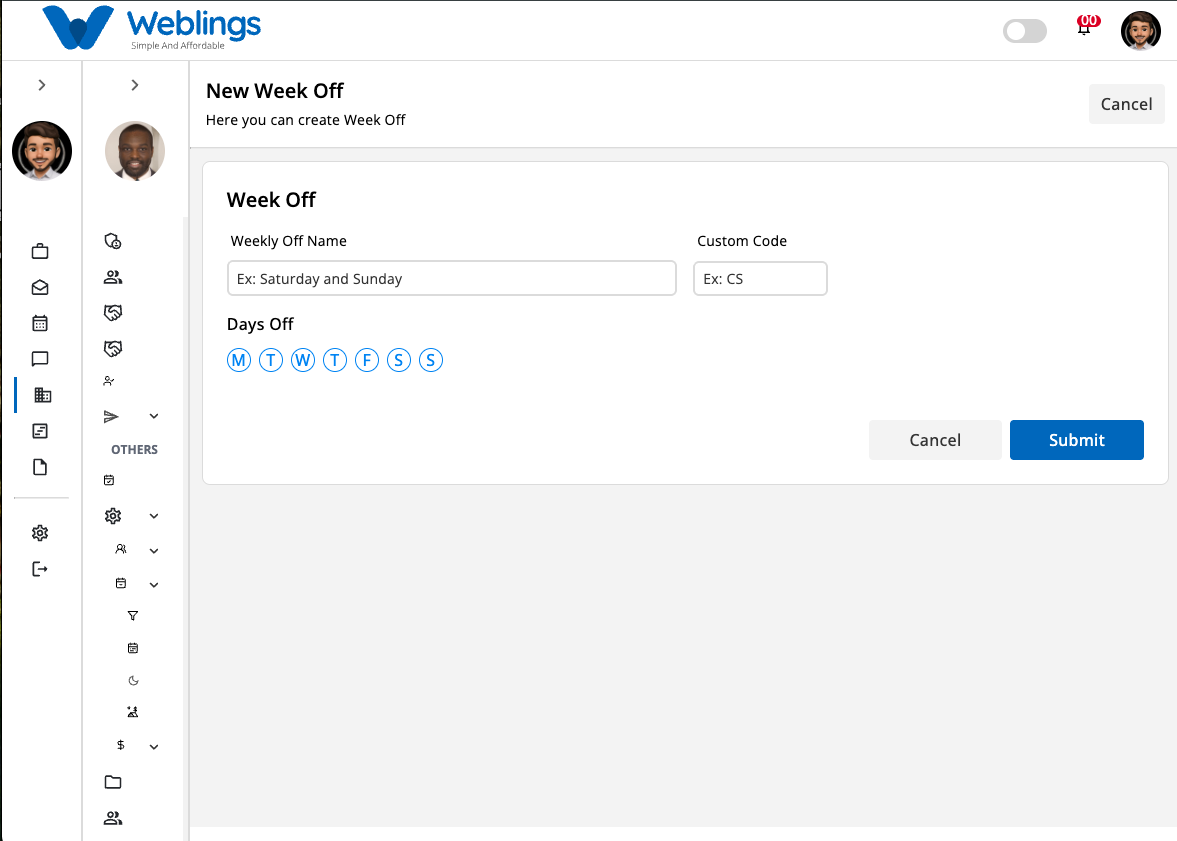
To create a new week off pattern, click the Add Week Off button in the top-right corner of the screen.
The New Week Off page will open.
Step 1: Enter Week Off Details
Complete the following information.
Week Off Name
Enter a unique name for the week off pattern.
Examples:
- Standard Week Off
- Saturday & Sunday Off
- Friday Week Off
- Alternate Saturday
Custom Code
Enter a unique code to identify the week off pattern.
Examples:
- WO001
- STD001
- ALT001
Days Off
Select one or more days that will be considered weekly holidays.
Examples:
- Saturday
- Sunday
- Saturday & Sunday
- Friday
Step 2: Save the Week Off
After entering all the required information:
- Click Submit to create the week off pattern.
- Click Cancel to return without saving.
Once created, the week off pattern will appear in the Week Off list.
View Week Off Details
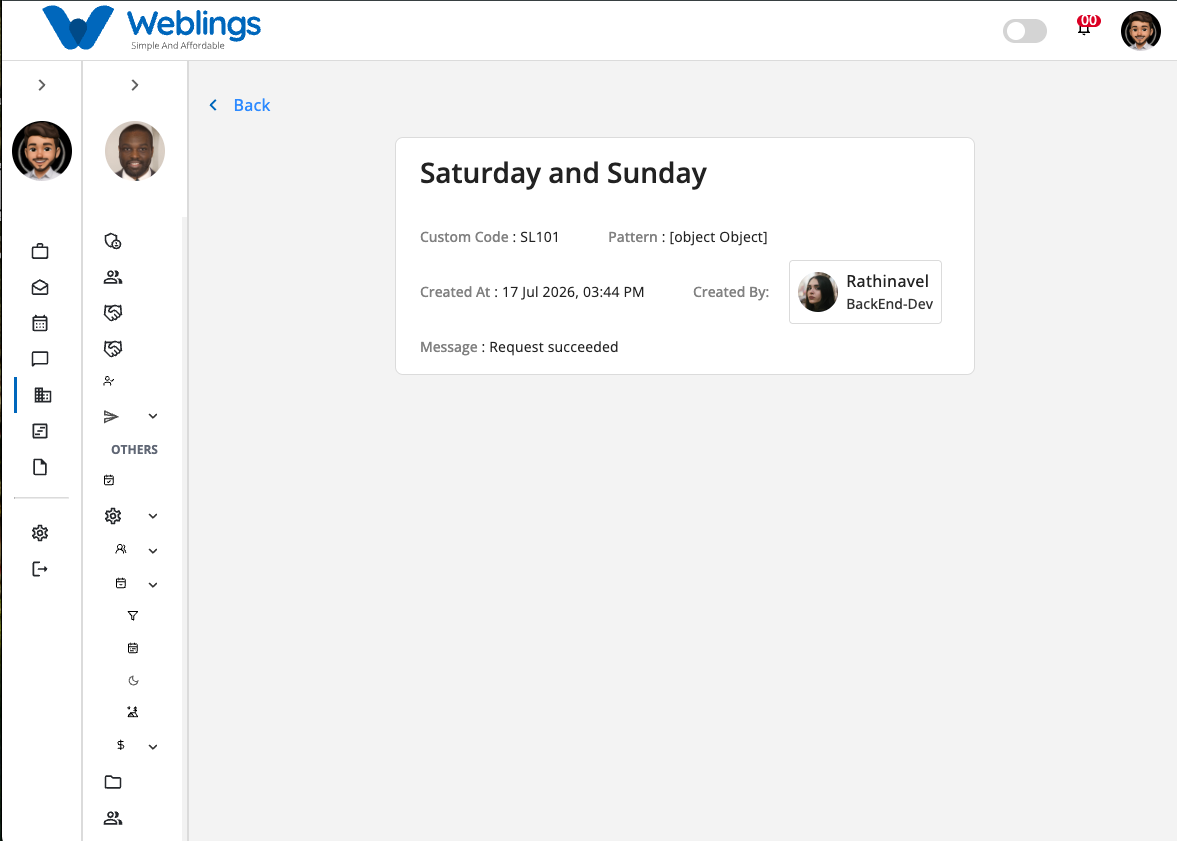
Click the View (👁️) icon to open the Week Off details page.
The details page displays:
- Week Off Name
- Description
- Custom Code
- Week Off Pattern
- Created Date & Time
- Created By
- Status Message
This page is for viewing information only.
Edit a Week Off
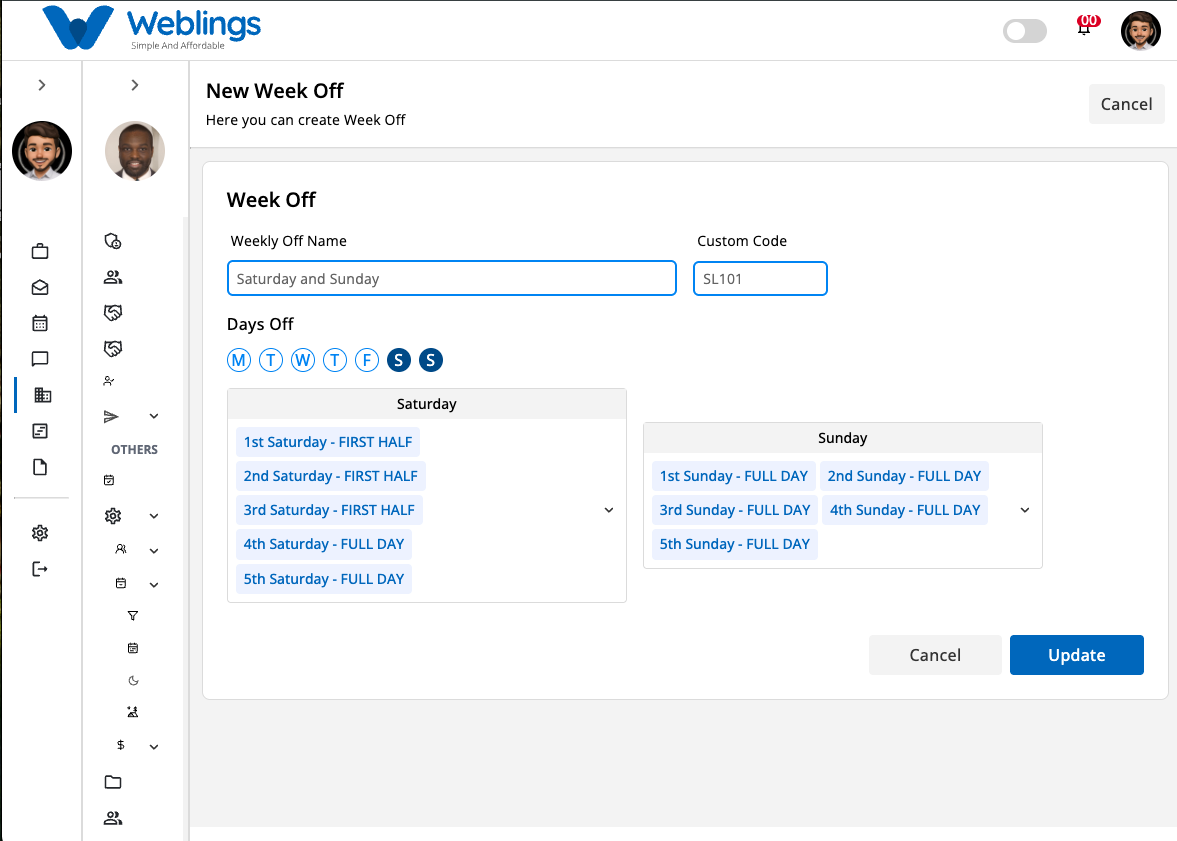
To modify an existing week off pattern:
- Click the Edit (✏️) icon.
- The Edit Week Off page will open.
- Update any of the following information:
- Week Off Name
- Custom Code
- Days Off
- Click Update to save your changes.
The updated information will appear immediately in the Week Off list.
If you do not want to save your changes, click Cancel.
Delete a Week Off
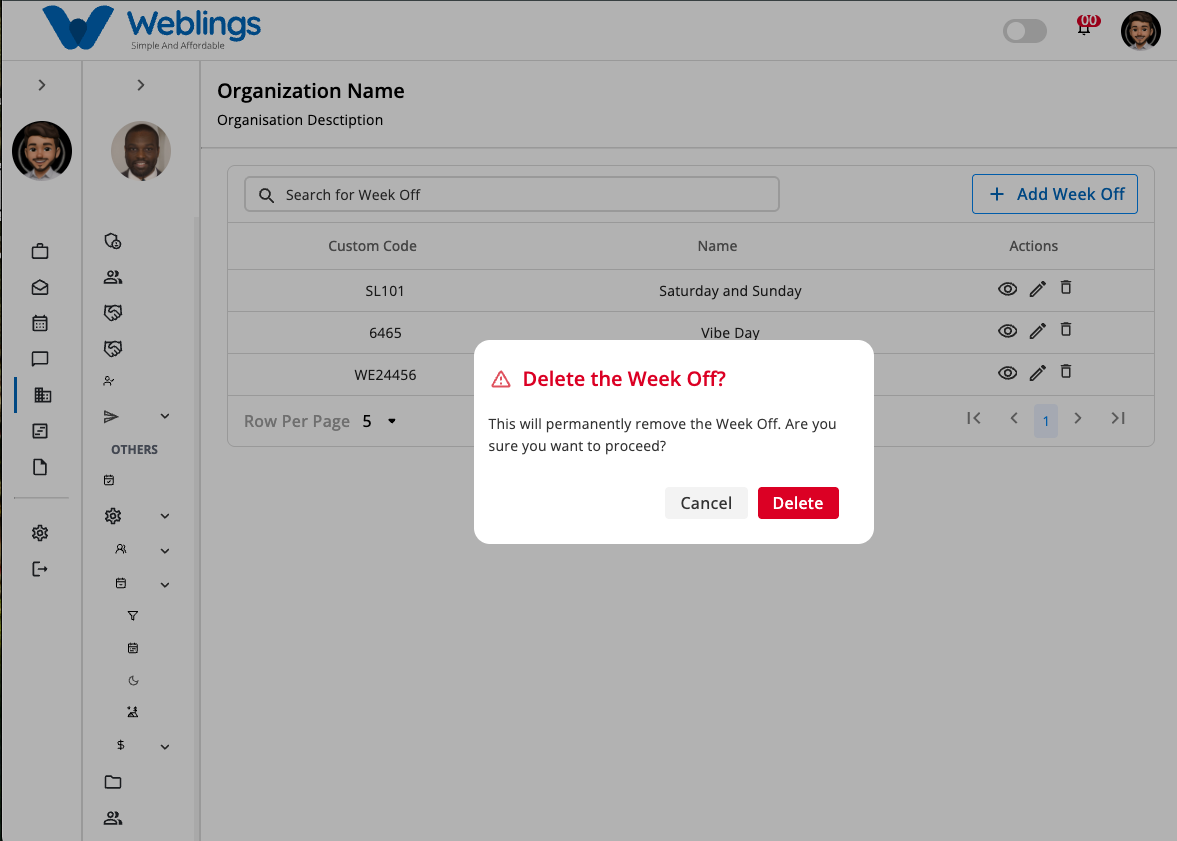
To remove a week off pattern:
- Click the Delete (🗑️) icon.
- A confirmation dialog will appear.
Confirmation Message
This will permanently remove the Week Off pattern. Are you sure you want to proceed?
You will have two options:
- Cancel – Return without deleting the week off pattern.
- Delete – Permanently remove the selected week off pattern.
Note: Deleting a Week Off pattern cannot be undone. Ensure it is no longer assigned to employees, shifts, attendance rules, or work schedules before deleting it.