
Team
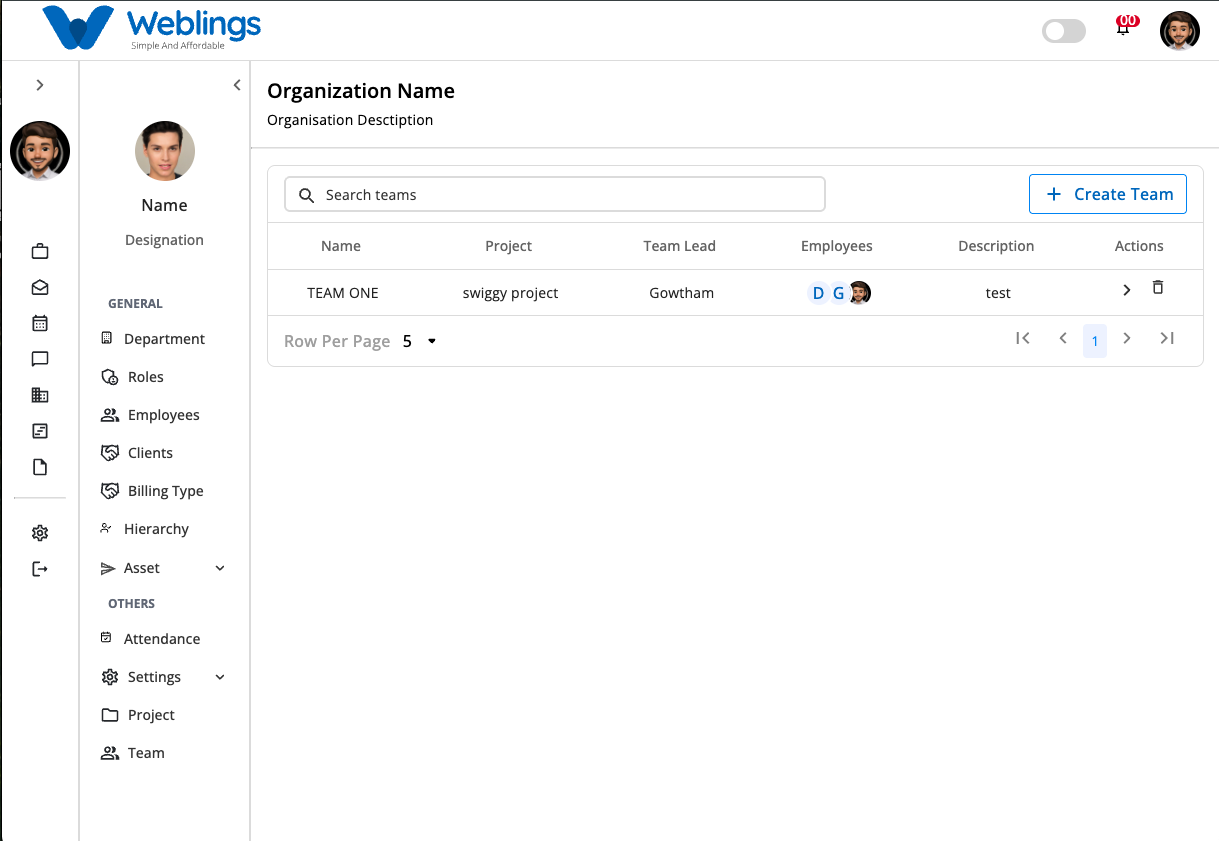
The Teams screen allows you to create, manage, update, and delete teams within your organization.
Team List
The Team List displays all teams in a table format. Each team includes the following information:
- Team Name – The name of the team.
- Project – The project assigned to the team.
- Team Lead – The employee leading the team.
- Employees – The total number of team members.
- Description – A brief description of the team.
- Actions – Options to edit or delete the team.
To create a new team:
- Click the Create Team button.
- The Create Team modal will open.
Create Team
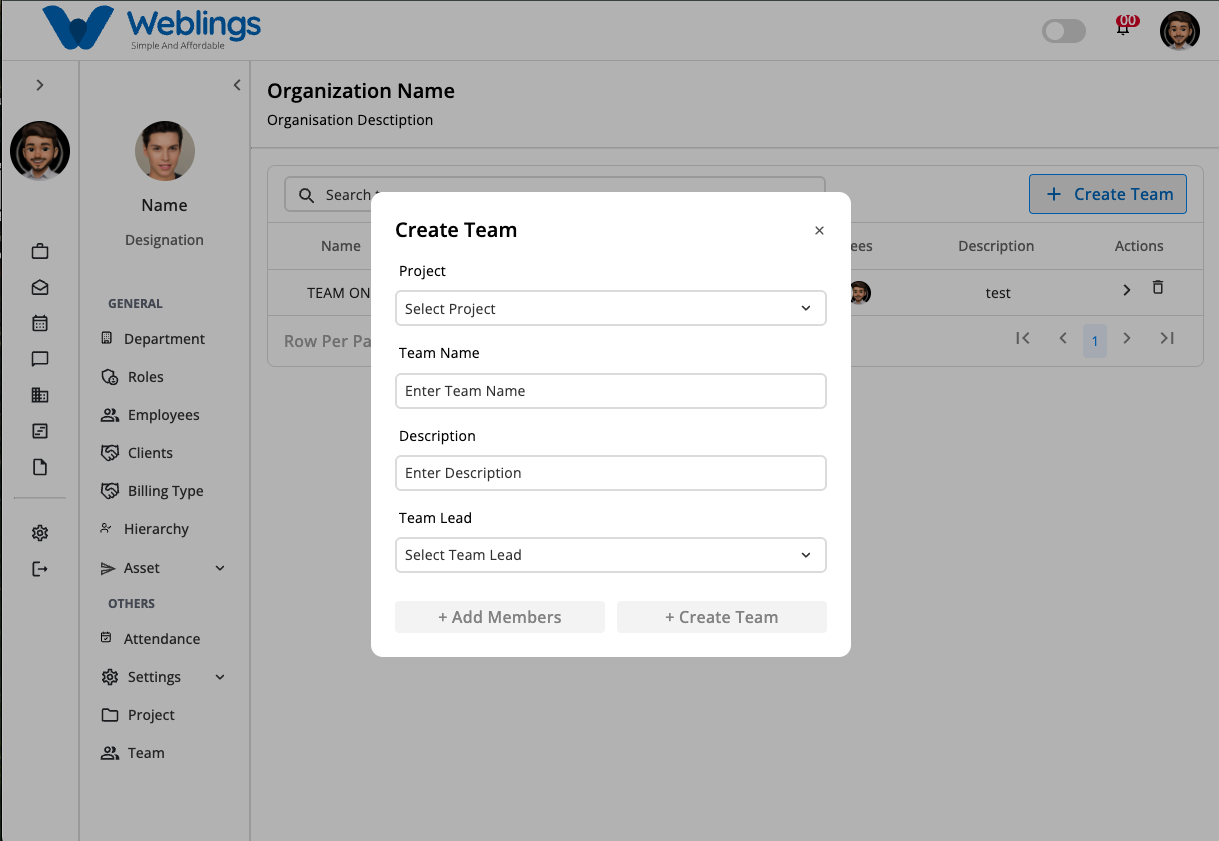
The Create Team modal allows you to create a new team.
Complete the following fields:
- Project – Select a project from the dropdown list.
- Team Name
- Description
- Team Lead – Select a team lead from the dropdown list.
After completing all the required fields, the following buttons become available:
- Add Members
- Create Team
Add Members
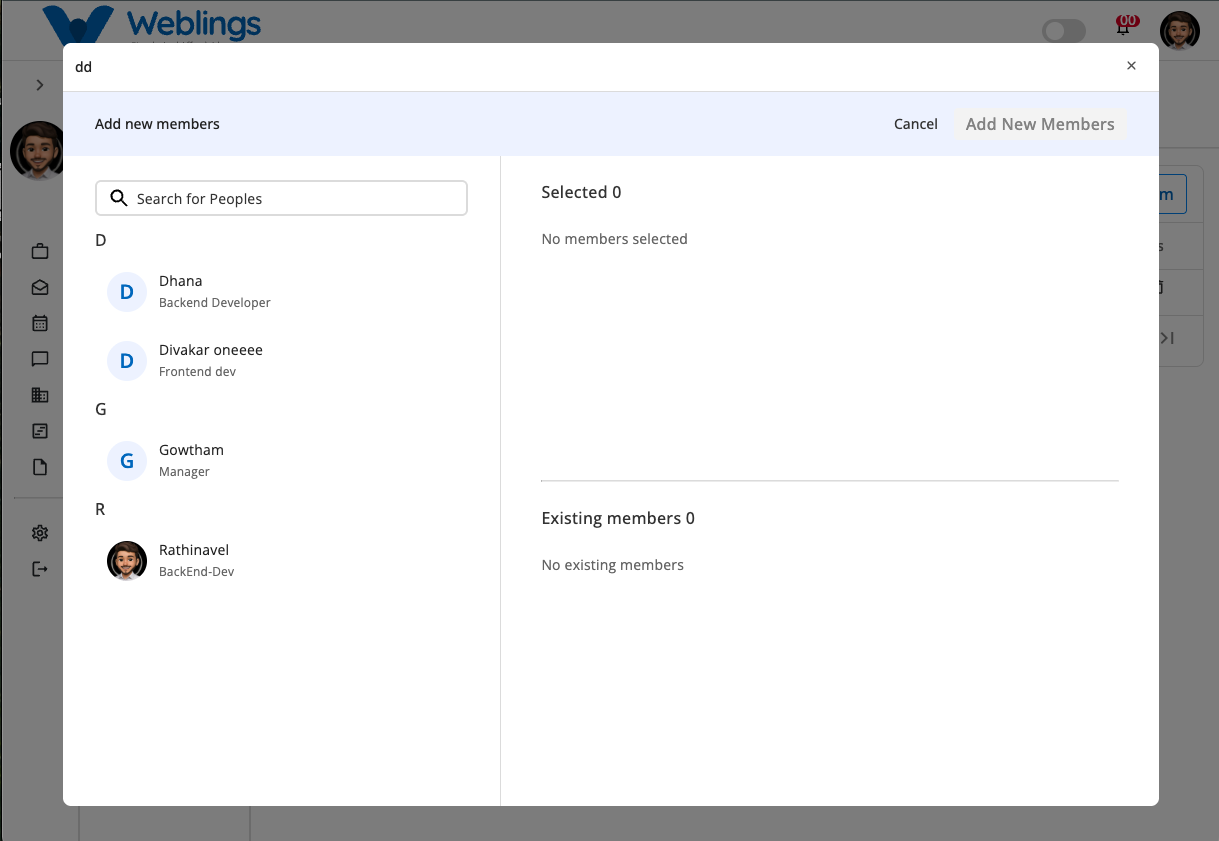
To add members to the team:
- Click the Add Members button.
- The Add New Members modal will open.
- Use the Search bar to find employees.
- Select one or more employees.
- Click Add New Members to add the selected employees to the team.
After the members are added:
- The Add Members button displays the total number of selected members.
- If you decide not to add members, click Cancel to close the modal without making any changes.
Create Team
After entering the team details and adding members (optional):
- Click Create Team.
- The new team will be created and added to the Team List.
Edit Team
To update an existing team:
- Click the Edit action for the desired team.
- The Edit Team modal will open.
The Edit Team modal contains two tabs:
Team Details
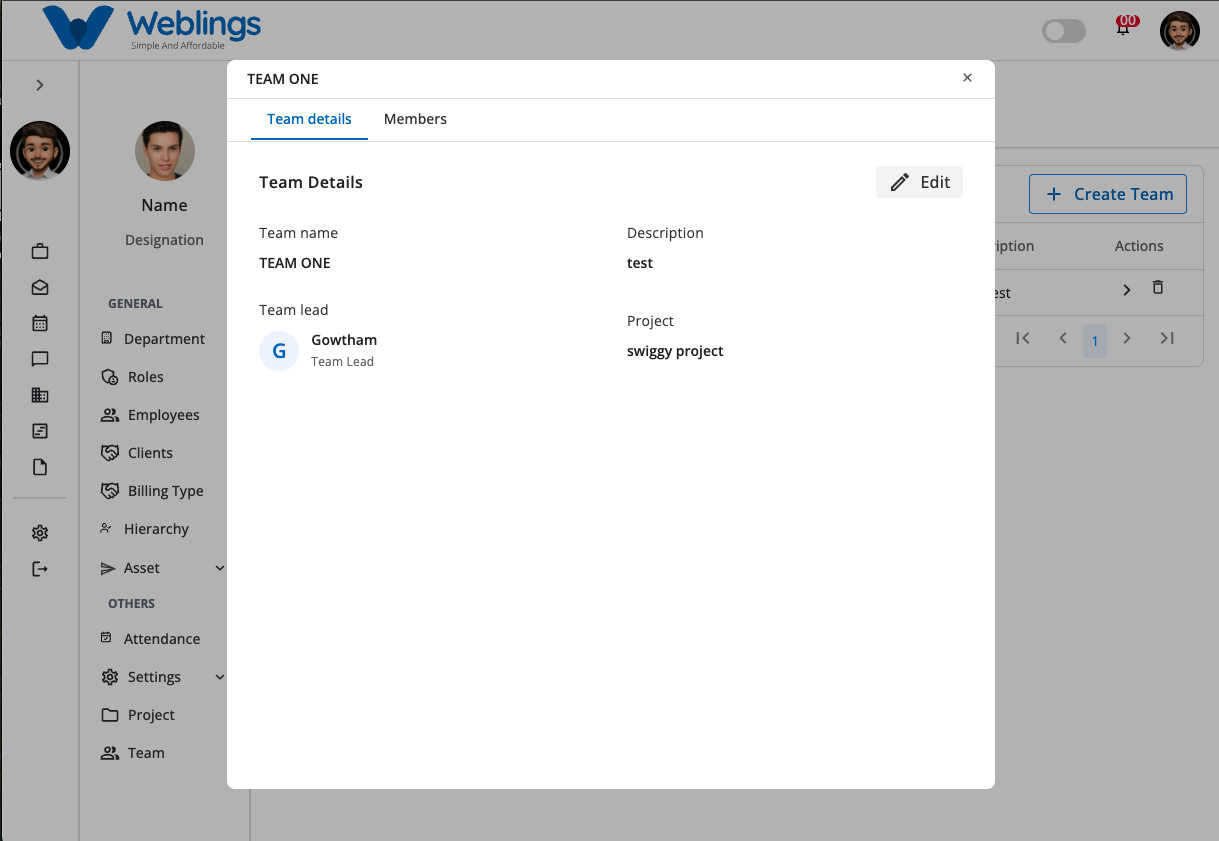
The Team Details tab allows you to modify:
- Project
- Team Name
- Description
- Team Lead
Click Save Changes to update the team.
Members
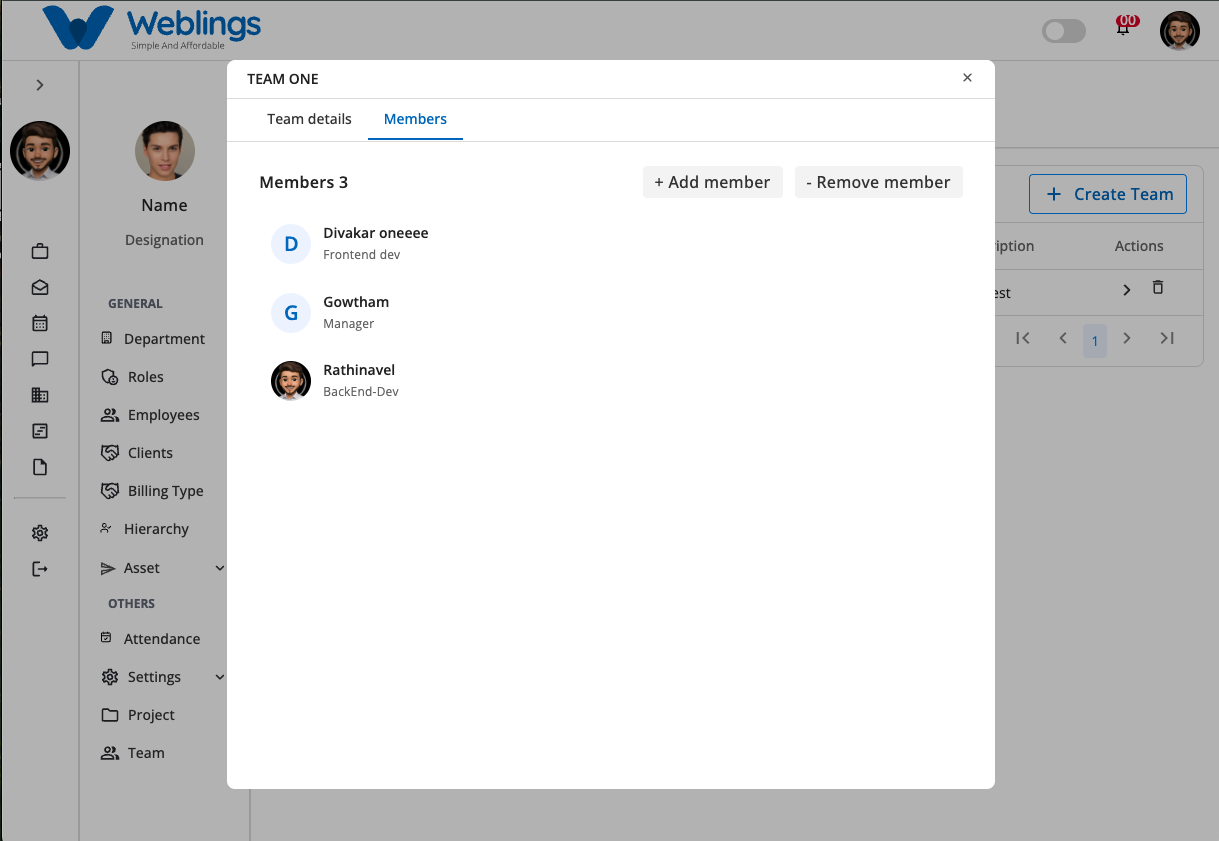
The Members tab allows you to manage team members.
You can:
- Add new members to the team.
- Remove existing members from the team.
After making the required changes, click Save Changes to update the team.
Delete Team
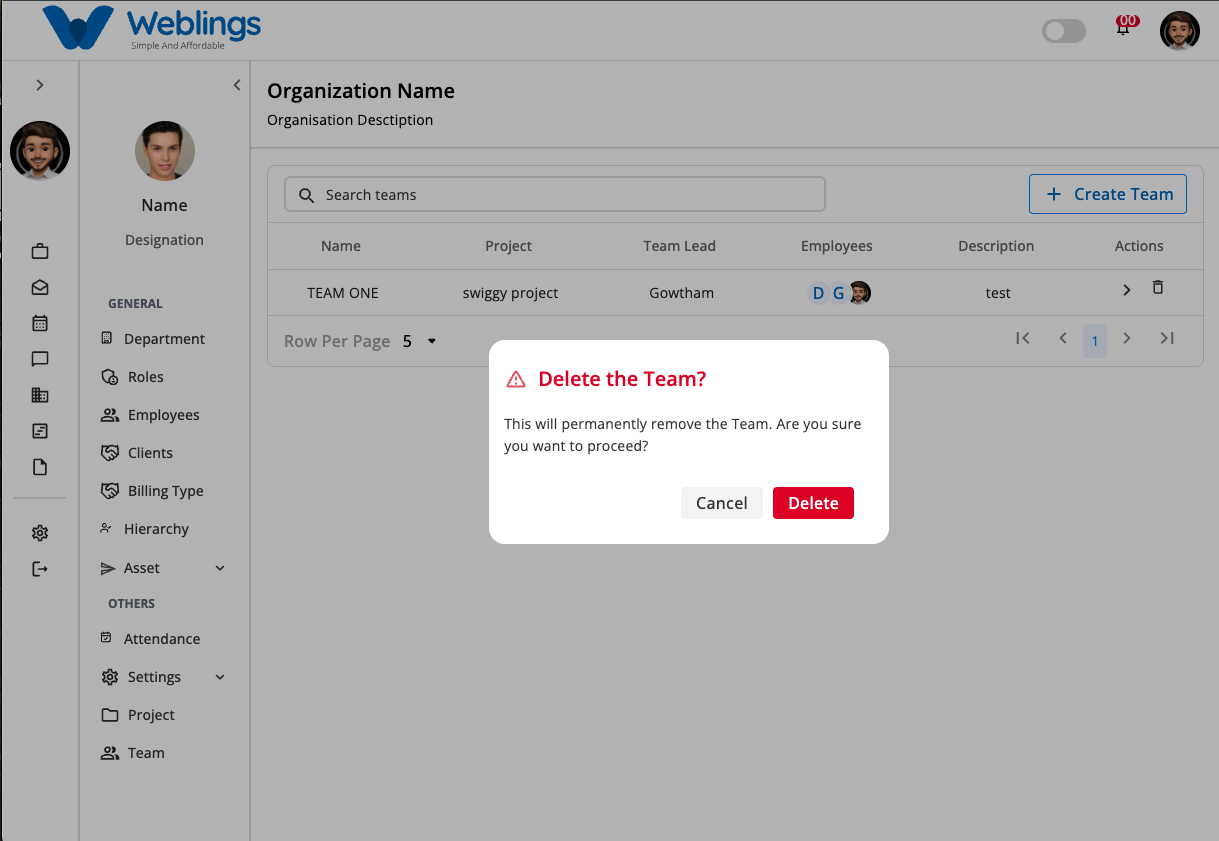
To delete a team:
- Click the Delete action for the desired team.
- A confirmation dialog will appear.
Choose one of the following options:
- Delete – Permanently removes the team.
- Cancel – Closes the dialog without deleting the team.