
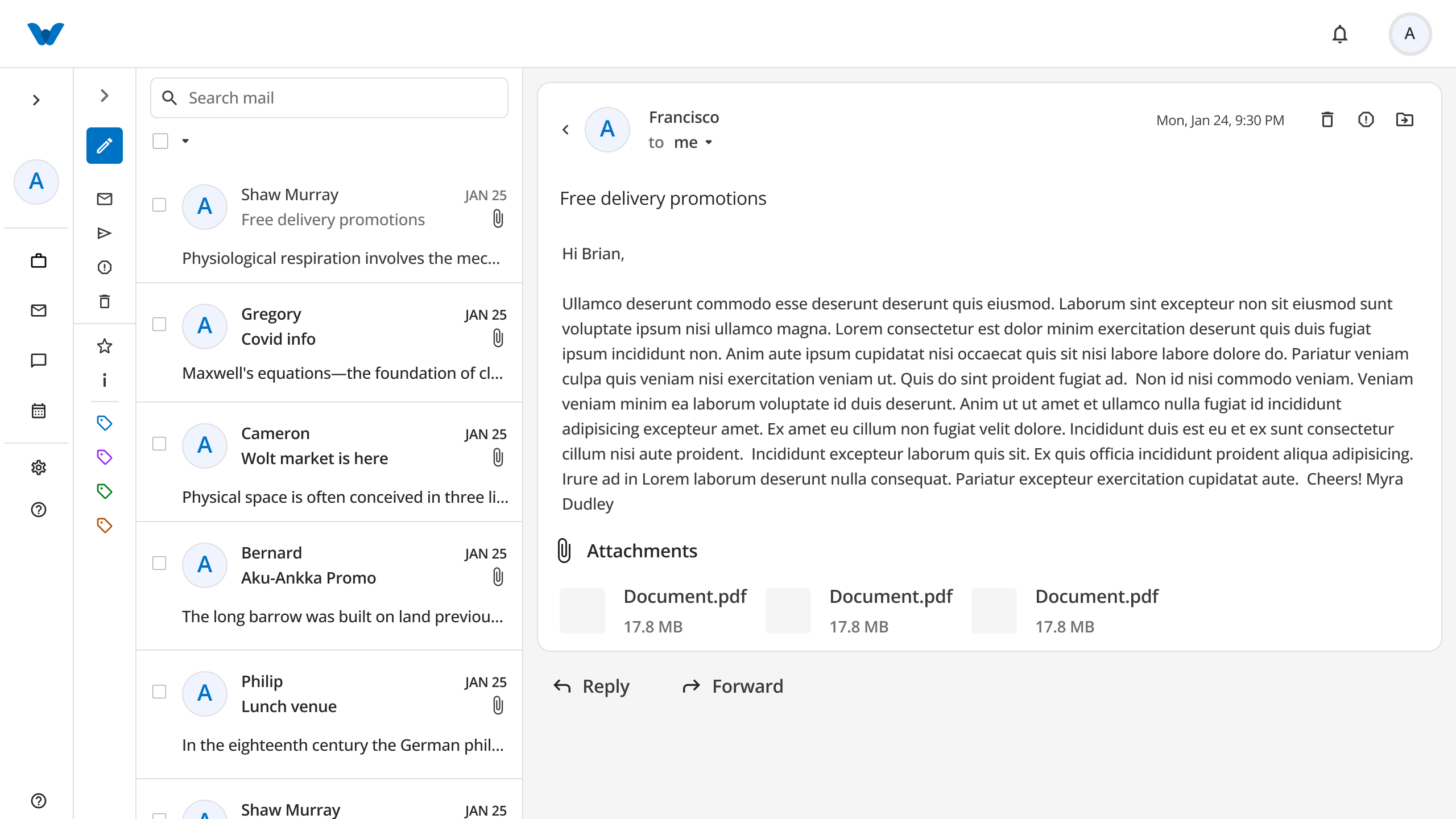
The Mail module provides a full-featured email client to manage your inbox, compose new messages, organize emails using folders and custom tags, and respond to incoming communications.
The interface is divided into three main panels:
- Sidebar Navigation (Left): Access Mailboxes, Labels, and custom Tags.
- Email List Panel (Middle): View incoming or sent messages, complete with search, selection, and bulk action controls.
- Email Reading Pane (Right): Read the selected email, view attachments, and access quick Reply or Forward options.
1. Mailboxes and Labels Navigation
Use the left sidebar to navigate through your organized folders and categories:
- Mailboxes:
- Inbox: View all incoming messages.
- Sent: View emails you have dispatched.
- Spam: View filtered marketing or unverified emails.
- Trash: View deleted messages.
- Labels:
- Archive: View archived email records.
- Important: Access high-priority emails flagged as important.
2. Managing Custom Tags
Tags allow you to color-code and organize emails by topic or project.
Creating a New Tag
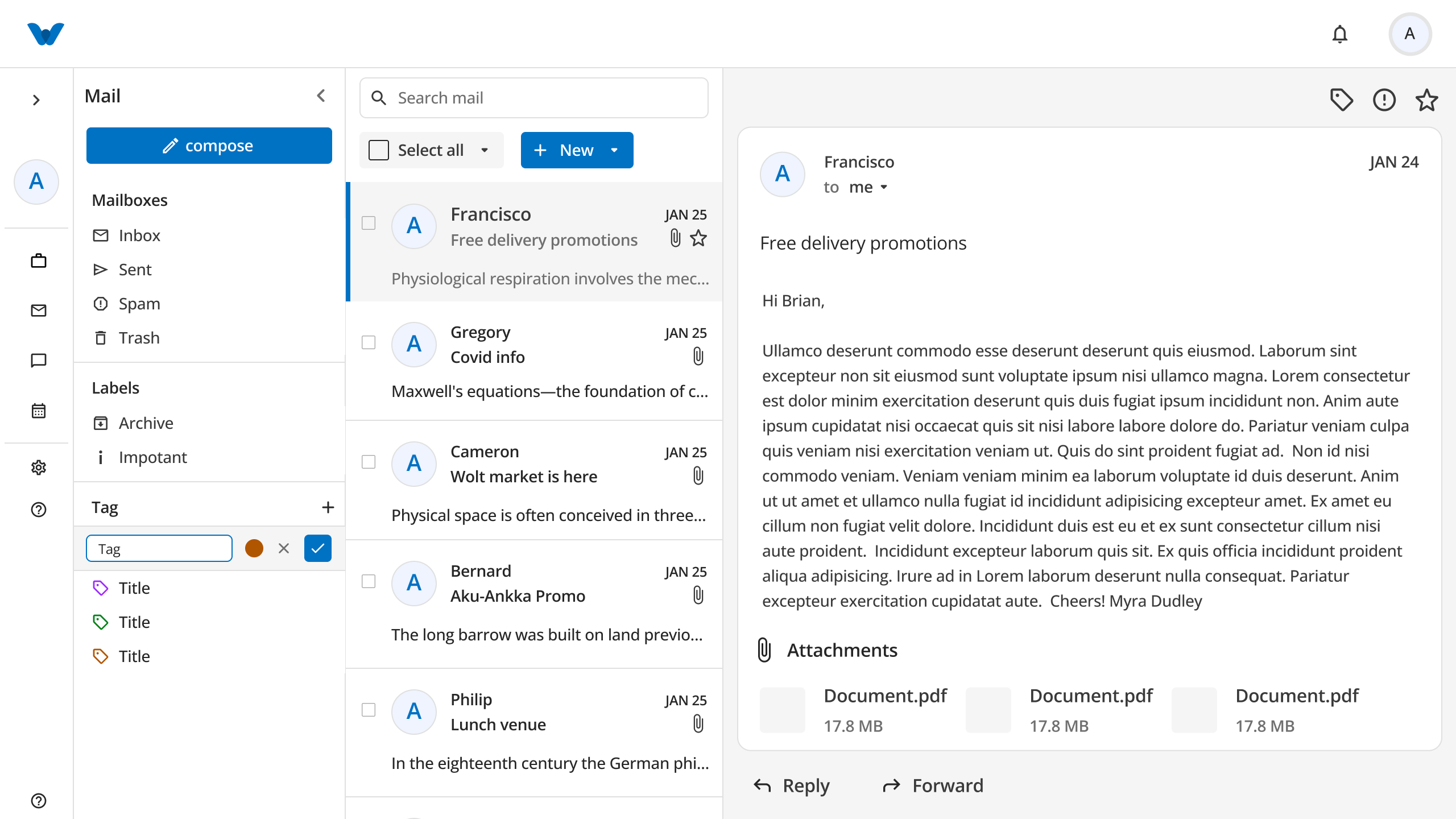
- In the left sidebar, locate the Tag section and click the
+icon. - An inline input row will appear:
- Tag Name Input: Type the name of your tag.
- Color Circle: Click the color dot to select a custom color indicator.
- Click the checkmark button (
✓) to save the tag. - Click the cancel button (
✕) to discard without saving.
Editing or Deleting a Tag
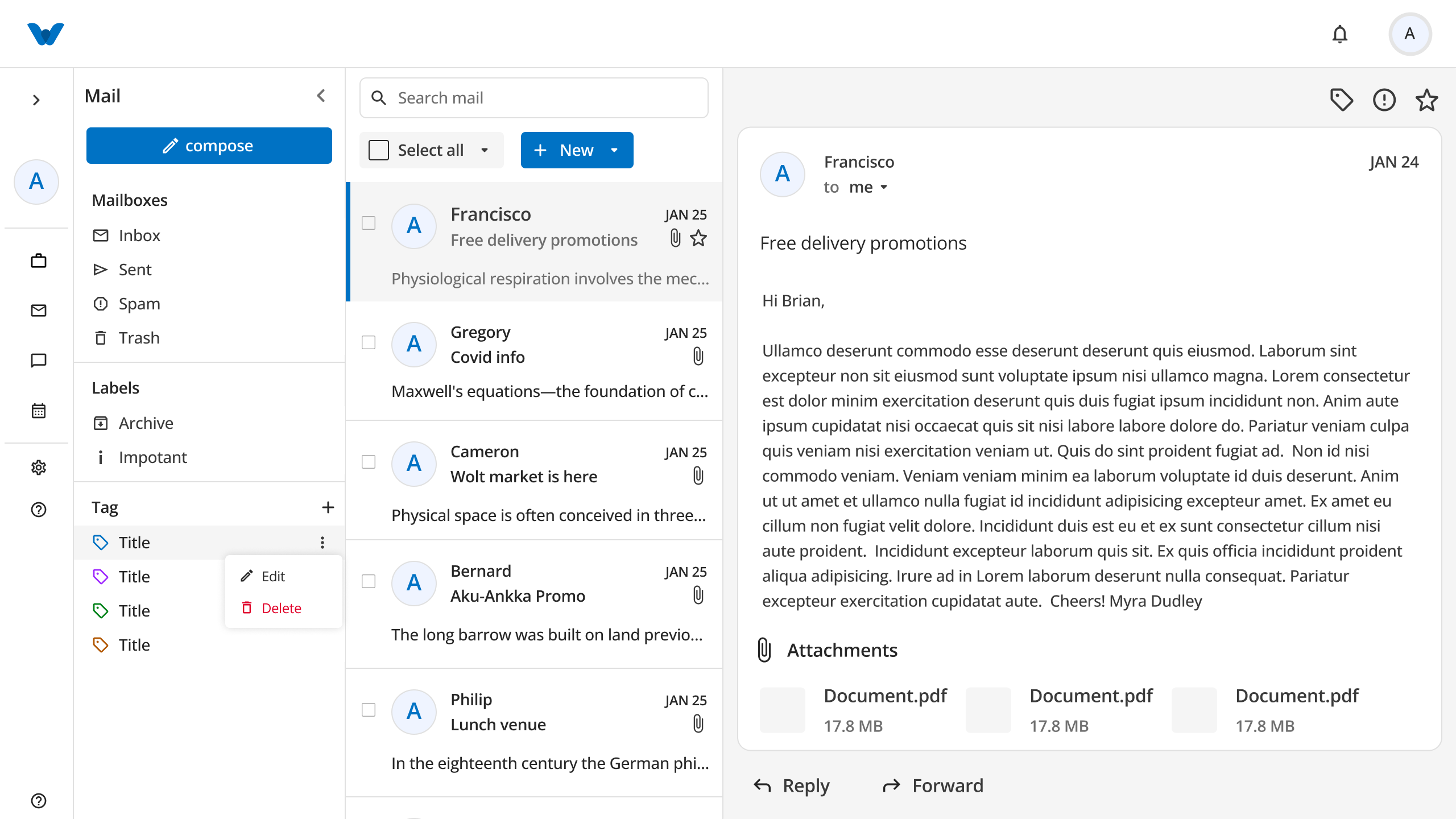
- Hover your cursor over any existing tag item in the left sidebar.
- Click the three vertical dots (
⋮) that appear on the right side of the tag row. - Select your desired action:
- Edit: Opens the inline editor to update the tag name or color.
- Delete: Permanently removes the tag.
3. Composing a New Email
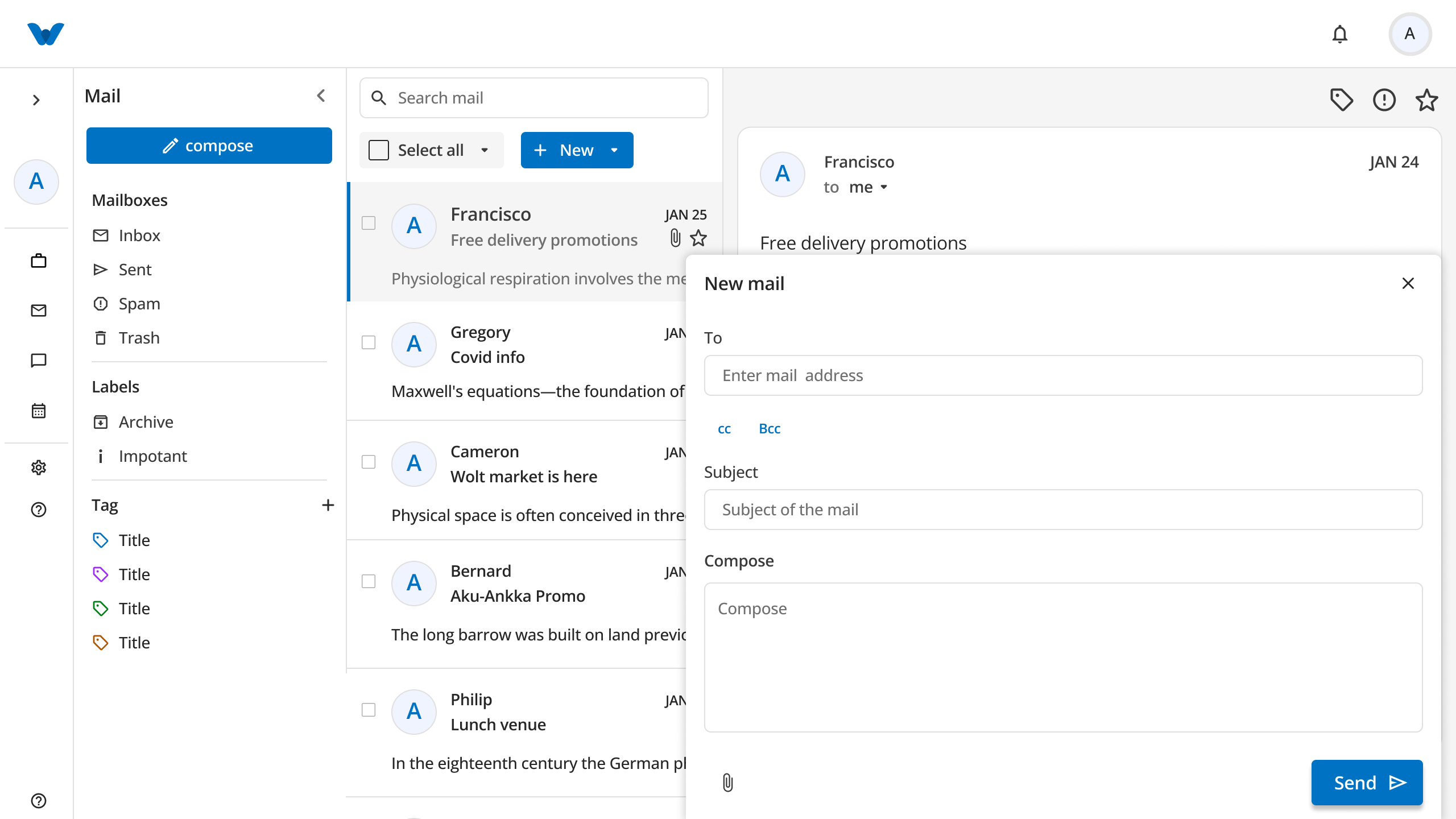
To compose and send an email:
- Click the blue compose button at the top of the left sidebar.
- The New mail modal will open:
- To: Type the recipient's email address (e.g.,
example@gmail.com) and pressEnter. - Cc / Bcc: Click the Cc or Bcc links below the recipient box to expand additional Carbon Copy (Cc) or Blind Carbon Copy (Bcc) address fields.
- Subject: Enter the title or subject line of your message.
- Compose: Type your main email body text.
- Attachment: Click the paperclip icon (
📎) at the bottom to attach files or documents.
- To: Type the recipient's email address (e.g.,
- Click the Send ➤ button to dispatch your email.
4. Reading and Replying to Emails
When you select an email from the message list, it renders in the right reading pane:
- View Attachments: Download or view files (e.g.,
Document.pdf) attached to the email. - Reply: Click Reply at the bottom of the email pane to send a direct response to the original sender.
- Forward: Click Forward to send a copy of the email thread and its attachments to a new recipient.
← PreviousFAQ
Next →FAQ