
Create an Account
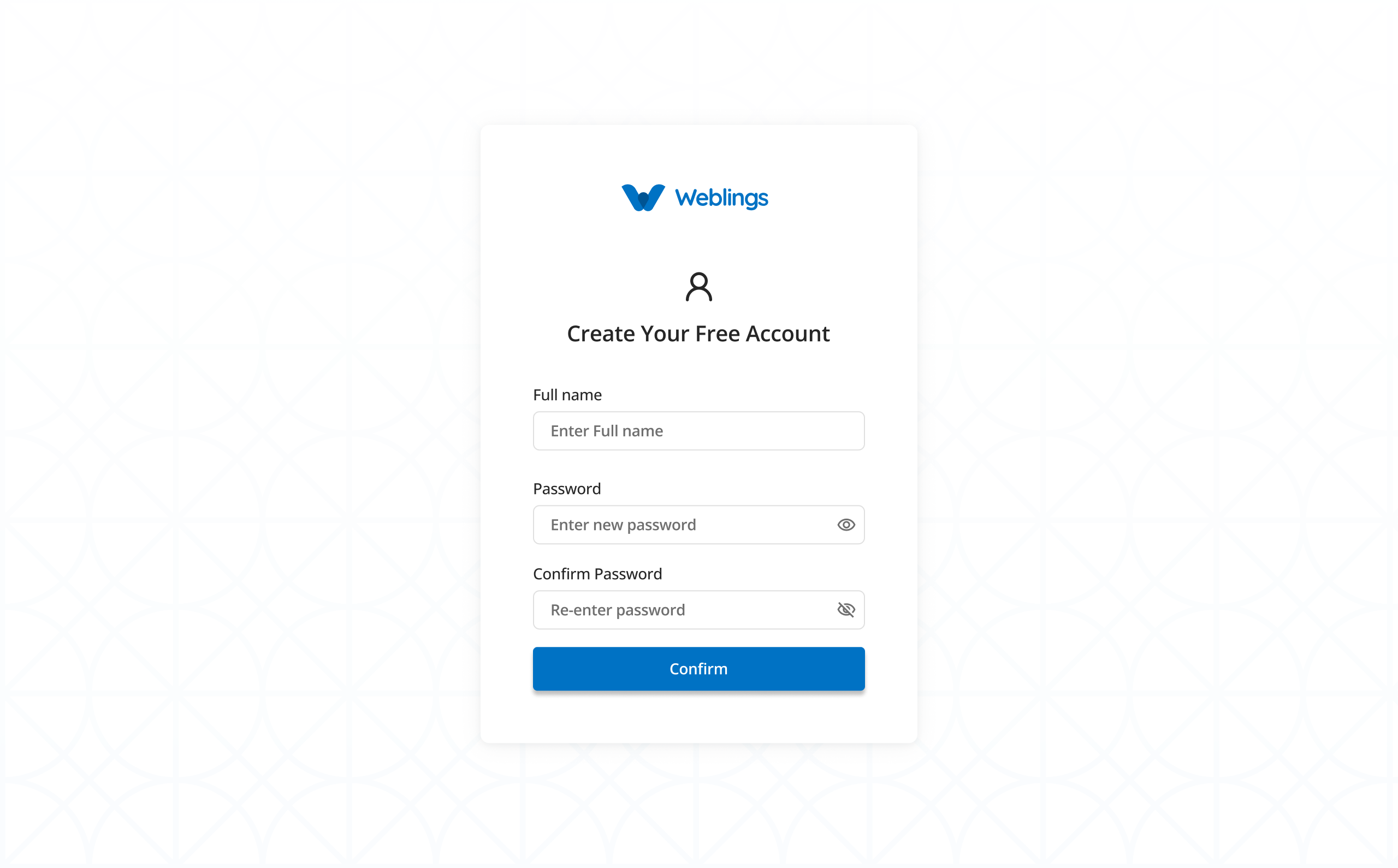
Creating an account is the first step to accessing the platform. The registration process only takes a few minutes.
Step 1: Open the Sign Up Page
Navigate to the Sign Up page to begin creating your account.
Step 2: Enter Your Information
Complete all the required fields to create your account.
Full Name
Enter your full name as you would like it to appear in your account.
Example:
John Smith
Using your real name makes it easier for your organization and team members to identify you.
Email Address
Enter a valid email address that you have access to.
This email address will be used to:
- Verify your account.
- Receive important notifications.
- Reset your password if you forget it.
- Receive verification codes (OTP) when required.
Example:
john.smith@example.com
Note: Make sure you enter your email address correctly, as it will be used throughout the application.
Password
Create a strong password to help keep your account secure.
Your password must meet the following requirements:
- Be at least 8 characters long.
- Include at least one uppercase letter (A–Z).
- Include at least one lowercase letter (a–z).
- Include at least one number (0–9).
- Include at least one special character, such as **! @ # $ % & **.
Example of a strong password:
1h@i0=dx_@uyu~1jDC6[rgx
Choose a password that is easy for you to remember but difficult for others to guess.
Tip: Avoid using personal information such as your name, date of birth, or phone number in your password.
Confirm Password
Re-enter the same password you created in the Password field.
This helps ensure that your password has been entered correctly.
If the passwords do not match, you will be asked to enter them again before continuing.
Step 3: Create Your Account
After reviewing your information, click Confirm to create your account.
If all the information is valid, your account will be created successfully, and you will be guided to the next step to verify your email address.
Verify Your Email
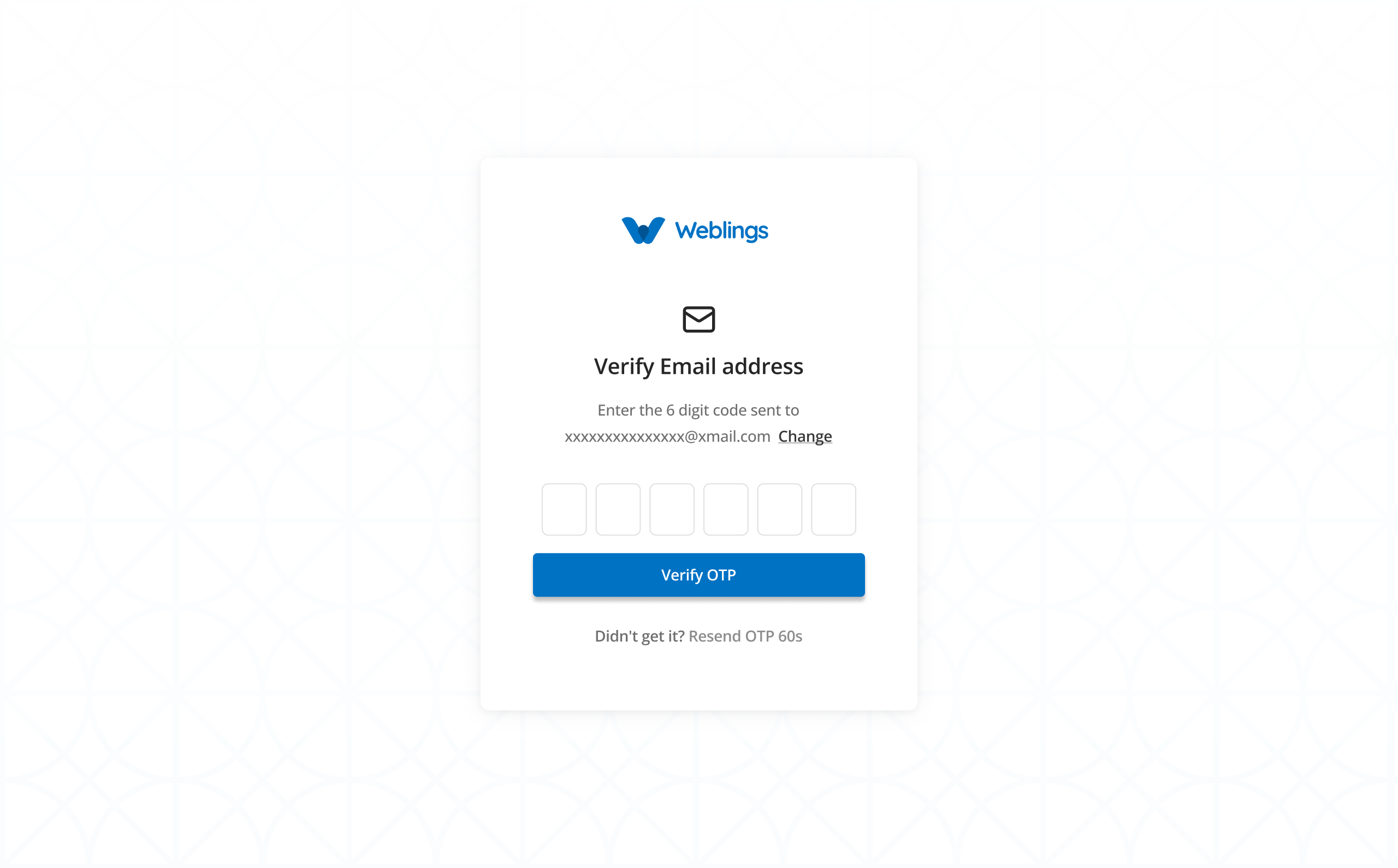
After you have successfully created your account, the next step is to verify your email address.
To verify your account, a One-Time Password (OTP) will be sent to the email address you used during registration.
At the same time, the website will display the Verify Email page, where you will be asked to enter the OTP.
How to Verify Your Email
Step 1
Open the email inbox of the email address you used to create your account.
Step 2
Look for the email containing your One-Time Password (OTP).
If you cannot find the email, check your Spam, Junk, or Promotions folder.
Step 3
Return to the Verify Email address page on the website.
Step 4
Enter the OTP exactly as it appears in the email.
Step 5
Click Verify OTP.
If the OTP is correct, your email address will be verified successfully, and you can continue to the next step.
Didn't Receive the OTP?
If you haven't received the OTP:
- Wait a few moments, as email delivery may take a short time.
- Check your Spam, Junk, or Promotions folder.
- Make sure you entered the correct email address during registration.
- You can request a new OTP by clicking Resend OTP.
Note: The Resend OTP option becomes available after 60 seconds. If your OTP expires or you didn't receive it, simply click Resend OTP to receive a new verification code.
Verify Your Mobile Number
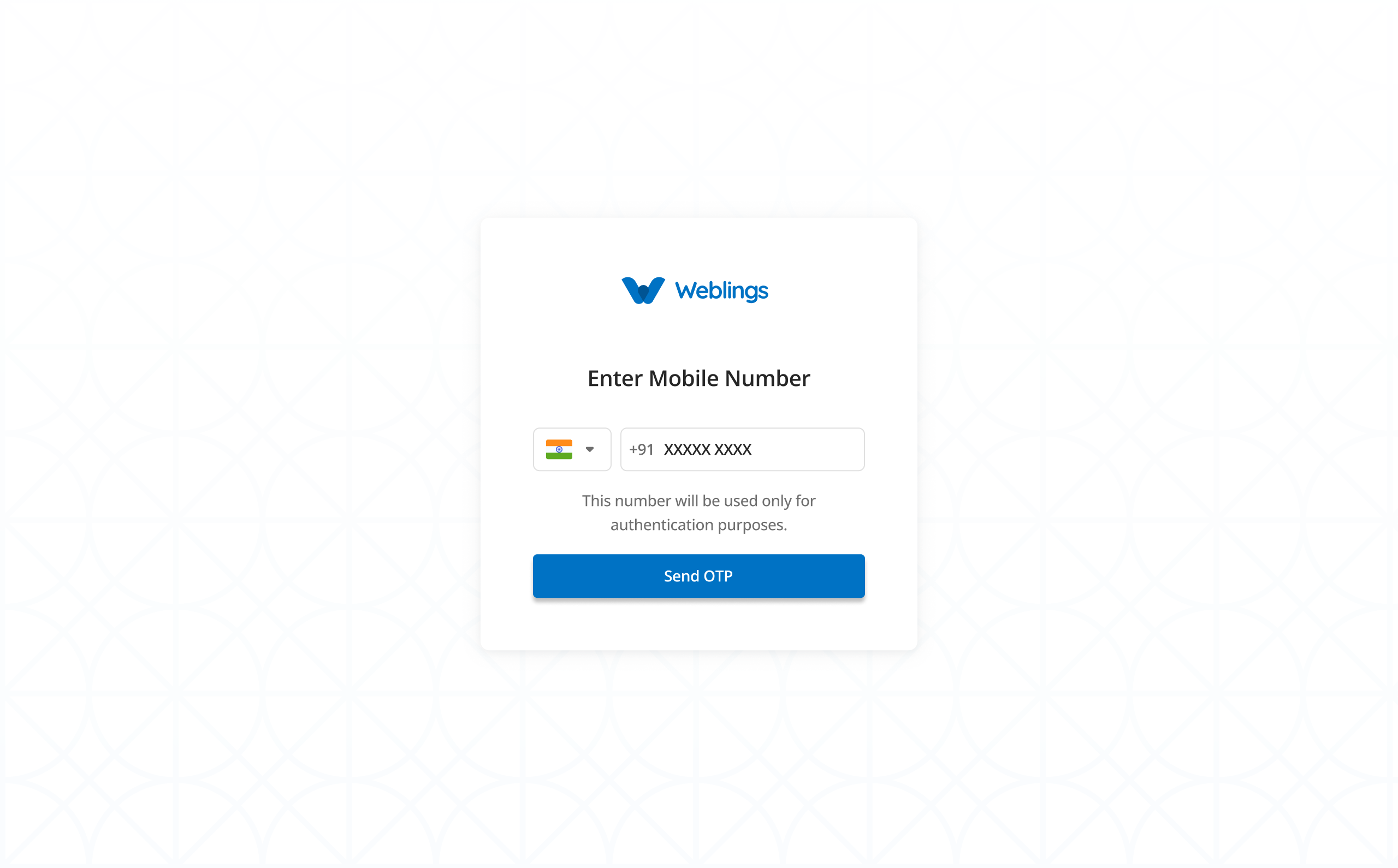
After your email address has been verified, the next step is to verify your mobile number.
The website will display the Enter Mobile Number page.
Your mobile number is used only for account authentication and security. Please enter a valid mobile number that can receive SMS messages.
Step 1: Enter Your Mobile Number
Select your country code from the list.
Enter your active mobile number in the provided field.
Note: Make sure the mobile number is correct, as the verification code (OTP) will be sent to this number.
After entering your mobile number, click Send OTP.
Step 2: Receive the OTP
Once you click Send OTP, a One-Time Password (OTP) will be sent to your mobile number via SMS.
At the same time, the website will automatically display the Verify OTP page.
Step 3: Verify the OTP
Open the SMS message on your mobile phone and note the OTP you received.
Return to the Verify OTP page on the website.
Enter the OTP exactly as it appears in the SMS.
Click Verify OTP.
If the OTP is correct, your mobile number will be verified successfully, and you can continue to the next step.
Didn't Receive the OTP?
If you haven't received the OTP:
- Wait a few moments, as SMS delivery may take a short time.
- Make sure you entered the correct mobile number.
- Ensure your mobile phone has network coverage and can receive SMS messages.
If you still haven't received the OTP, click Resend OTP to request a new verification code.
Note: The Resend OTP option becomes available after 60 seconds. If your OTP expires or you do not receive it, you can request a new OTP and try again.
Verification Successful
Once your OTP is verified, your mobile number will be linked to your account.
Your account is now secured with a verified mobile number, and you can continue to the next step of the setup process.
Enable Two-Step Verification
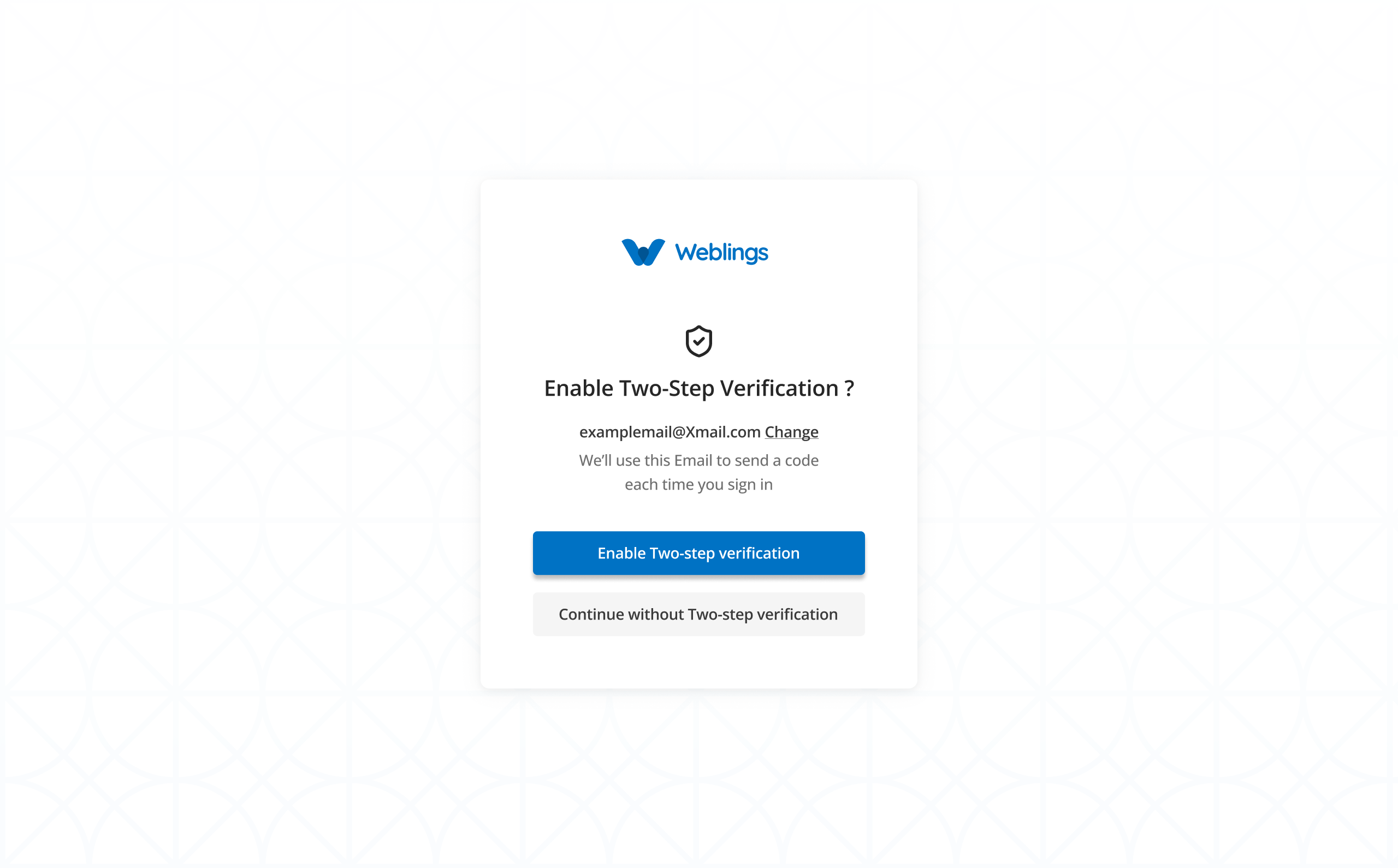
After you have successfully verified your email address and mobile number, the next step is to choose whether you want to enable Two-Step Verification for your account.
Two-Step Verification adds an extra layer of security to your account. When enabled, you will receive a verification code in your email each time you sign in. This helps protect your account from unauthorized access.
On this screen, you will see two options:
- Enable Two-Step Verification
- Continue without Two-Step Verification
Option 1: Enable Two-Step Verification
If you choose Enable Two-Step Verification, the system will send a One-Time Password (OTP) to your registered email address.
At the same time, the website will display the Verify OTP page.
Step 1
Open your email inbox and find the email containing the OTP.
If you cannot find the email, check your Spam, Junk, or Promotions folder.
Step 2
Return to the Verify OTP page on the website.
Enter the OTP exactly as it appears in the email.
Step 3
Click Verify OTP.
If the OTP is correct, Two-Step Verification will be enabled for your account.
A confirmation screen will appear with the message "Two-Step Verification Enabled".
Click Finish to continue.
From now on, every time you sign in, a verification code will be sent to your registered email address. You must enter this code to complete the sign-in process.
Didn't Receive the OTP?
If you haven't received the verification email:
- Wait a few moments, as email delivery may take a short time.
- Check your Spam, Junk, or Promotions folder.
- Make sure you have access to your registered email address.
- Click Resend OTP to request a new verification code.
Note: The Resend OTP option becomes available after 60 seconds. If your OTP expires or you do not receive it, you can request a new one.
Option 2: Continue without Two-Step Verification
If you choose Continue without Two-Step Verification, you can continue using the application without enabling this additional security feature.
You will be able to sign in using only your email address and password.
Note: You can enable Two-Step Verification later from your Profile or Security Settings if you decide to add extra protection to your account.
Why Enable Two-Step Verification?
Enabling Two-Step Verification helps keep your account secure by requiring an additional verification code whenever you sign in.
Benefits include:
- Adds an extra layer of protection to your account.
- Helps prevent unauthorized access.
- Protects your personal and organization information.
- Increases the security of your account even if your password is compromised.
Workflow
Email Verified
        ↓
Mobile Number Verified
        ↓
Choose Two-Step Verification
        ↓
Enable Two-Step Verification?
      ↙                    ↘
    Yes                    No
     ↓                      ↓
Receive OTP            Able to Sign In
     ↓
Enter OTP
     ↓
Verify OTP
     ↓
Two-Step Verification Enabled
     ↓
Click Finish
Tips
✔ Use a strong password.
✔ Verify your email promptly.
✔ Keep your email address active.
✔ Never share your password.