
Organization SetUp
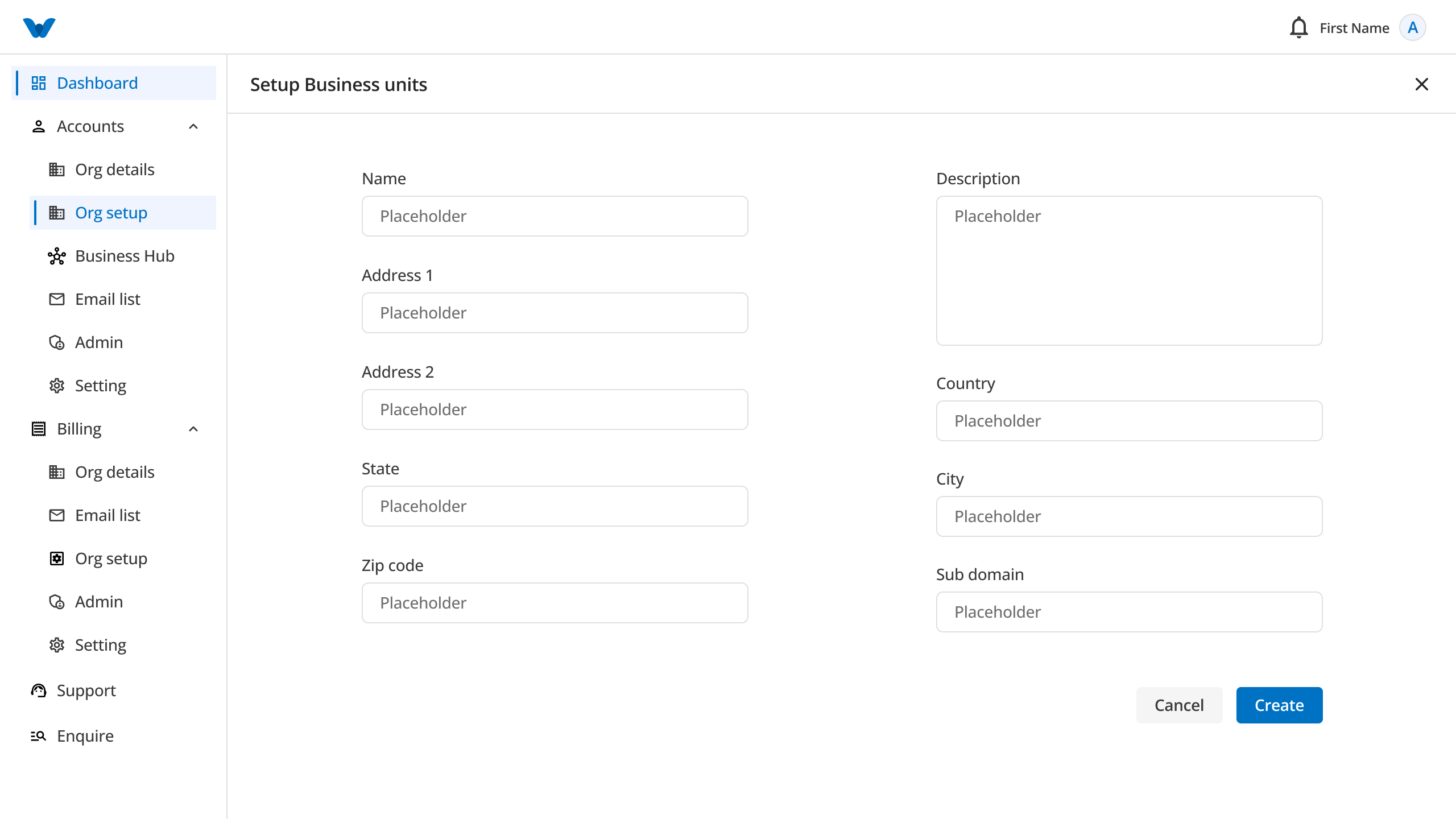
After creating your organization, the next step is to set up your business units and their locations. This helps you organize different departments, branches, or offices under your organization.
Each business location will automatically receive its own login credentials, which can be used to access eOffice.
Step 1: Create a Business Unit
Click Create Business Unit to add your first business unit.
A business unit can represent a department, division, branch, or line of business within your organization.
Enter the following details:
- Business Unit Name
- Description
- Address Line 1
- Address Line 2 (Optional)
- Country
- State
- City
- ZIP Code
- Subdomain
After filling in the required information, click Create Business Unit.
Your business unit will be added to the list.
Business Unit List
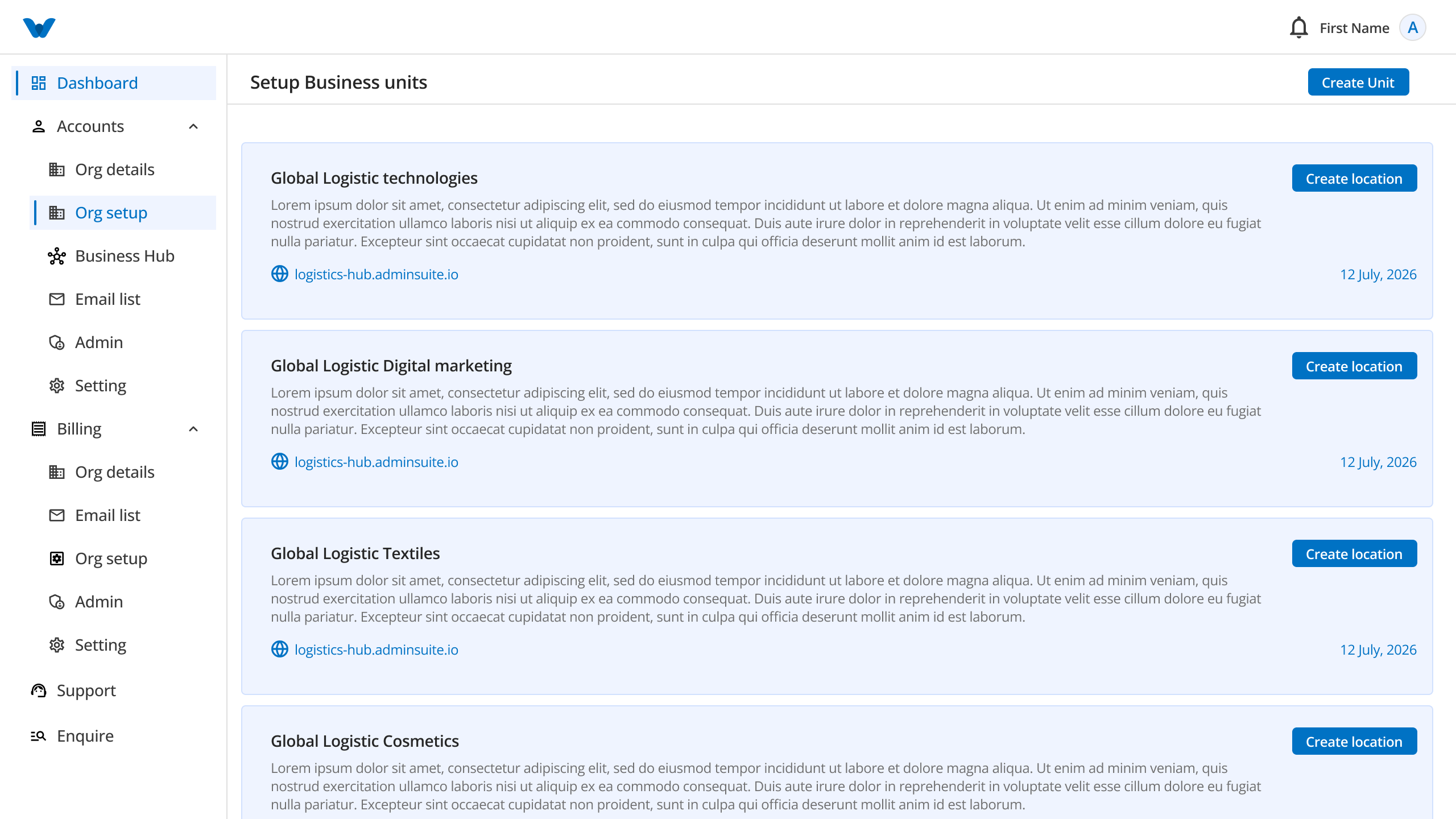
After a business unit is created, it will appear on the screen with its basic information.
For each business unit, you can:
- View its details
- Create one or more business locations
Click Create Location to continue.
Step 2: Create a Business Location
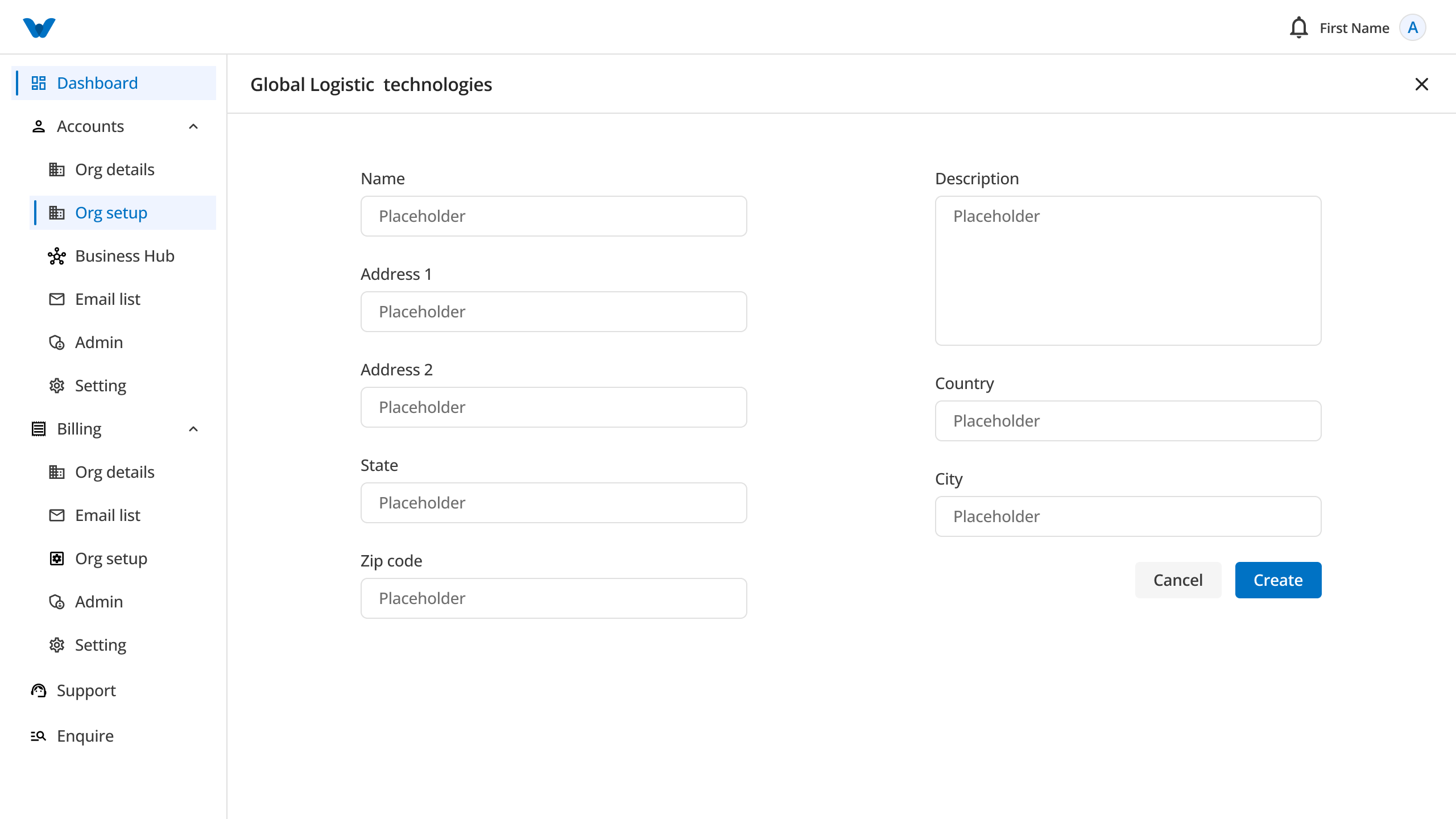
A business location represents a physical office, branch, warehouse, factory, or any workplace that belongs to the selected business unit.
Enter the following details:
- Location Name
- Description
- Address Line 1
- Address Line 2 (Optional)
- Country
- State
- City
- ZIP Code
After entering the required information, click Create Location.
You can create multiple locations under the same business unit whenever needed.
View Login Credentials
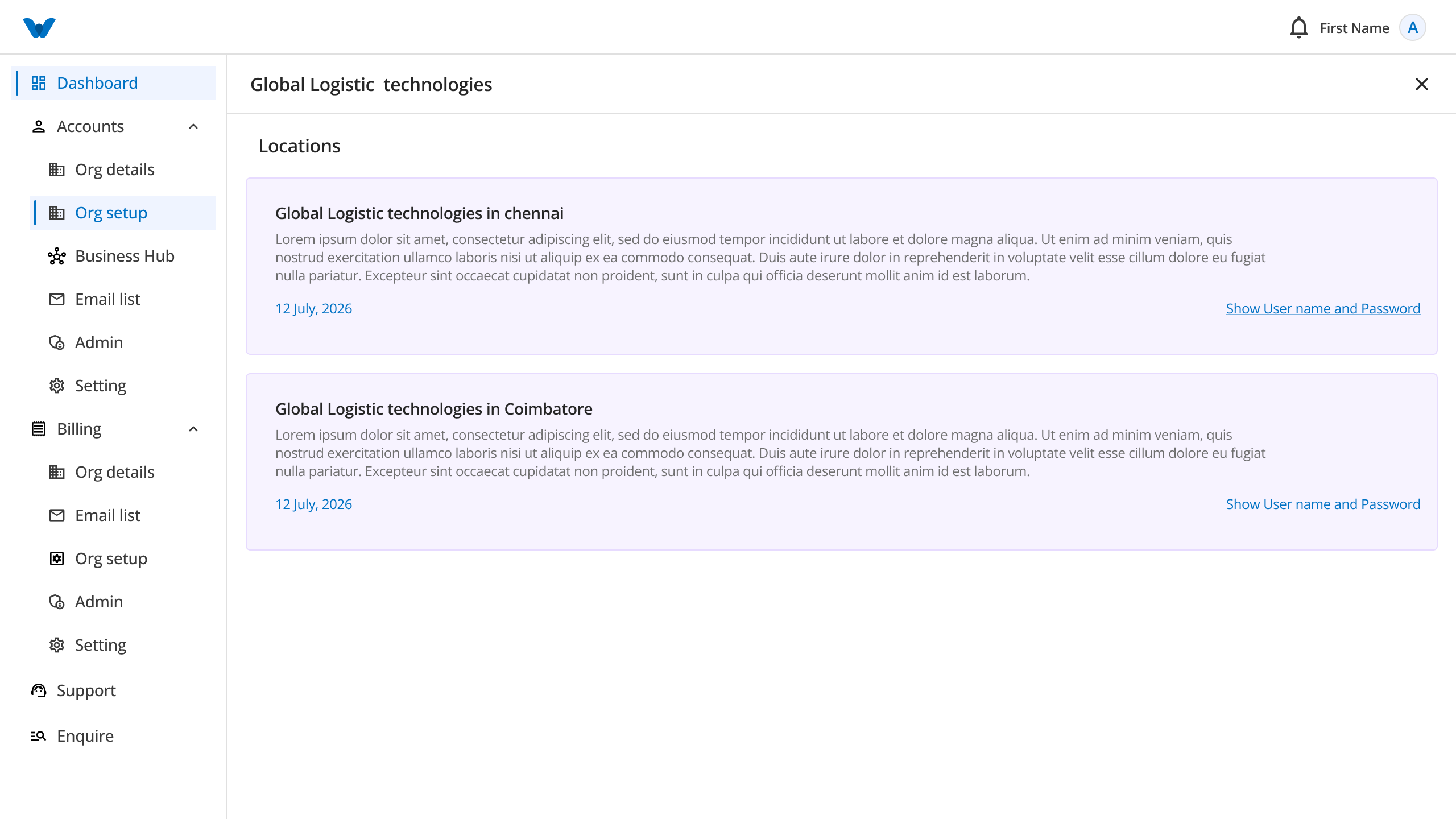
Once a business location is created, the system automatically creates login credentials for that location.
Click Show Email and Password to view the generated credentials.
The following information will be displayed:
- Email Address
- Password
These credentials can be used to log in to eOffice.
Edit Login Credentials
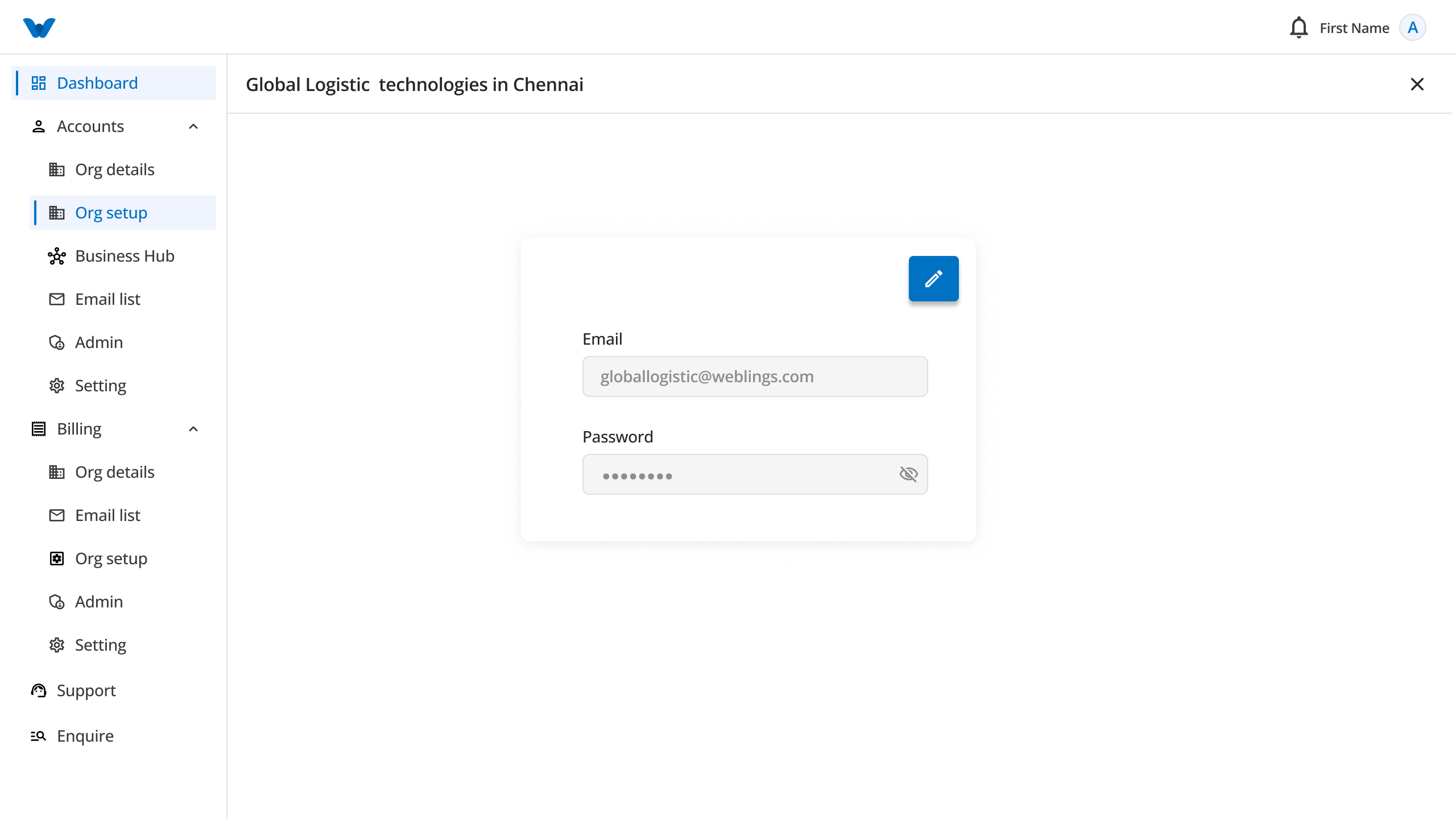
If you need to update the login credentials for a business location, click the Edit icon.
You can update the following information:
- Email Address
- Password
Update Email Address
Enter a valid email address that will be used to sign in to eOffice.
Make sure the email address:
- Is entered correctly.
- Is active and accessible.
- Can receive important notifications, if required.
Example:
chennai.office@company.com
Update Password
Create a strong password to keep the account secure.
Your password must meet the following requirements:
- Be at least 8 characters long.
- Include at least one uppercase letter (A–Z).
- Include at least one lowercase letter (a–z).
- Include at least one number (0–9).
- Include at least one special character, such as **! @ # $ % & **.
Example of a strong password:
Office@123
Tip: Avoid using personal information, such as your name or date of birth, in your password.
Save Your Changes
After updating the email address or password, click Confirm.
If all the information is valid, the updated login credentials will be saved successfully.
You can now use the new email address and password to sign in to eOffice.
Sign in to eOffice
Use the email address and password assigned to the business location to sign in to eOffice.
Each business location has its own login credentials.
Setup Complete
Congratulations!
You have successfully completed the organization setup.
Your organization is now ready to use.
You can continue by:
- Creating additional business units
- Adding more business locations
- Sharing login credentials with the appropriate users
- Signing in to eOffice
Quick Setup Flow
Create Organization
        ↓
Create Business Unit
        ↓
Create Business Location
        ↓
View Login Credentials
        ↓
Edit Credentials (Optional)
        ↓
Sign in to eOffice