
Settings
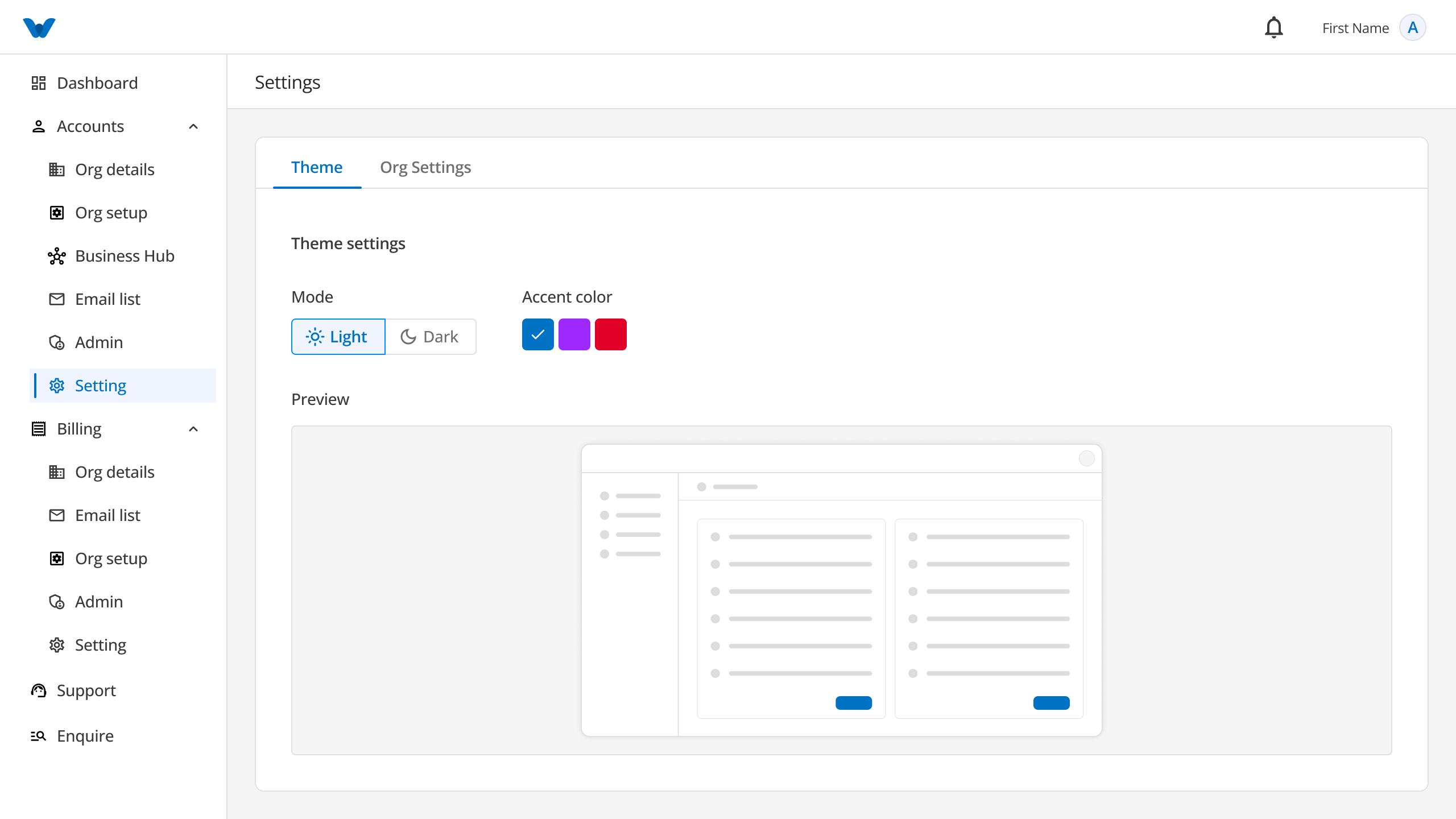
The Settings section allows you to personalize the appearance of the application and manage your organization's preferences.
The Settings page contains two tabs:
- Theme
- Organization Settings
Theme
The Theme tab lets you customize how the application looks.
You can choose the appearance that is most comfortable for you while using the application.
Available Theme Options
Light Mode
Light Mode displays the application using a bright background with dark text. It is ideal for use in well-lit environments.
Dark Mode
Dark Mode displays the application using a dark background with light text. It helps reduce eye strain, especially in low-light environments.
Accent Color
Choose an accent color to personalize the appearance of buttons, menus, and other highlighted elements throughout the application.
Preview
As you select a theme or accent color, a preview is displayed so you can see how the application will look before saving your changes.
Once you are satisfied with your selection, click Save Changes to apply the new appearance.
Organization Settings
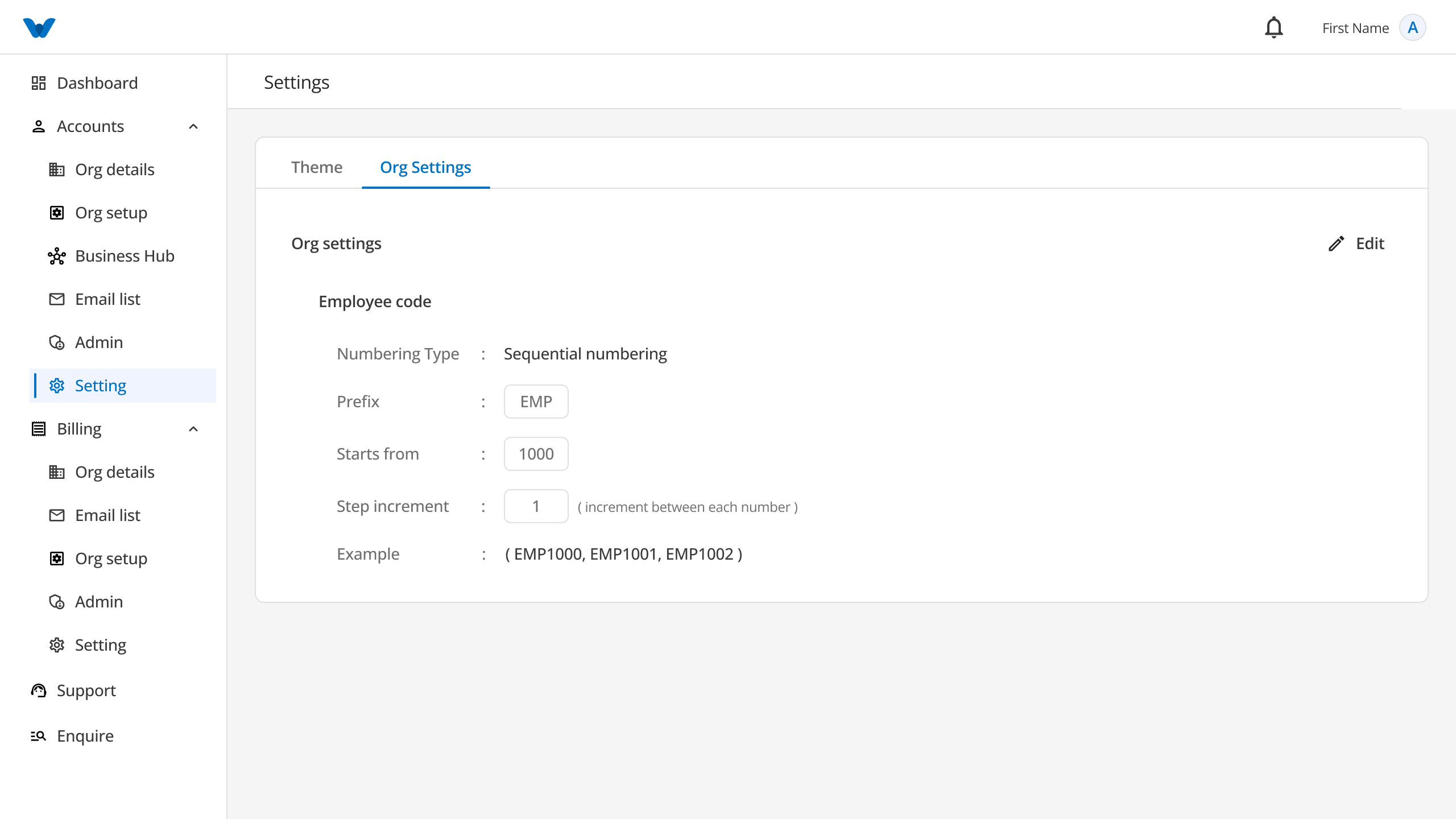
The Organization Settings tab allows you to configure how employee codes are generated within your organization.
Employee codes help uniquely identify each employee.
Employee Code Settings
Numbering Type
Choose how employee numbers should be generated.
For example:
- Automatic Numbering
- Manual Numbering
Prefix
Enter the letters or characters that should appear at the beginning of every employee code.
Example:
EMP
An employee code may look like:
EMP0001
Start From
Choose the starting number for employee codes.
For example, if you enter 1001, the first employee code will begin from that number.
Step Increment
Choose how much the number should increase for each new employee.
For example:
- Start From: 1001
- Step Increment: 1
Employee codes will be generated as:
EMP1001
EMP1002
EMP1003
Example
The Example section displays a sample employee code based on your current settings, allowing you to review the format before saving.
Save or Discard Changes
After making changes to either the Theme or Organization Settings, you can choose one of the following options:
Save Changes
Click Save Changes to apply and save your updates.
A confirmation message will be displayed once your changes have been saved successfully.
Discard
Click Discard if you do not want to keep your changes.
Any unsaved changes will be removed, and the previous settings will remain unchanged.
Workflow
Open Settings
      ↓
Choose Theme or Organization Settings
      ↓
Update Your Preferences
      ↓
Preview Changes (Theme Only)
      ↓
Click "Save Changes"
      ↓
Settings Updated Successfully
Quick Summary
The Settings section allows you to:
- Switch between Light Mode and Dark Mode.
- Select your preferred accent color.
- Preview the application's appearance before applying changes.
- Configure employee code numbering for your organization.
- Save or discard your changes at any time.