
Support
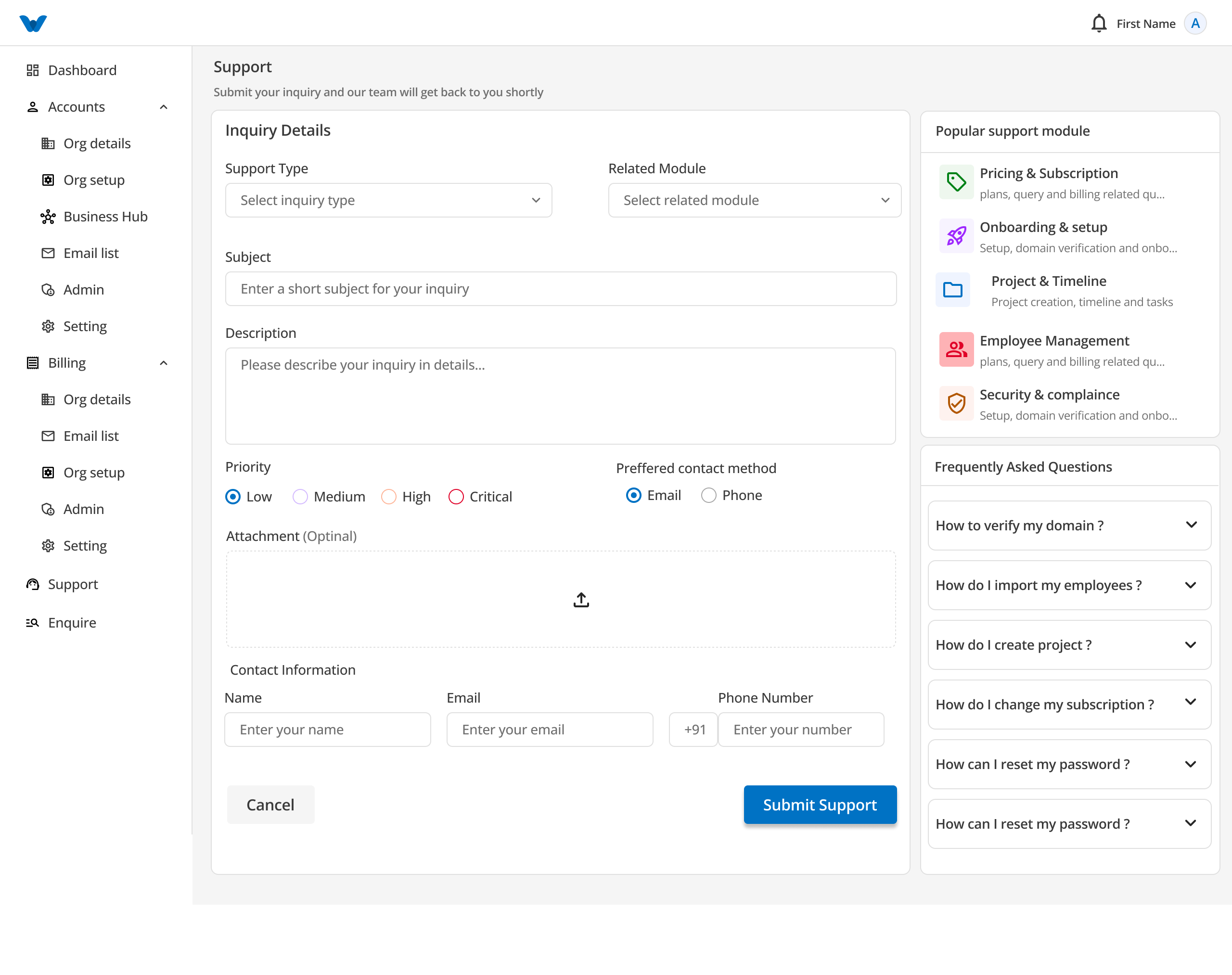
The Support screen allows you to submit technical inquiries, feature requests, or account questions directly to our support team. It also provides quick access to self-help modules and Frequently Asked Questions (FAQ) to help resolve common issues without waiting for a response.
1. Inquiry Form Breakdown
The main section of the Support screen contains the ticket submission form. Fill out the following fields to submit your issue:
Ticket Classification
- Support Type Dropdown: Select the category that best describes your inquiry:
- Technical support
- Billing & Payments
- Account Management
- Feature Request
- Onboarding
- Free Trial
- Security & Complaints
- Related Module Dropdown: Choose the specific platform module experiencing the issue:
- Dashboard (Dashboard, widgets, and analytics)
- Employee (Employee, roles, and hierarchy)
- Project (Projects, tasks, and timeline)
- Timesheet (Timesheet, approvals, and reports)
- Mail (Email, templates, and configurations)
- Chat (Messages, channels, and files)
- Billing (Invoices, payments, and subscription)
- Settings (General settings and preferences)
- Organization (Organization setup and configuration)
- Permissions (Roles, permissions, and access)
Inquiry Content
- Subject: Enter a brief, clear summary of your issue or request (e.g., "Cannot export monthly timesheet PDF").
- Description: Enter detailed notes explaining your problem, steps to reproduce the issue, or specific questions.
Priority & Contact Preferences
- Priority Radio Buttons: Select how urgently your ticket needs to be addressed:
- Low: General questions or non-critical feedback.
- Medium: Standard operational questions or minor issues.
- High: Significant issues impacting daily work.
- Critical: System outages, security concerns, or urgent blocking issues.
- Preferred Contact Method: Select how you want our team to follow up with you:
- Phone
Attachments & Contact Information
- Attachment (Optional): Drag and drop screenshots, log files, or documents into the upload box (or click the upload icon
☁️/↑to browse files). - Contact Information Fields:
- Name: Enter your full name.
- Email: Enter your active email address for ticket updates.
- Phone Number: Select your country code (e.g.,
+91) and enter your direct phone number.
2. Form Buttons & Actions
- Submit Support / Submit Ticket: Click this blue button to finalize and send your inquiry ticket to the support team.
- Cancel: Click this button to clear all filled fields and reset the form.
3. Popular Support Modules & Self-Help FAQ
The right sidebar provides quick self-service resources:
Popular Support Modules
Click on any module card to read quick reference guides and troubleshooting articles:
- Pricing & Subscription / Billing: Invoices, payments, and subscription plans.
- Onboarding & Setup: Domain verification and account setup.
- Project & Timeline: Task management, timelines, and project setup.
- Employee Management: Roles, access permissions, and hierarchy.
- Security & Governance: Security settings and domain policies.
Frequently Asked Questions (FAQ)
Click the arrow ∨ next to any question to expand and read the answer directly on screen:
- How to verify my domain?
- How do I import my employees?
- How do I create a project?
- How do I change my subscription?
- How can I reset my password?
← PreviousFAQ
Next →FAQ